 Getting Started
 Products
 Designs
 Templates
 Configuration
 Printing
 Orders
 Inventory Management
 Settings
 Packages
 Uninstallation
 Tutorials
 FAQ
FAQCustomer Saved Designs
With Inkybay, customers can save their custom designs directly from the designer tool and receive the saved design URL via email. They can return anytime by visiting the link to edit their design or place an order later. As an admin, you can easily view and manage all saved designs from the Inkybay dashboard.
Where to Find Customer-Saved Designs
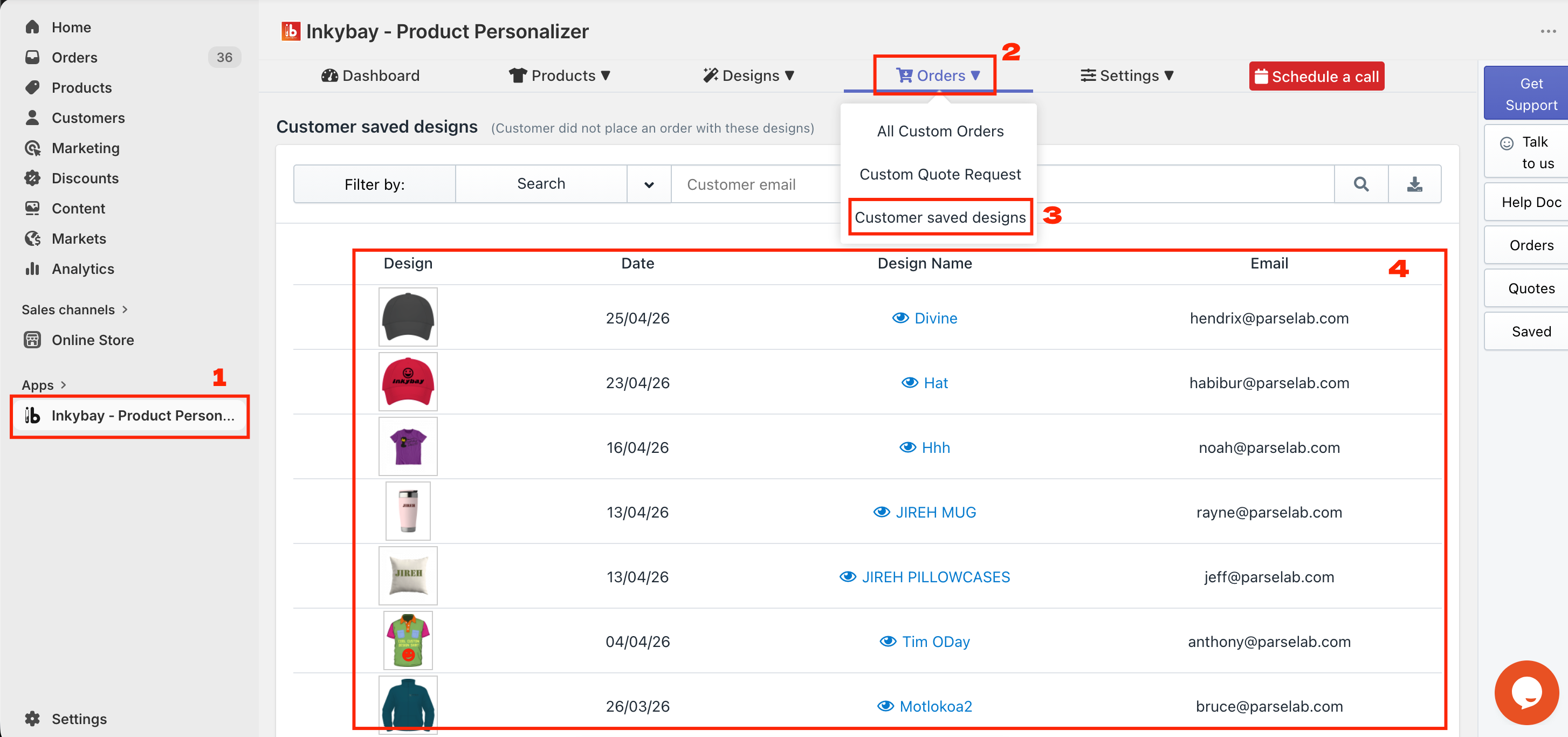
To access the saved designs,
Open the Inkybay App
Hover on Orders
Select Customers Saved Designs
You will see all the saved designs by your customer
This page gives you a complete overview of every design saved by your customers.
Here's a quick breakdown of what you'll find:
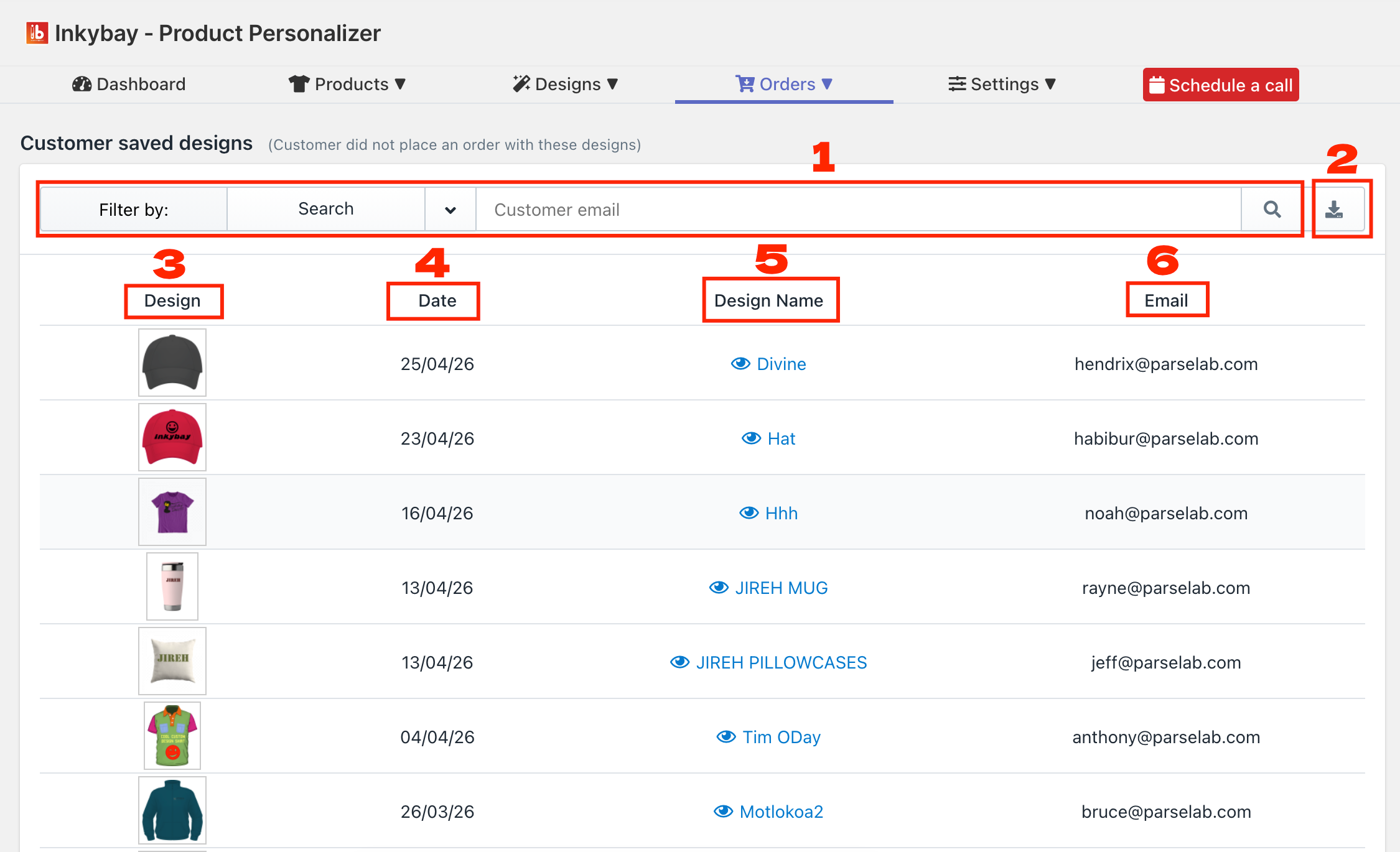
A Filter box allows you to search for saved designs using the customer’s email address. It can also be used to sort by date.
Export all customer saved designs and email addresses as a CSV file.
Click on the Design image to view the design preview in full screen.
Displays the Date when the design was saved.
Click on the Design Name to open the design in the design tool page.
Shows the Email address of the customer who placed the order.
Export Customer Saved Designs, Including Customers Emails
You can export all your customers' saved designs as a CSV file, which includes the Date, Design Name, Email, and saved design URLs.
📝Note Customers can save their design on the designer tool. You can download, but can’t delete a saved design. |
Still, if you need help, feel free to contact us. Our support team will be happy to help you.
You can always reach us via
Support ticket from Inkybay app
Live Chat in Inkybay app
Direct email to support@productsdesigner.com
So, Good Luck! And happy selling with Inkybay.