InkyBay DocsInkyBay Docs
Submit a Ticket
shopify app store
  • Visit InkyBay Website
  • Privacy Policy
  • Terms of Service

Β© 2026 InkyBay. All rights reserved.

Powered by

ParseLab, LLC
  • category-iconGetting Started
  • category-iconProducts
  • category-iconDesigns
  • category-iconTemplates
  • category-iconConfiguration
  • category-iconPrinting
  • category-iconOrders
  • category-iconInventory Management
  • category-iconSettings
  • category-iconPackages
  • category-iconUninstallation
  • category-iconTutorials
  • category-iconFAQ
Category
  • category-iconGetting Started
  • category-iconProducts
  • category-iconDesigns
  • category-iconTemplates
  • category-iconConfiguration
  • category-iconPrinting
  • category-iconOrders
  • category-iconInventory Management
  • category-iconSettings
  • category-iconPackages
  • category-iconUninstallation
  • category-iconTutorials
  • category-iconFAQ
Products-icon Products
Configurable Products
2 min to read
Last Update on 05 May 2026

What Is a Configurable Product in InkyBay?

A configurable product is a product that allows customers to personalize different parts (panels) of the product individually in real-time.

Instead of applying a single design or color to the whole product, customers can customize it section-by-section, giving them more control and flexibility.
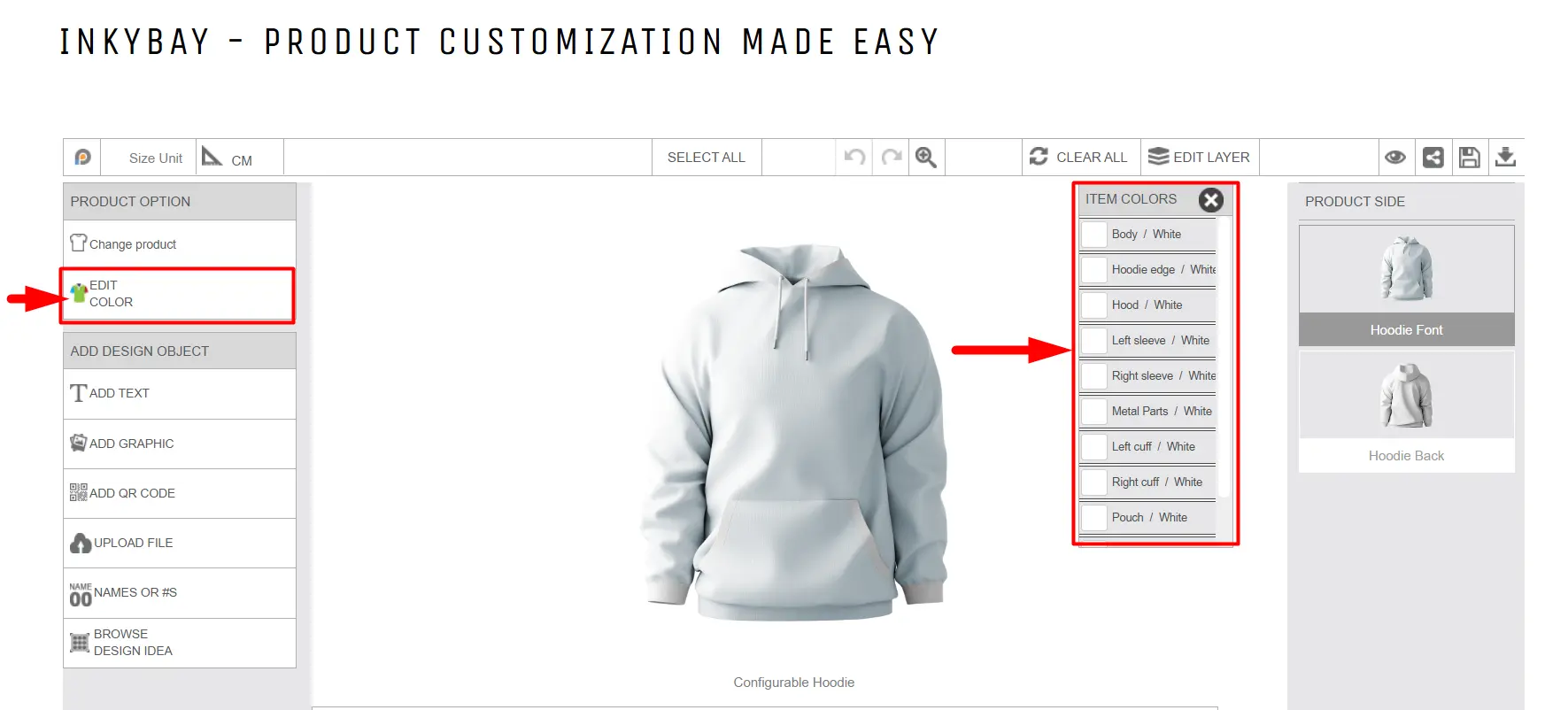
How it works

A configurable product is built using:

  • Multiple panels or parts (e.g., front, back, sleeves)

  • Color sets are assigned to each panel

  • Groups are assigned to each panel/part

  • Printable areas for adding text, images, or designs

Each panel can behave independently or be connected with others, depending on how it’s configured.
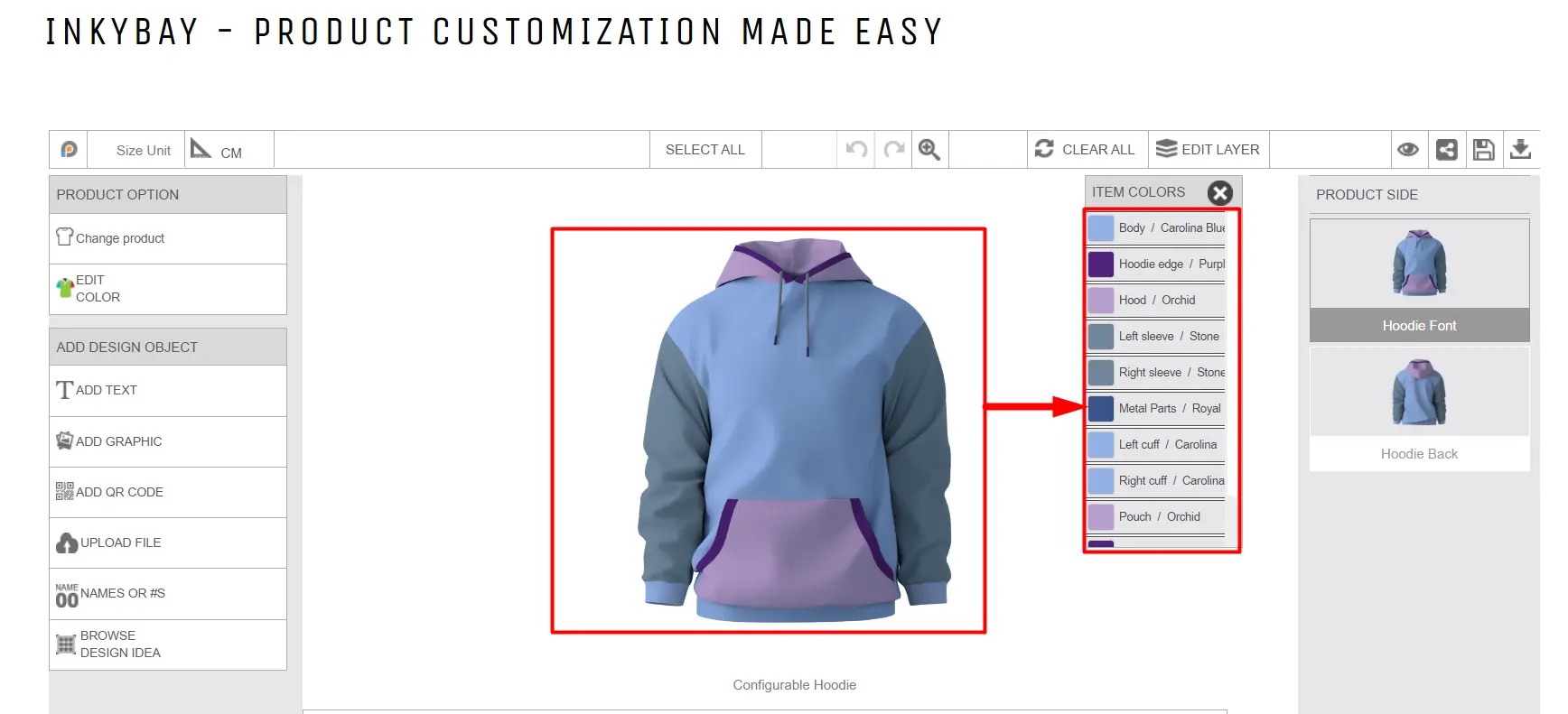
What customers can do

With a configurable product, customers can:

  • Change colors on specific parts of the product

  • Apply the same color across multiple linked panels

  • Add text or designs to defined areas

  • See all changes instantly in the live preview

Example

A custom Hoodie:

  • Front panel β†’ choose color

  • Back panel β†’ choose a different color

  • Sleeves β†’ linked together (same color applies to both)

  • Add name and number β†’ only on specific print areas

Still, facing difficulties or need help? Feel free to contact us. You can also reach us:

  • InkyBay app Live chat 

  • Support ticket from the InkyBay app

  • Email to support@productsdesigner.com

Did this post help you?
Next article

How to Create Configurable Products Using InkyBay

Related Articles

  • How to Create Configurable Products Using InkyBay
  • Configurable Products vs. Custom Products

Related Articles

  • How to Create Configurable Products Using InkyBay
  • Configurable Products vs. Custom Products