InkyBay’s Basic Pricing option within the + Add/Edit Printing Types section. With this option, you can set up customization charges for printed products, handle fixed-fee structures, initial charges for customer-added elements, basic per-square-inch pricing, and more.
Below, we’ve discussed all the settings details based on the numbers as highlighted in the image below:
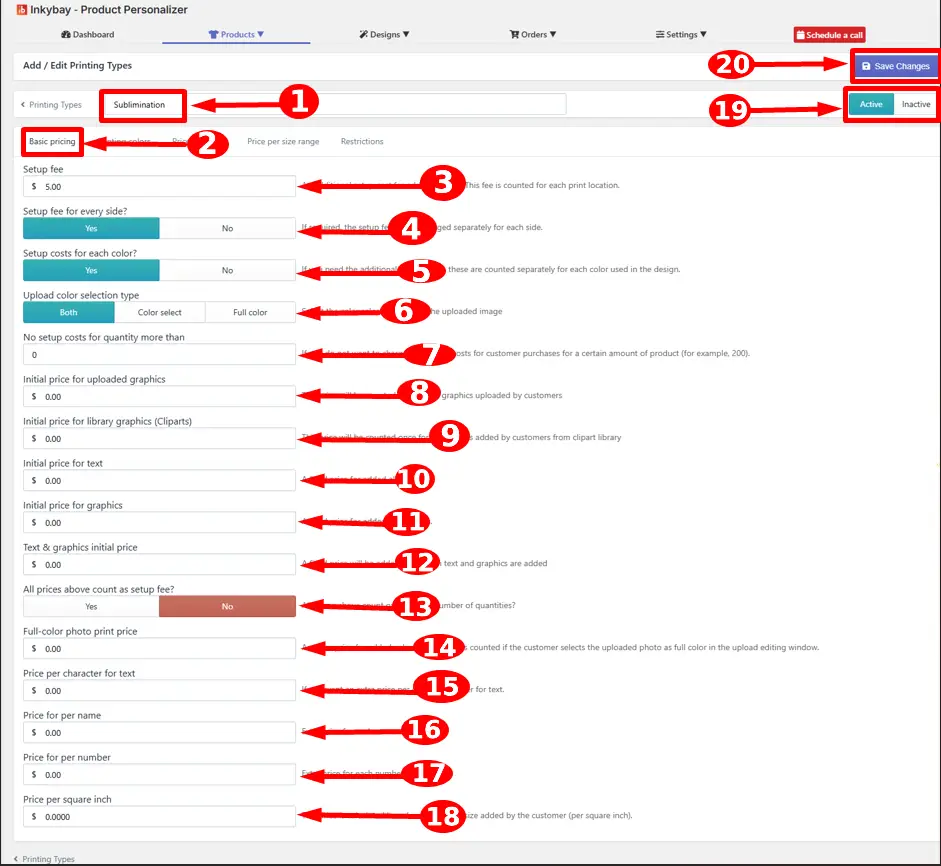
Printing type name - In which print type you select it is shown here. If you want to add a new one or edit an existing one, just enter the name of your desired printing type.
Basic pricing tab - Click the basic pricing option.
Setup fee - Enter the base setup fee charged for every design submission that includes any added design elements. Counted twice only if the customer adds any design. It counts once for a product and is split among the quantity.
|
🎯Note This fee applies per print location. If your product has two print locations (e.g., Front and Back), the setup fee is counted twice. |
Setup fee for every side? - Select Yes, if you want to apply extra setup fee to each printable side individually. Otherwise, select No, a single setup fee is applied once per product, regardless of the number of sides used.
Setup costs for every color?
a. Select yes, only if you want the setup fee to be counted separately for every color used on the customer’s added designs/text.
b. Select No, if you want to charge the setup fee only once for the total design (in one print location)
Upload color selection type - This setting determines whether an additional charge is applied based on the image type that customers upload.
Both - Customers can choose either Color Select or Full Color for their uploaded image.
Color Select — Restricts uploaded images to color-select type only. The full-color photo print price is not triggered regardless of the image the customer uploads.
Full Color — All uploaded images are automatically considered as full color. The full-color photo print price configured in the Basic Pricing tab is applied to every uploaded image.
No setup costs for quantity - If you do not want to charge the setup fee for the customer’s purchase over a certain quantity of the product (Ex: 200).
Initial price for uploaded graphics - This price will be counted once for all customer-uploaded graphics.
Initial price for library graphics (cliparts) - This price will be counted once for all customer-uploaded graphics from the clipart library.
Initial price for text - Add price if you want to charge a fixed price for all added text per print location.
Initial price for graphics - Add price if you want to charge a fixed price for all added graphics (from the gallery or the customer uploads) per print location.
Text & graphics initial price - If you want a combined additional price for added text and graphics, add this price. This will count only when customers add both text and graphics.
All prices above count as setup fee? - This setting controls whether all the pricing fields: text initial price, graphics initial price, per character price, per name price, per number price, and similar are counted as a one-time setup fee charged once per order.
Select Yes to set up costs as a one-time charge.
Select No to set up fees for individual customization.
Full-color photo print price - An additional price for the added full-color photos. This will be counted if the customer selects the uploaded photo as full color in the upload editing window.
Price per character for text - Add this price if you want an additional per-character/letter charge for added text.
Price for per name - An additional price is added for every name (with names and number features).
Price for per number - An additional price is added to every number (with names and number features).
Price per square inch - This price will be calculated based on the added design size (per square inch basis).
Active/Inactive - By default, Active is selected. If you want, you can set the status of this printing type to Inactive to disable it.
Save - Click the Save button to store all pricing details for this printing type.
Still, facing difficulties or need help? Feel free to contact us. You can also reach us:
InkyBay app Live chat
Support ticket from the InkyBay app
Email to support@productsdesigner.com
 Getting Started
 Products
 Designs
 Templates
 Configuration
 Printing
 Orders
 Inventory Management
 Settings
 Packages
 Uninstallation
 Tutorials
 FAQ
FAQ