You can organize the quantity discount table data and decide whether to show it on the product page or not. Customize the display data format through custom CSS.
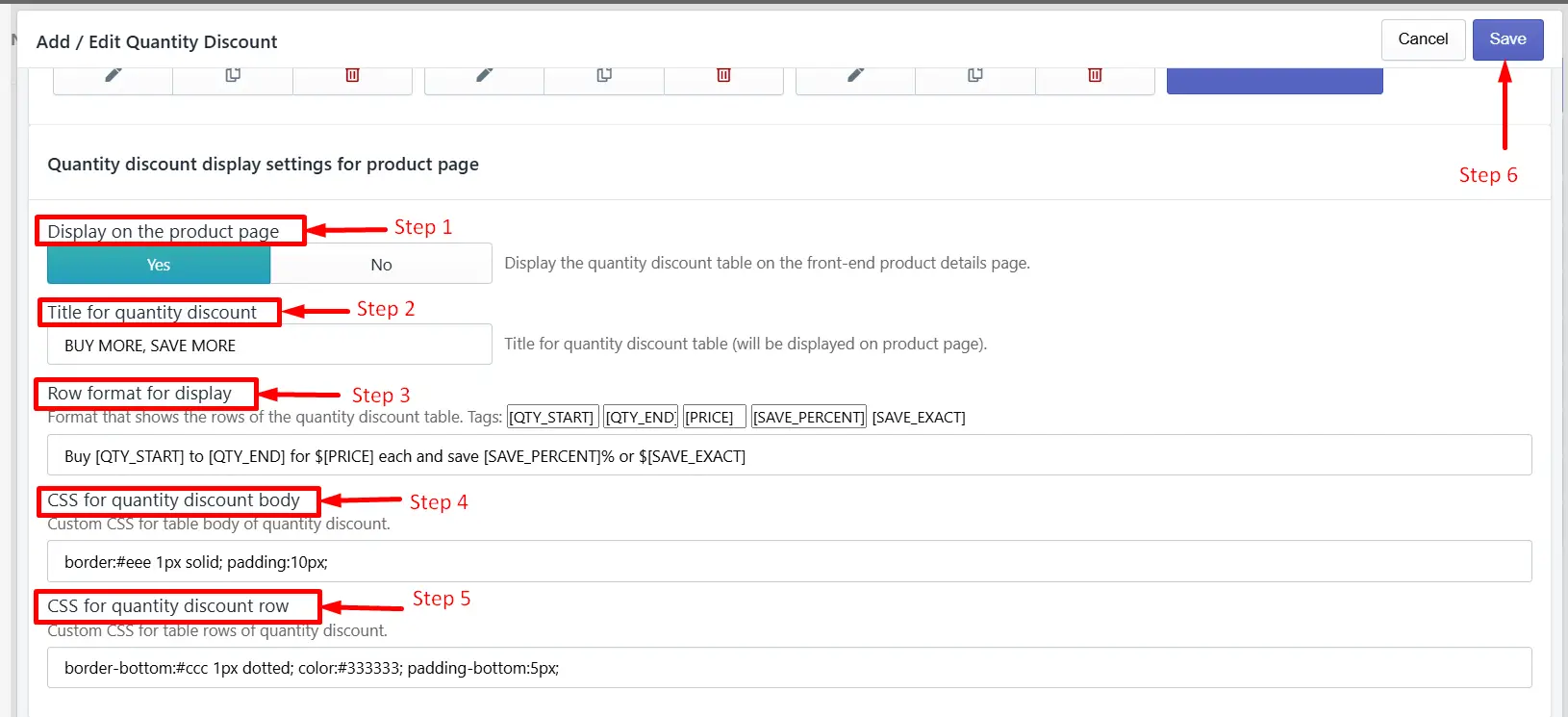
Step 1: Set the status to display the quantity discount table.
Select Yes to show the quantity discount table on the product page. If you do not want to show the table on the product page, select No.
Step 2: Set the Quantity discount title.
Add your preferred quantity discount title to show at the top of the discount table.
Step 3: Discount data display format per row.
You can customize the inner text, currency code, and the data display by using tags.
Step 4: Set the Quantity discount body CSS.
Edit or keep the default CSS for the Quantity discount body.
Step 5: Set the Quantity discount row CSS.
Edit or keep the default CSS for the Quantity discount table body.
Step 6: Save the changes.
Click the Save button to apply the changes.
Feel free to contact us. You can also reach us:
InkyBay app Live chat
Support ticket from the InkyBay app
Email to support@productsdesigner.com
 Getting Started
 Products
 Designs
 Templates
 Configuration
 Printing
 Orders
 Inventory Management
 Settings
 Packages
 Uninstallation
 Tutorials
 FAQ
FAQ