Category
 Getting Started
 Products
 Designs
 Templates
 Configuration
 Printing
 Orders
 Inventory Management
 Settings
 Packages
 Uninstallation
 Tutorials
 FAQ
FAQ 2 min to read
Last Update on 05 May 2026
How to Change and Translate Text Labels in DesignLab
Customers around the world prefer to view content in their native language.
Translating your product designer interface can lead to more sales because your international customers can better understand your product customization and design details.
You don’t need to use third-party apps. InkyBay’s Language & translation settings allow you to translate into your native language and show several languages.
How to add the default language
You can change your InkyBay UI language for the product designer interface (DesignLab) to match your store’s local language. The app supports multiple languages, including English, French, Finnish, Spanish, and others.
English is set as the default language. Let’s take a look at how you can Change Language Settings.
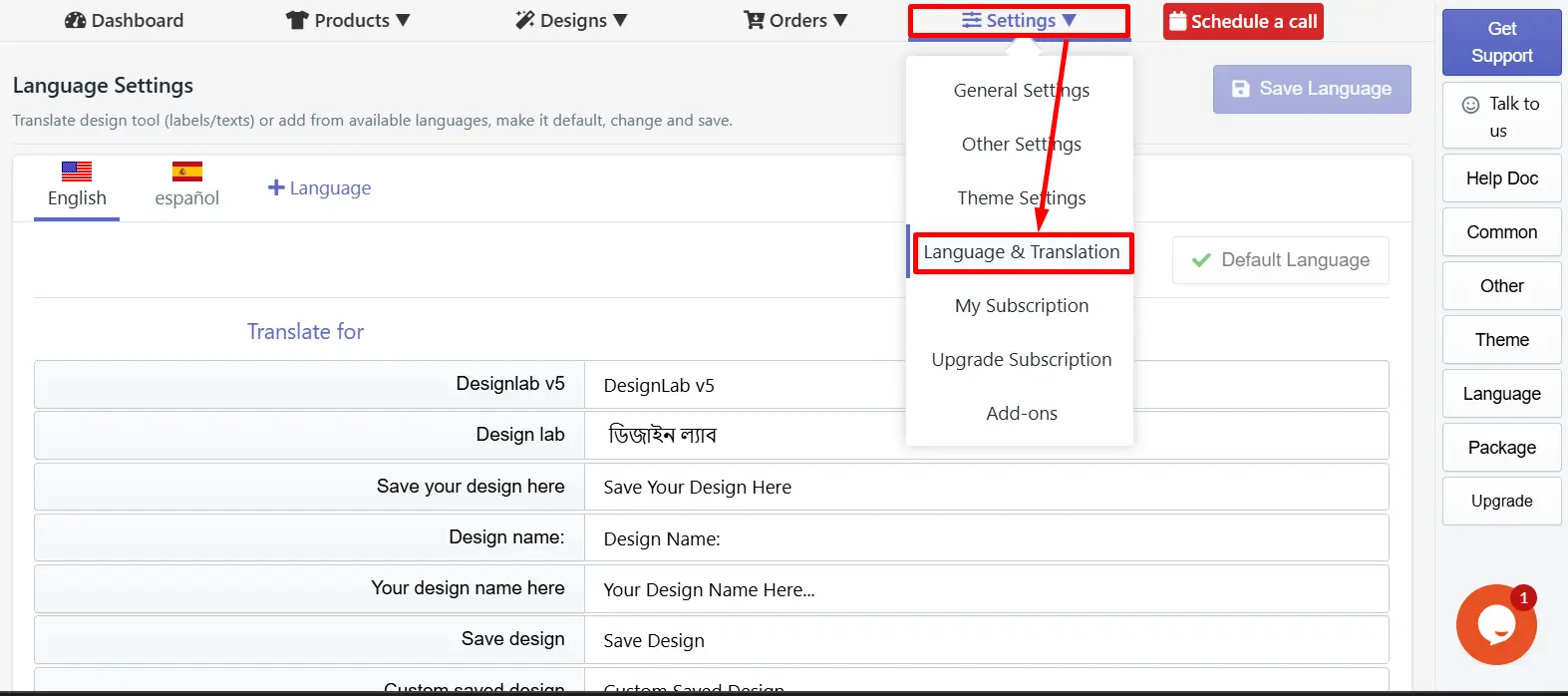
Step 1: From your InkyBay dashboard, go to Settings > Language & Translation.
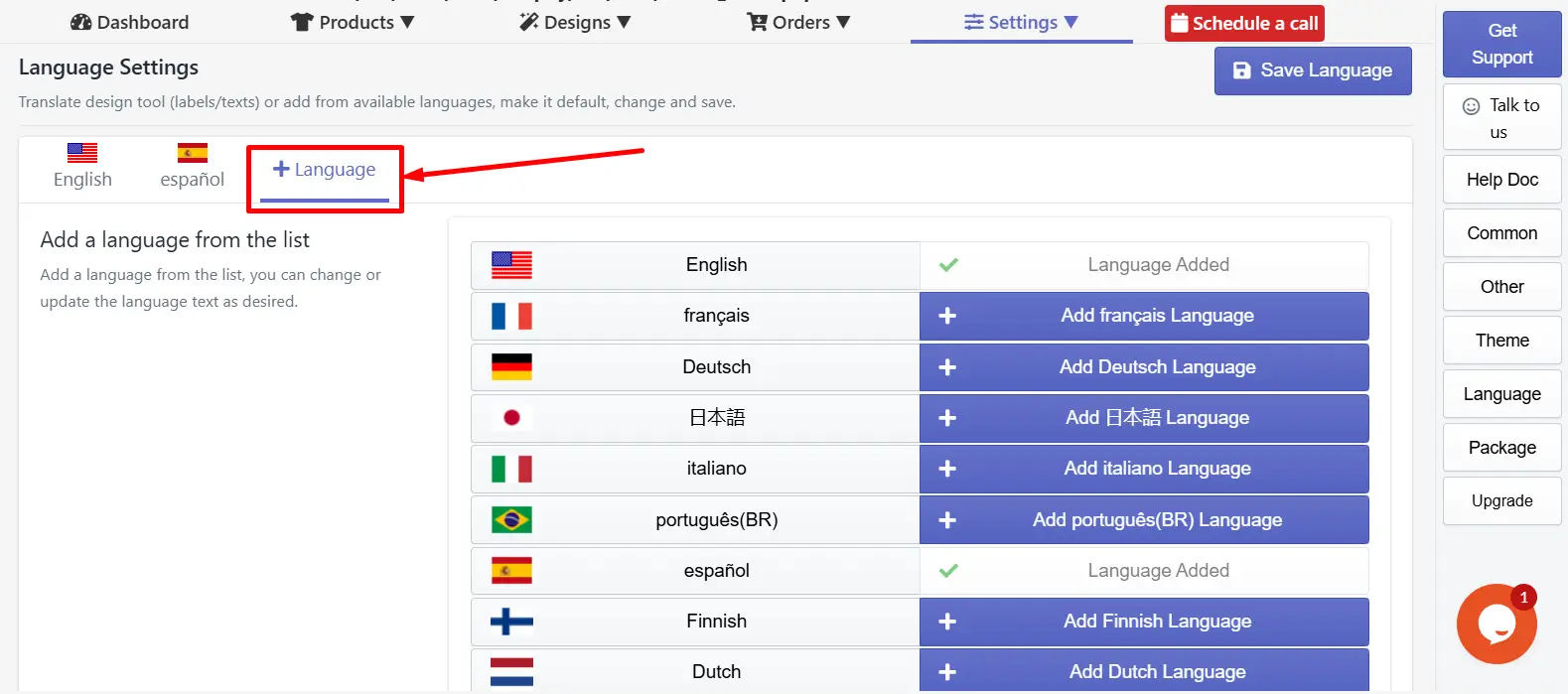
Step 2: Click the +Language to explore available languages.
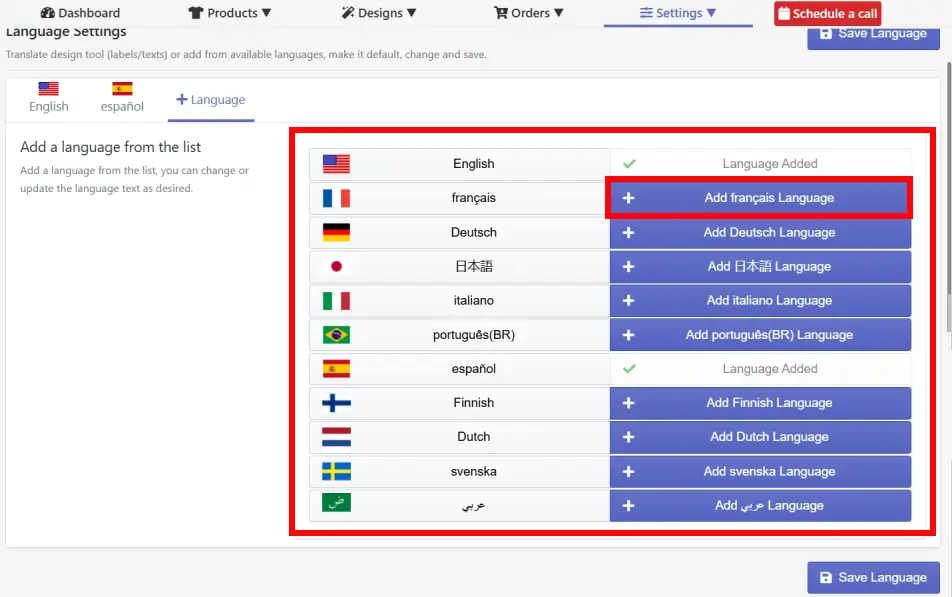
Step 3: Click on +Add Language from the list you want to show in your InkyBay Designlab (real-time product customization tool).
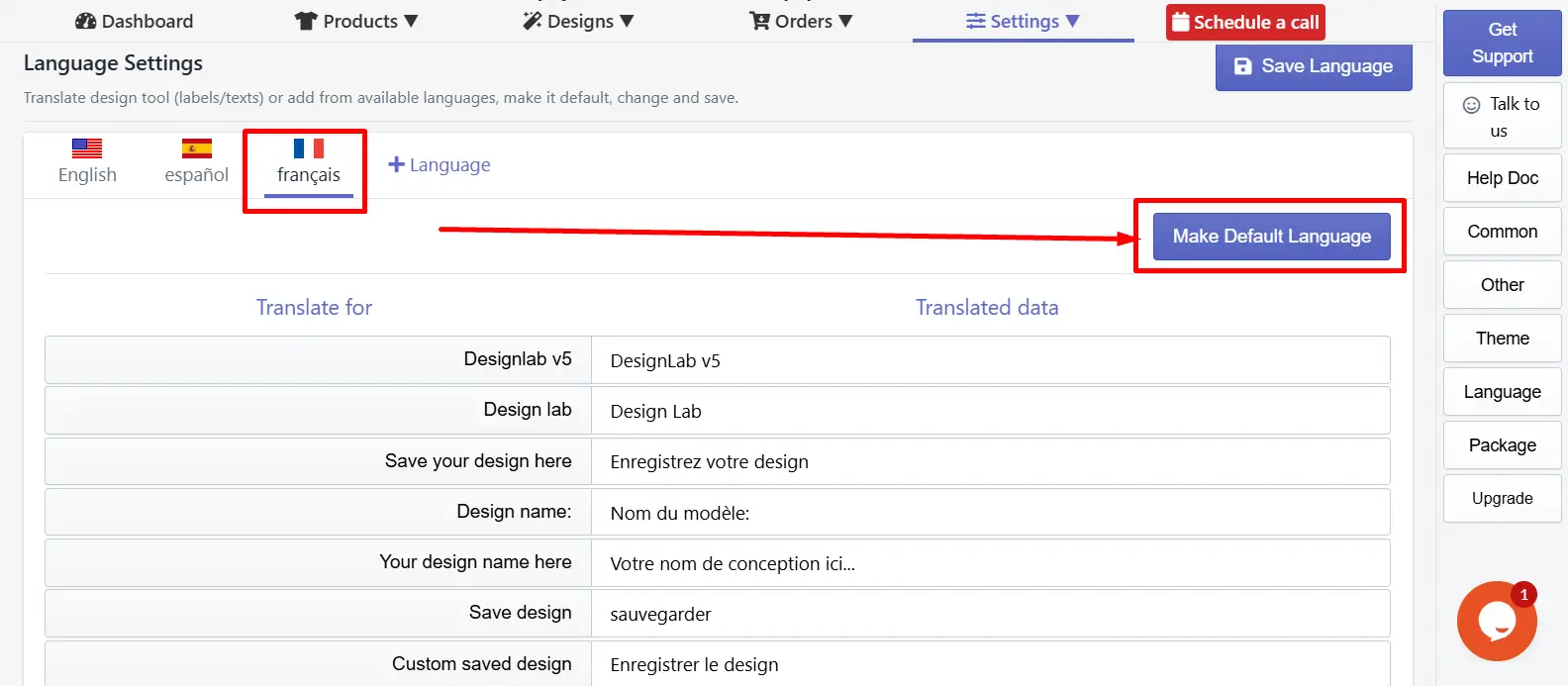
Step 4: Click on your preferred language’s country flag beside +Language and select Make Default Language.
Learn more about InkyBay Settings. |
Translations available for the product designer tool
Professional Translations are available for the following Languages in Inkybay for the Designlab.
English
français
Deutsch
日本語
Italiano
português(BR)
español
Finnish
Dutch
Svenska
عربي
Customize the Translated Data
As you’ve already discovered, the Translated Data changes based on the default language.
If you want, you can edit all the translated data manually
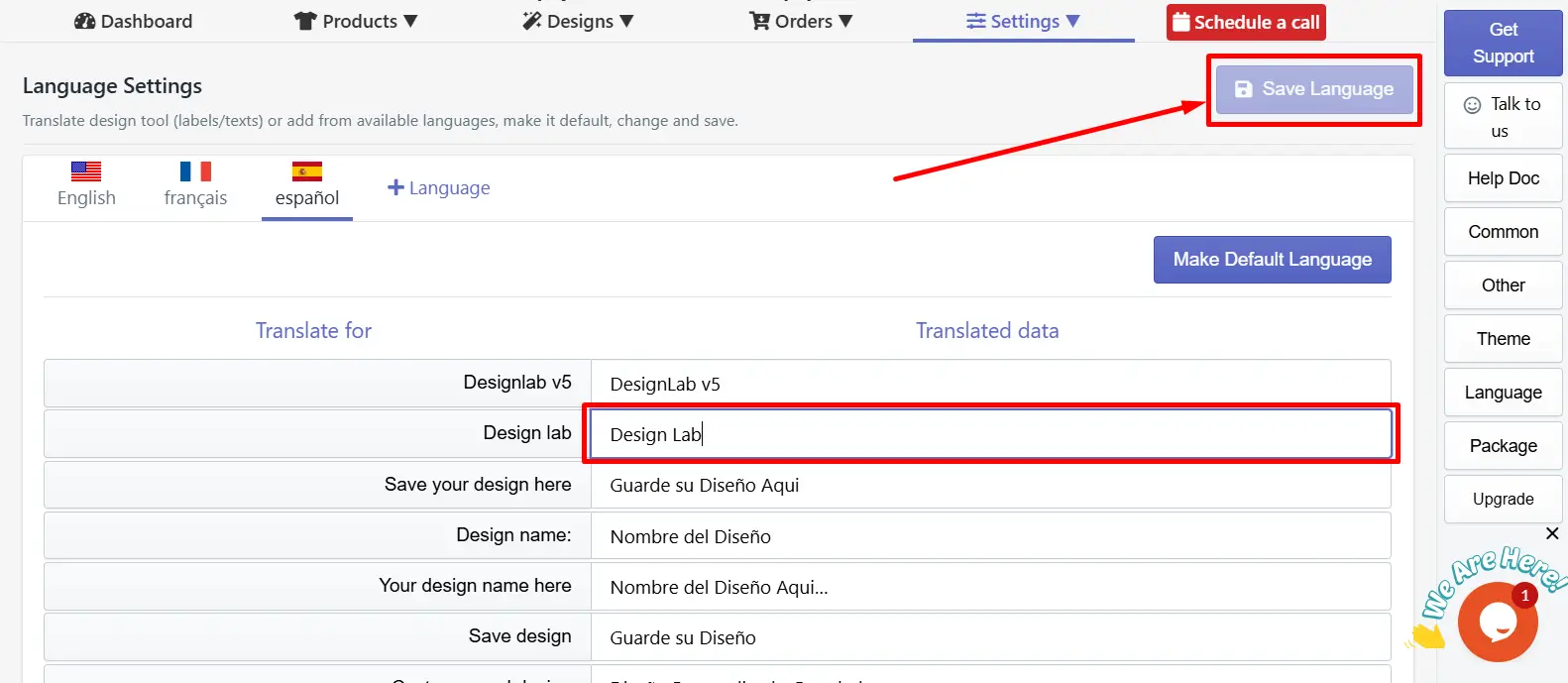
Step 1: Click the respective label on the Translated Data tab that you want to change. Type the custom text that you want to show in your product designer tool.
Step 3: Click the Save Language button to save the change.
📝Note All these language changes will be effective in the designer tool. |
Feel free to contact us whenever you face any issues or need assistance. We’re available 24/7. You can also reach us:
InkyBay app Live chat
Support ticket from the InkyBay app
Email to support@productsdesigner.com
Did this post help you?