Category
 Getting Started
 Products
 Designs
 Templates
 Configuration
 Printing
 Orders
 Inventory Management
 Settings
 Packages
 Uninstallation
 Tutorials
 FAQ
FAQ 5 min to read
Last Update on 06 May 2026
How to Manage Inventory with InkyBay
This feature is specifically designed for custom products, allowing you to track stock levels, prevent overselling, and manage variant combinations (sizes, colors, styles) within the product customizer.
|
🎯Important It is available only for "Advance, Professional, or Unlimited plan" users. You’ll notice the section under restrictions while you are editing the products in the Inkybay admin |
Where to go to configure inventory?
The inventory management system is for custom products. Go through the following steps to find out the inventory options.
Step 1: Access to your custom product
Navigate to your InkyBay admin dashboard, hover over the Products option, and click Create a custom product option.
Step 2: Navigate to the custom product.
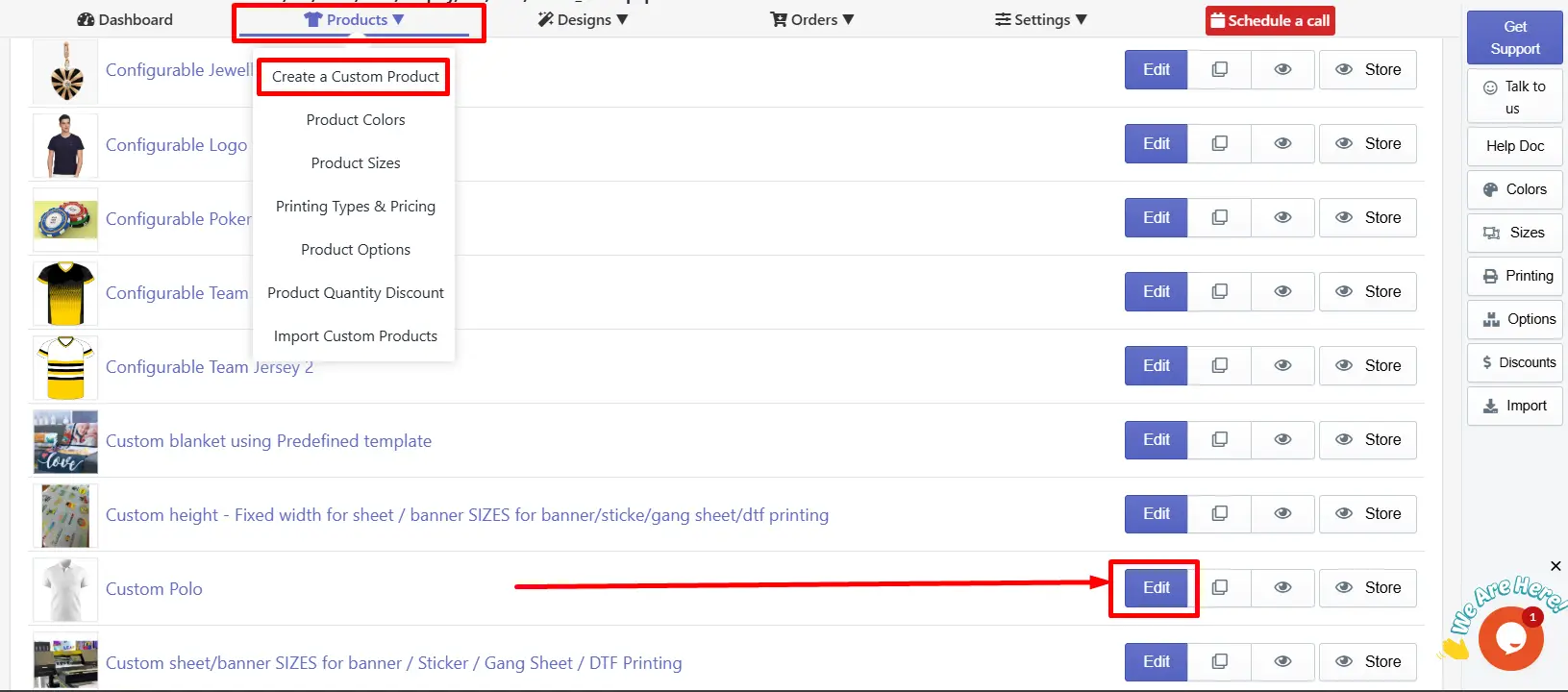
Select your custom product and then click the Edit button as shown in the image above.
Step 3: Access the Inventory section.
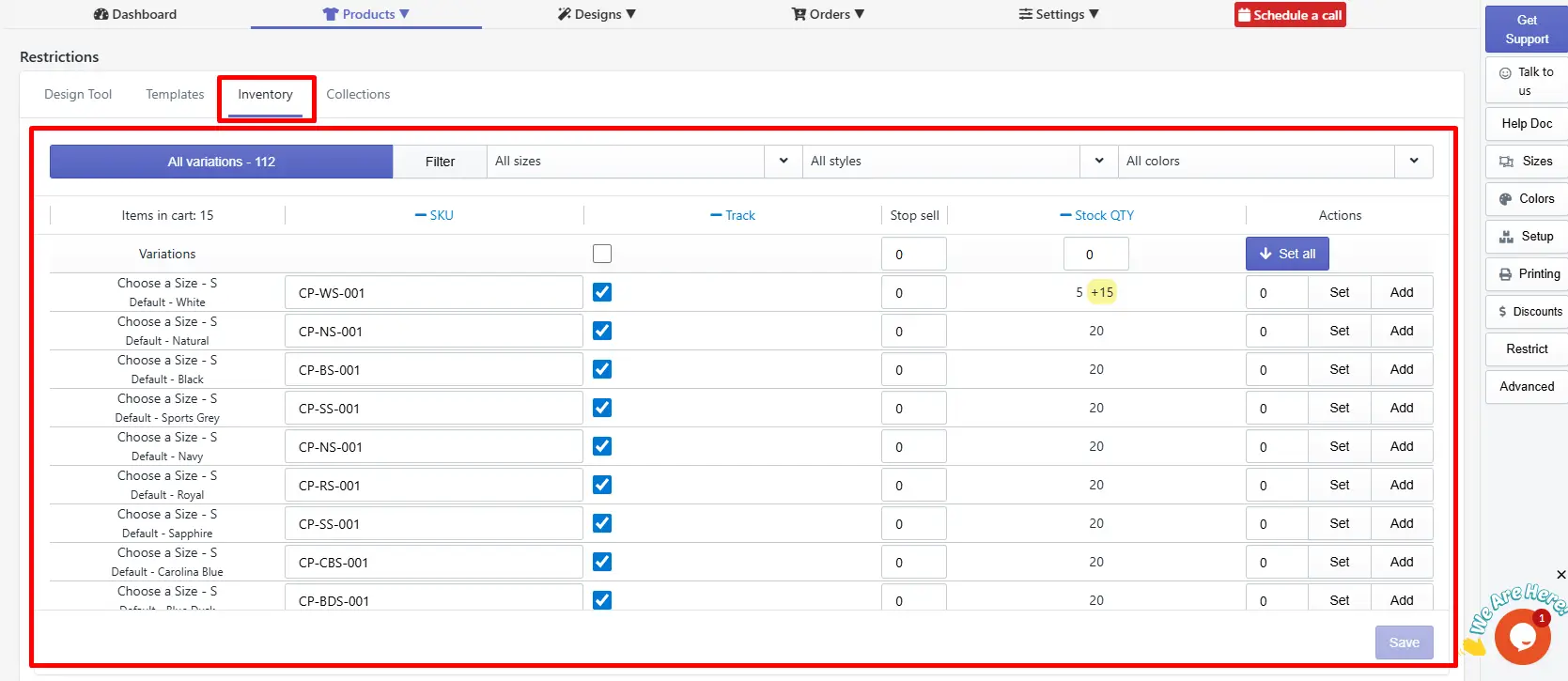
Scroll down to the Restrictions section and click the Inventory option there. You’ll see several settings, including:
-
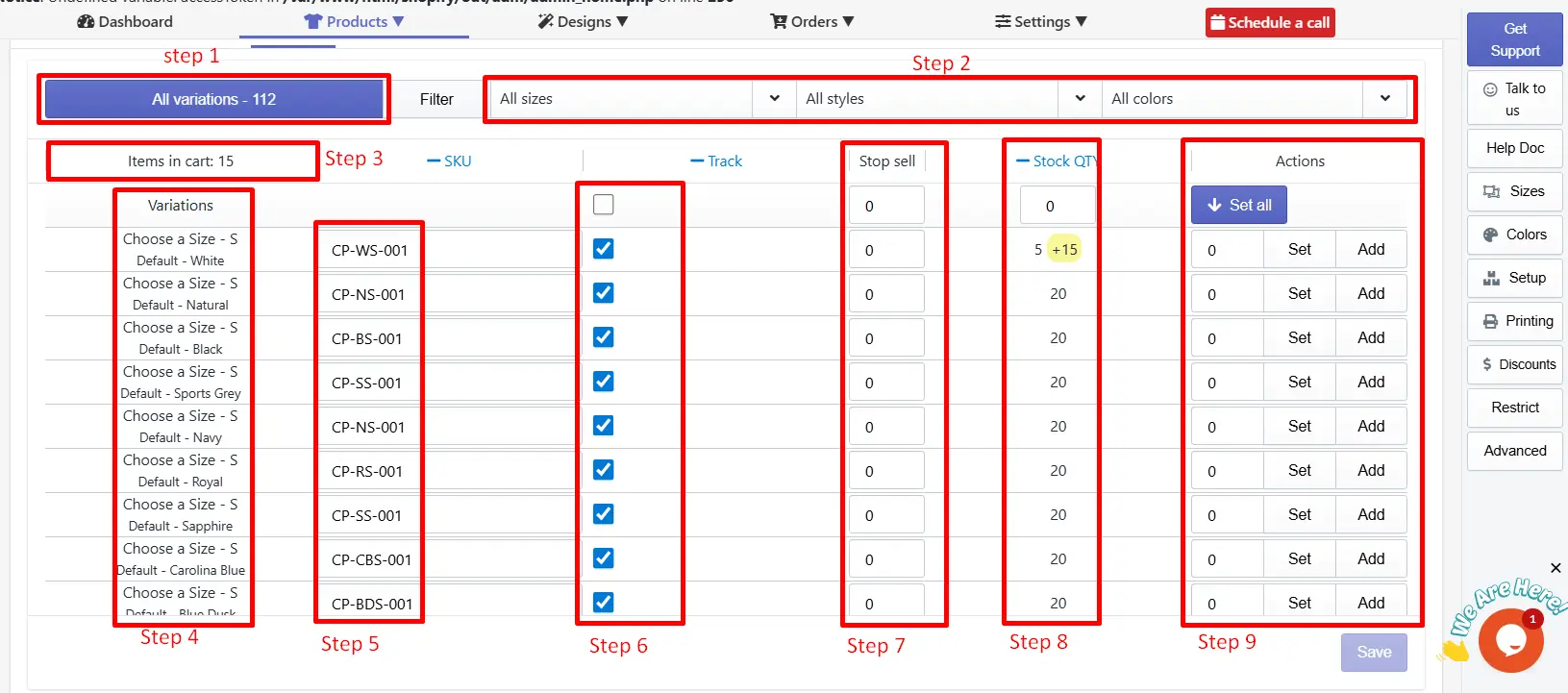
All variations tab - The section displaying the total number of product variations available for your selected custom product. Here, you see all variations - 112
|
🎯Important The variations count all sizes, colors, and style combinations that exist for the product. |
-
Filter dropdowns - Use the three filter dropdowns: All sizes, All styles, and All colors, for the variation list to a specific subset.
|
🎯Important It is useful when managing a large number of variations for a product and wanting to update a specific size, color, or style group at a time. |
-
Search variants using Filter: The Filters are very helpful when you have a large number of variations. You can search for the variant you are looking for using the filters. You can filter data to display minimal by Size, Style, and Colors.
-
Items in cart - It will display the number of units of this product currently in active customer carts. For example, Items in cart: 15. This gives you a real-time view of pending demand that has not yet converted to an order, which is helpful when making stock adjustment decisions.
|
📝Note If the product remains in the cart for more than 24 hours, then it will be removed, and the inventory count will be updated accordingly. |
-
SKU - Enter the SKU (Stock Keeping Unit) code for each variation in the corresponding field. The SKU is used to identify and match this variation in your inventory records and fulfillment workflow.
|
📝Note If the SKU field is left blank, Inkybay defaults to the primary SKU assigned to the product in Shopify. This Shopify-defined SKU will then be displayed in the order output file. |
-
Track - Check the Track checkbox to enable inventory tracking for a specific variation. When tracking is enabled, Inkybay monitors the stock quantity for that variation and enforces the stop-sell threshold and stock quantity values configured to the right.
|
🎯Important When the quantity of a product is 0, then it will show “out of stock” for the product on the front end. Uncheck the box for variations that don't require stock tracking. |
-
Stop Sell - Enter the minimum stock quantity at which this variation should stop being available for purchase. When the stock quantity reaches or falls below this number, the variation is automatically marked as unavailable, and customers can no longer add it to their cart.
|
🎯Tips Suppose the Stop Sell value is set to 0 for both variations, meaning the product remains available until stock reaches zero. |
-
Stock QTY - Displays the current stock quantity for each variation. This value updates as orders are placed. In the example:
- Default - White shows a stock of 5 with a +15 indicator highlighted in yellow — meaning 15 units have been added to the cart by the customers but not ordered yet. After 24 hours, if the customer doesn’t place the order, these items will be removed from the cart automatically and added to the inventory, and then the stock will show 20.
- Default - Natural shows a current stock of 20.
|
🎯Tips The yellow +15 badge is a preview of the total items remaining in the customer's cart. After 24 hours, the stock will be adjusted in the inventory automatically if the customer doesn’t place the order. |
-
Actions - Set and Add Use the input field and action buttons on the right of each variation row to update the stock quantity.
- Set - Replaces the current stock quantity with the number entered in the input field. Use this to correct or override the existing stock count with a new absolute value.
- Add - Adds the number entered in the input field to the current stock quantity. Use this when restocking a variation - for example, entering 15 and clicking Add increases the current stock by 15 units.
Step 4: All Set! Save the changes.
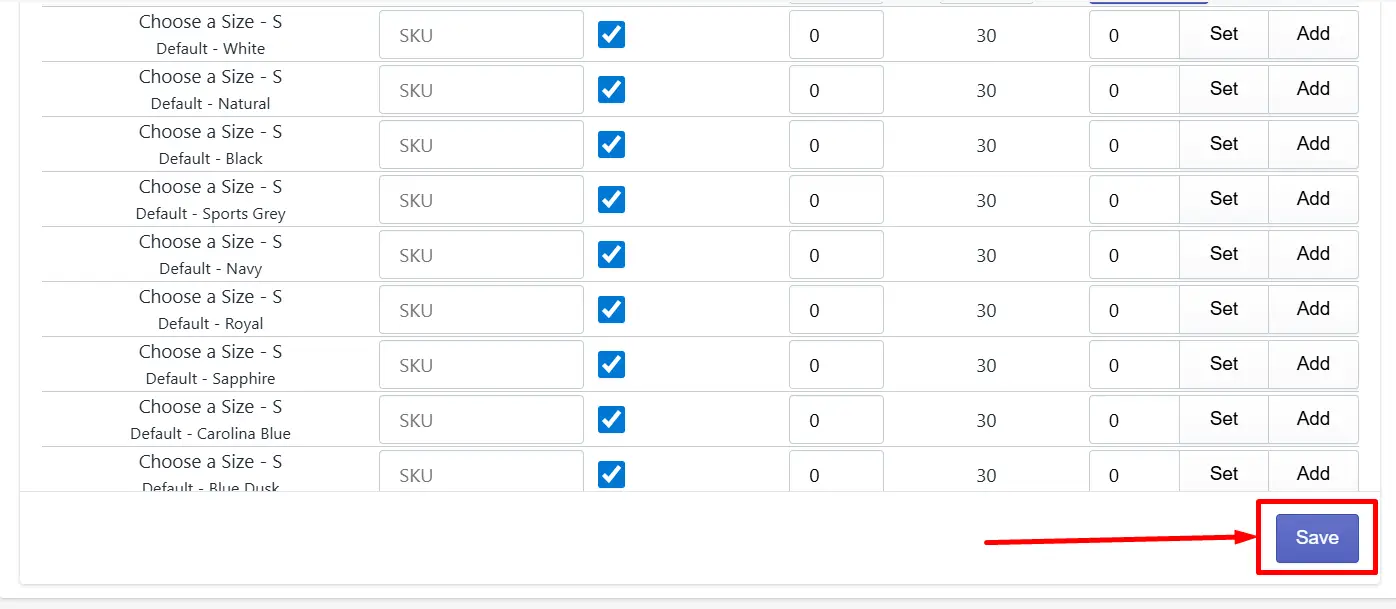
Click on the save button below to save the changes in Inventory.
|
🎯Note Enter the adjustment value in the input field first, then click either Set or Add to apply it. Click Save in the bottom-right corner to confirm all stock changes before navigating away. |
Feel free to contact us whenever you face any issues or need assistance. We’re available 24/7. You can also reach us:
-
InkyBay app Live chat
-
Support ticket from the InkyBay app
-
Email to support@productsdesigner.com
Did this post help you?