You can organize your Shopify product collection for the product designer tool from the other settings. This option helps you to control which products are available for customization and how they are presented inside the designlab.
Click on Manage collection for the design tool.
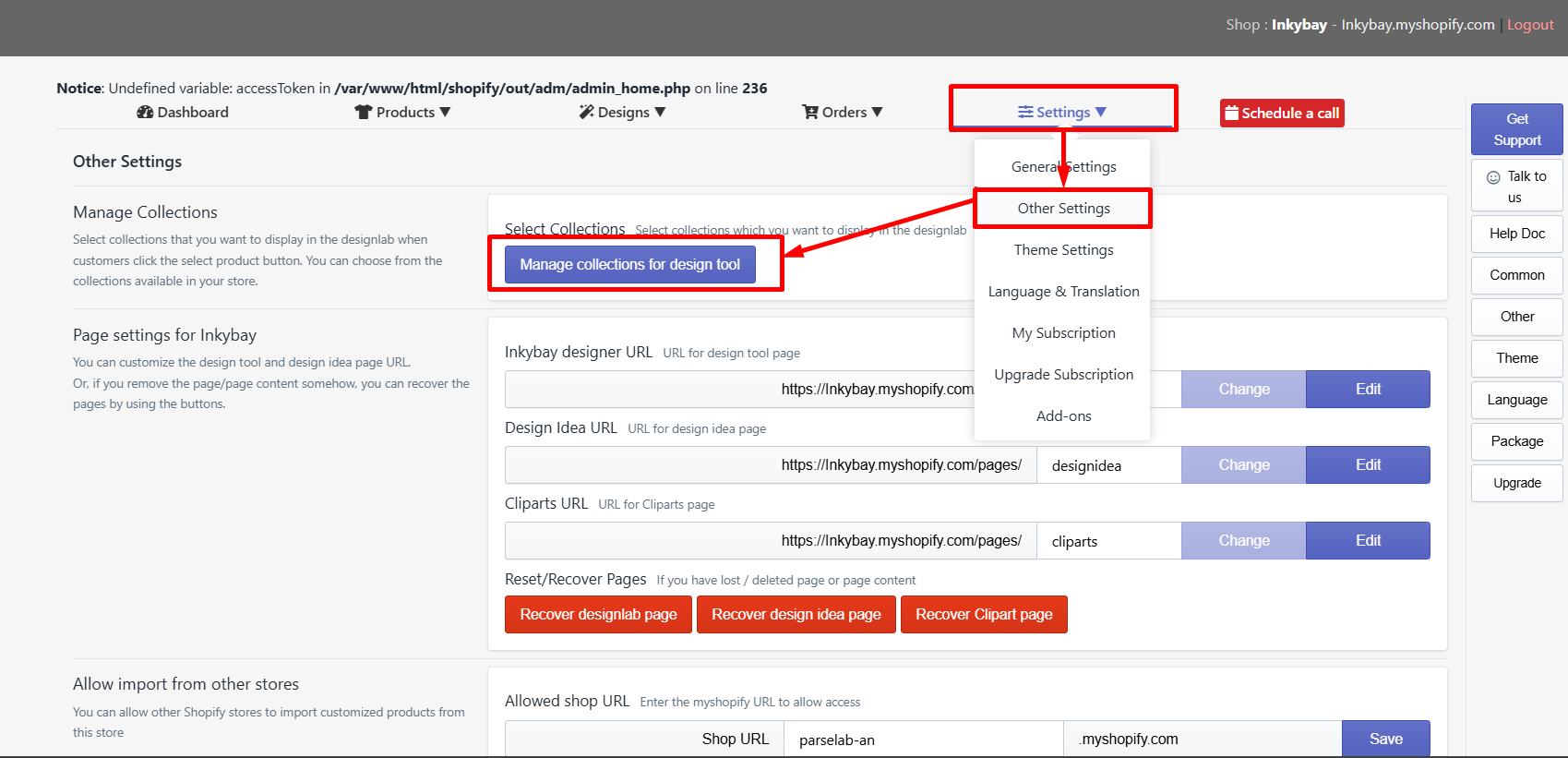
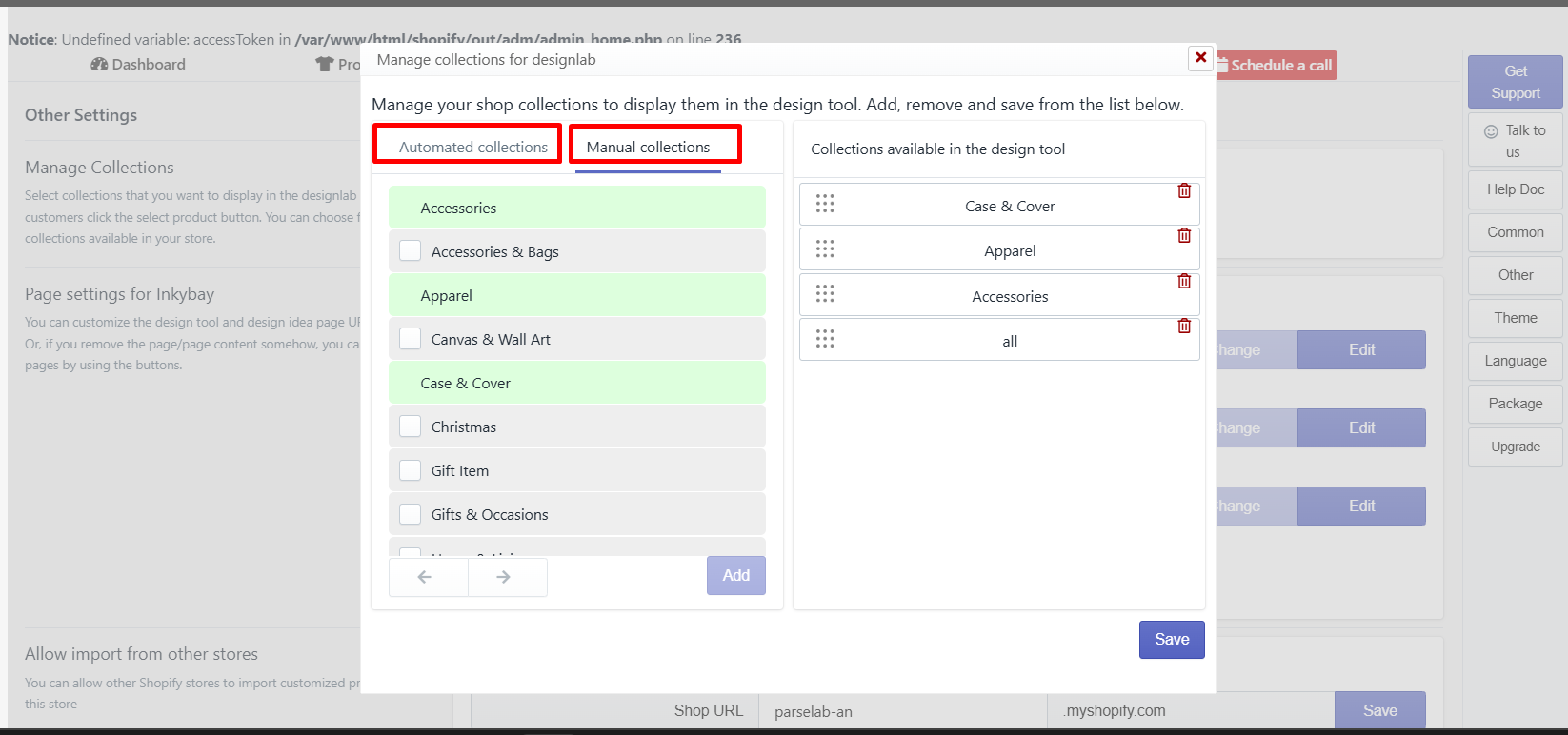
You will see all the Automatic and Manual Collections available in your store.
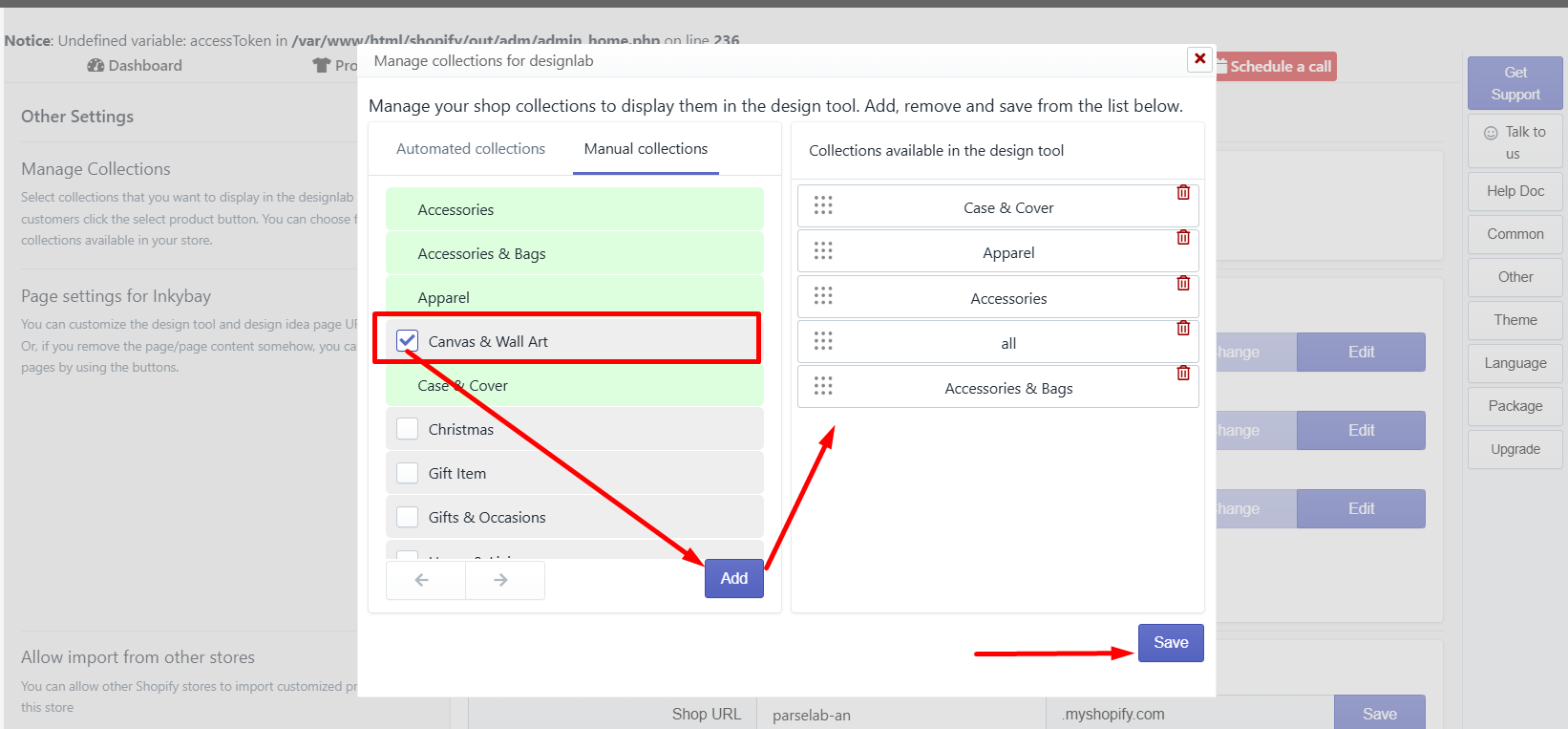
Select your preferred collections, click the Add, and the collection will be added to the list of collections available for the design tool. After adding, click on the save button to save the collection list.
Still, facing difficulties or need help? Feel free to contact us. You can also reach us:
InkyBay app Live chat
Support ticket from the InkyBay app
Email to support@inkybay.com
 Getting Started
 Products
 Designs
 Templates
 Configuration
 Printing
 Orders
 Inventory Management
 Settings
 Packages
 Uninstallation
 Tutorials
 FAQ
FAQ