Set the minimum and maximum product quantity based on printing type and auto image filter (available for Advance and Professional users only) to make uploaded raster images a single color.
Select your custom product and then click the Edit button, as shown in the image below.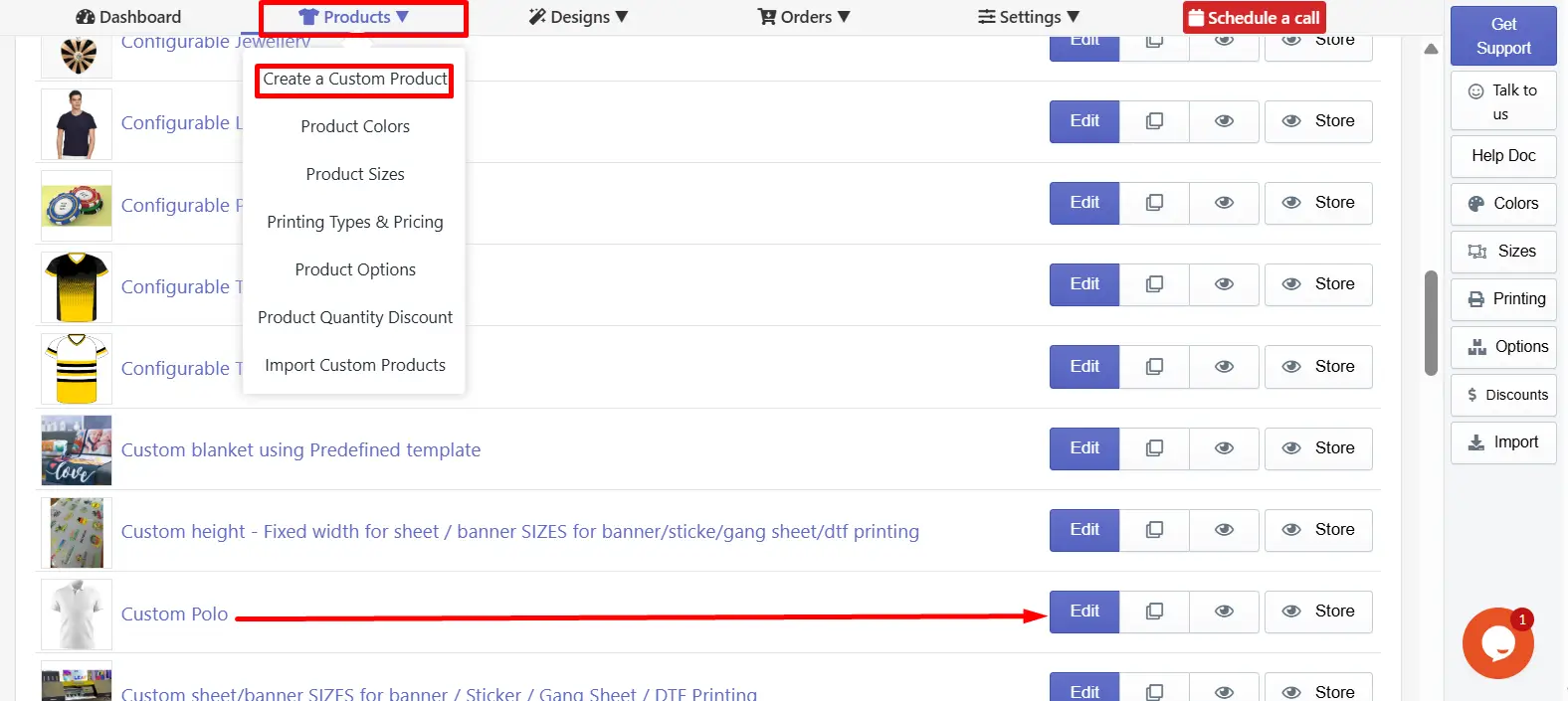
Verify the assigned printing type for this product(e.g, Embroidery T in this product). Click on the “Add/Edit printing type” button.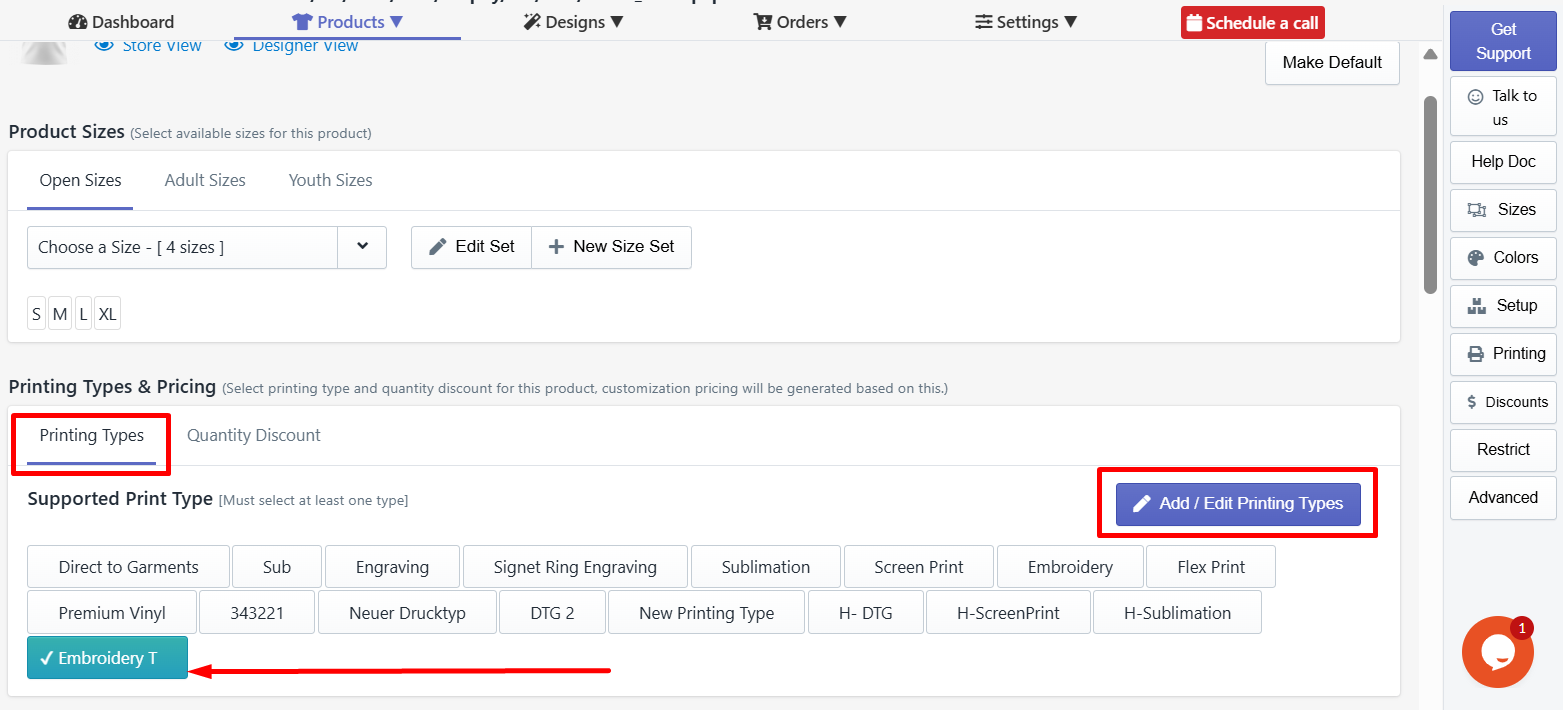
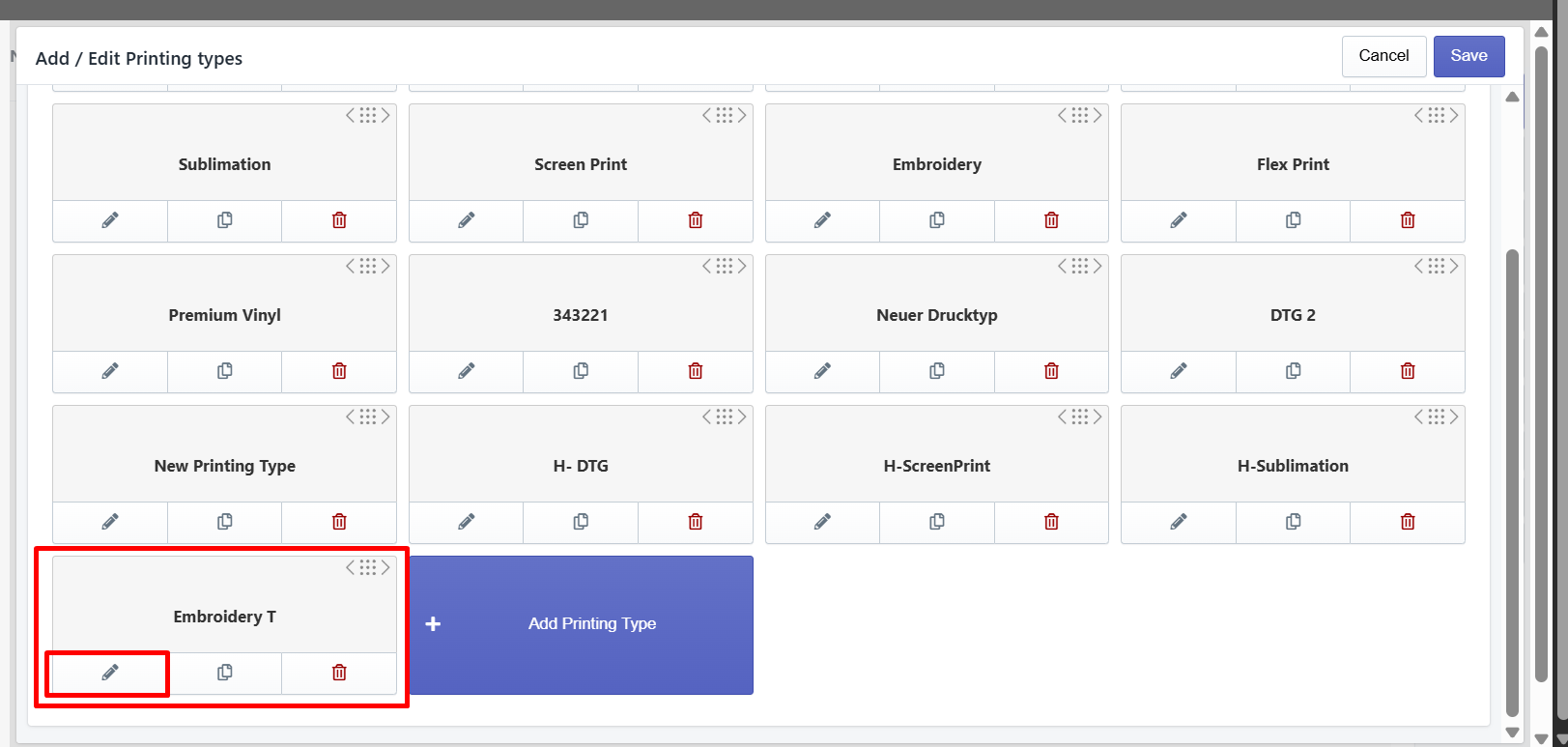
Access to the Restrictions tab to set order quantity and auto raster image filter restrictions.
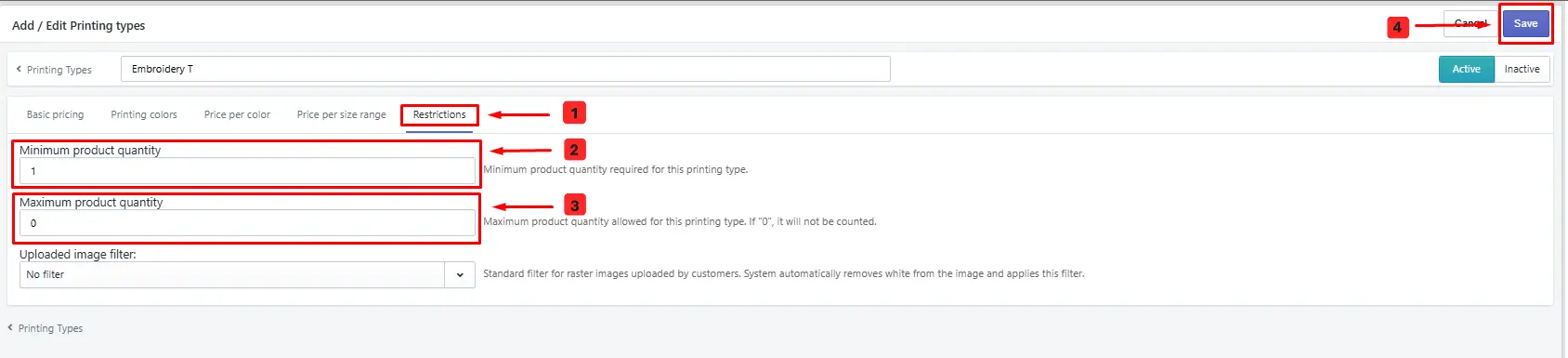
If you have a minimum order quantity for a printing type or product, enter the number (e.g., 12). From the design tool, when a customer tries to add to the cart, the system will check this quantity. The quantity may contain multiple sizes.
3. Maximum product quantity setup.
If you have a maximum order quantity for a printing type or product, enter the number (e.g., 50). From the design tool, when a customer tries to add to the cart, the system will check this quantity. The quantity may contain multiple sizes.
4. Click the Save Changes button.
Save the printing type after making any changes to see the effect on the front end.
Still, facing difficulties or need help? Feel free to contact us. You can also reach us:
InkyBay app Live chat
Support ticket from InkyBay app
Email to support@inkybay.com
 Getting Started
 Products
 Designs
 Templates
 Configuration
 Printing
 Orders
 Inventory Management
 Settings
 Packages
 Uninstallation
 Tutorials
 FAQ
FAQ