Ah! Did you get a new custom order? Congratulations.
When a customer places an order with an Inkybay customized product, you can download their design files and send them straight to your printer.
Every download includes:
Customer’s design files for all print sides
Product preview images
Product configuration details (colors, styles, options, etc.)
Customer-uploaded images or logos
Design information and customization details
Available file formats: SVG, PDF, PNG, JPG
Available DPI options: 72, 96, 150, or 300
Log in to your Shopify Admin and click on Orders
Open the order you want to download and click on More Actions, then
Select Download Design to be redirected directly to the order download page.
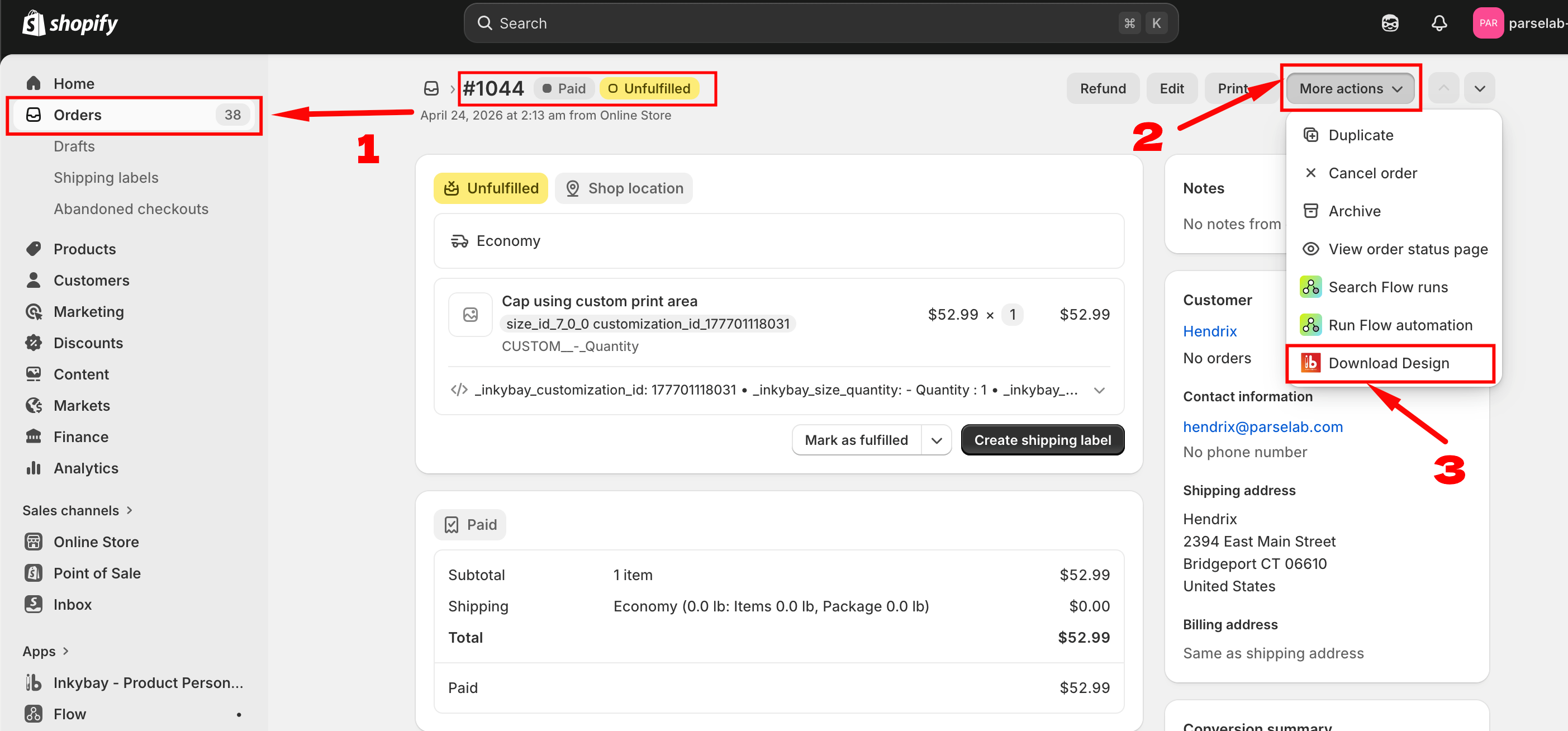
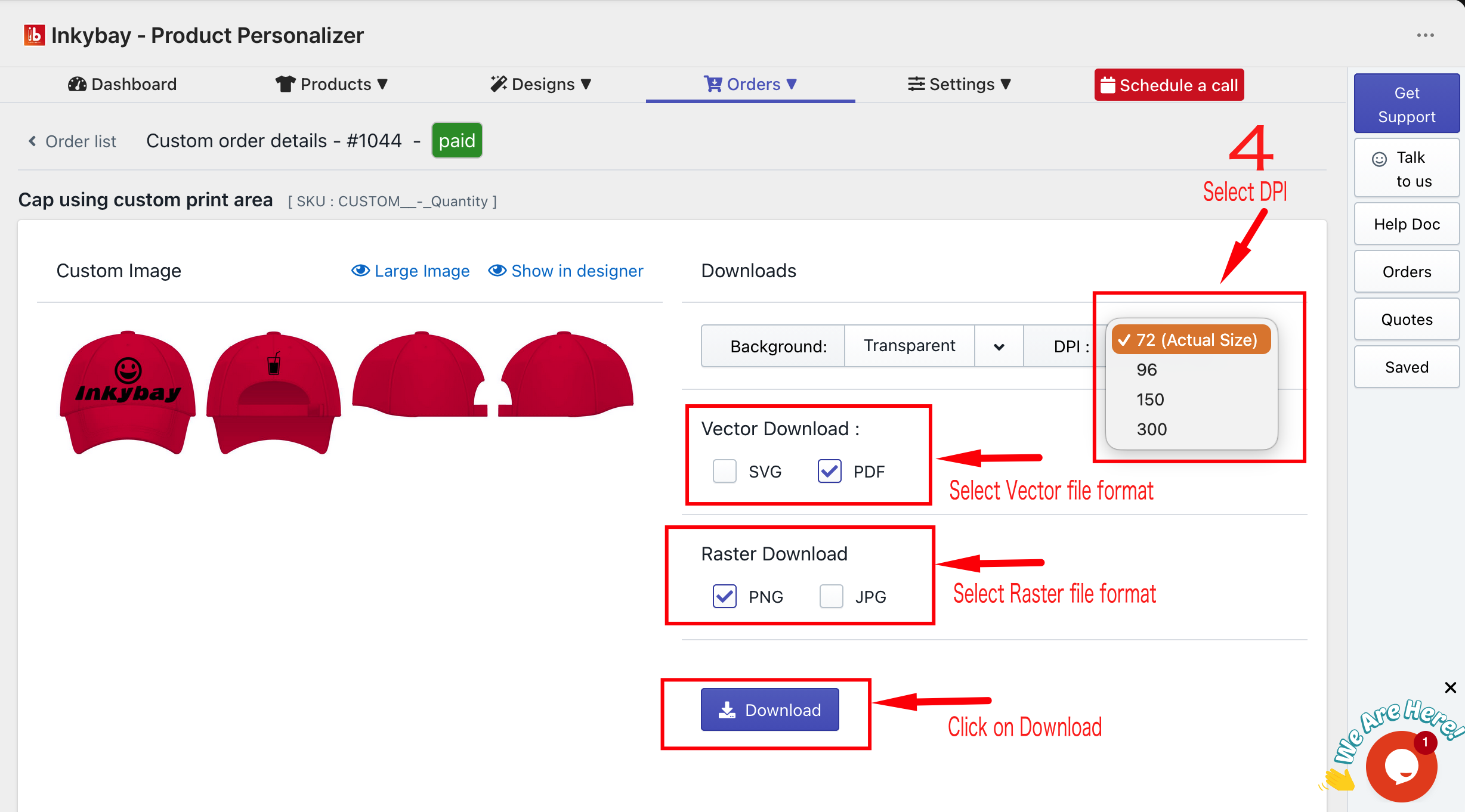
4. Select your preferred file format and click on download.
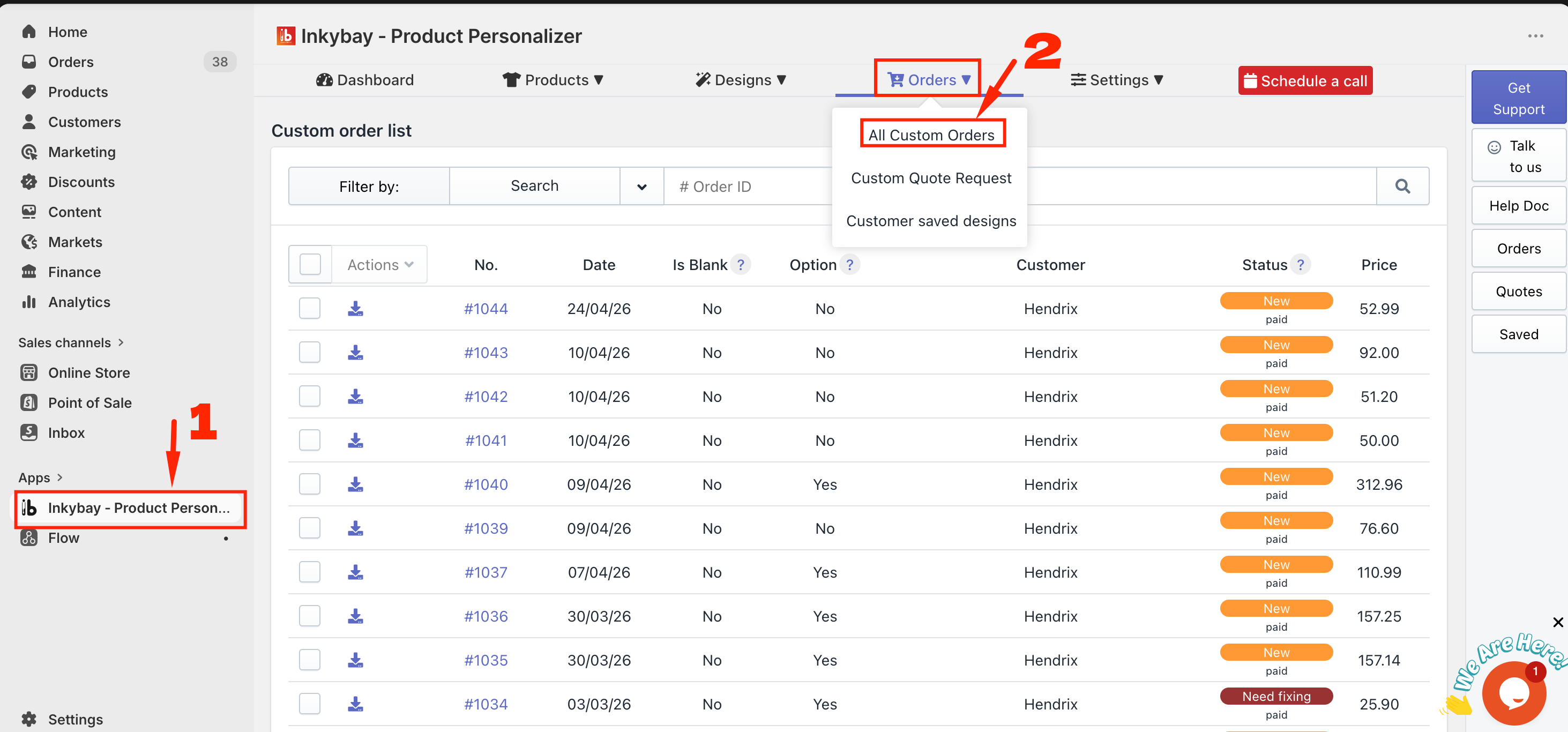
Open the InkyBay App from your Shopify dashboard.
Go to Orders and select All Custom Orders.
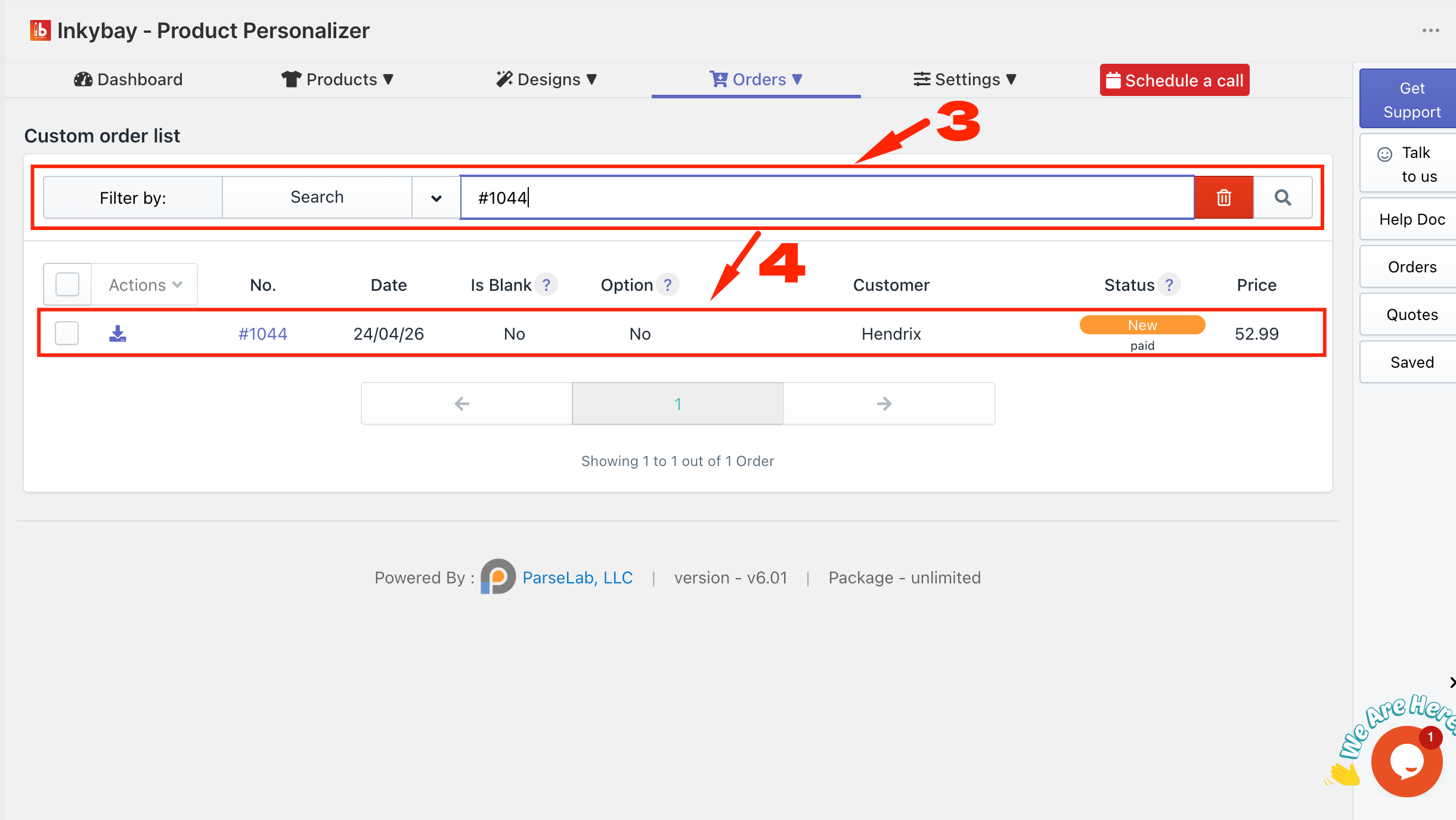
3. Search or filter your custom orders by order ID, date, or download status.
4. Click on an order to view the InkyBay custom order design details.
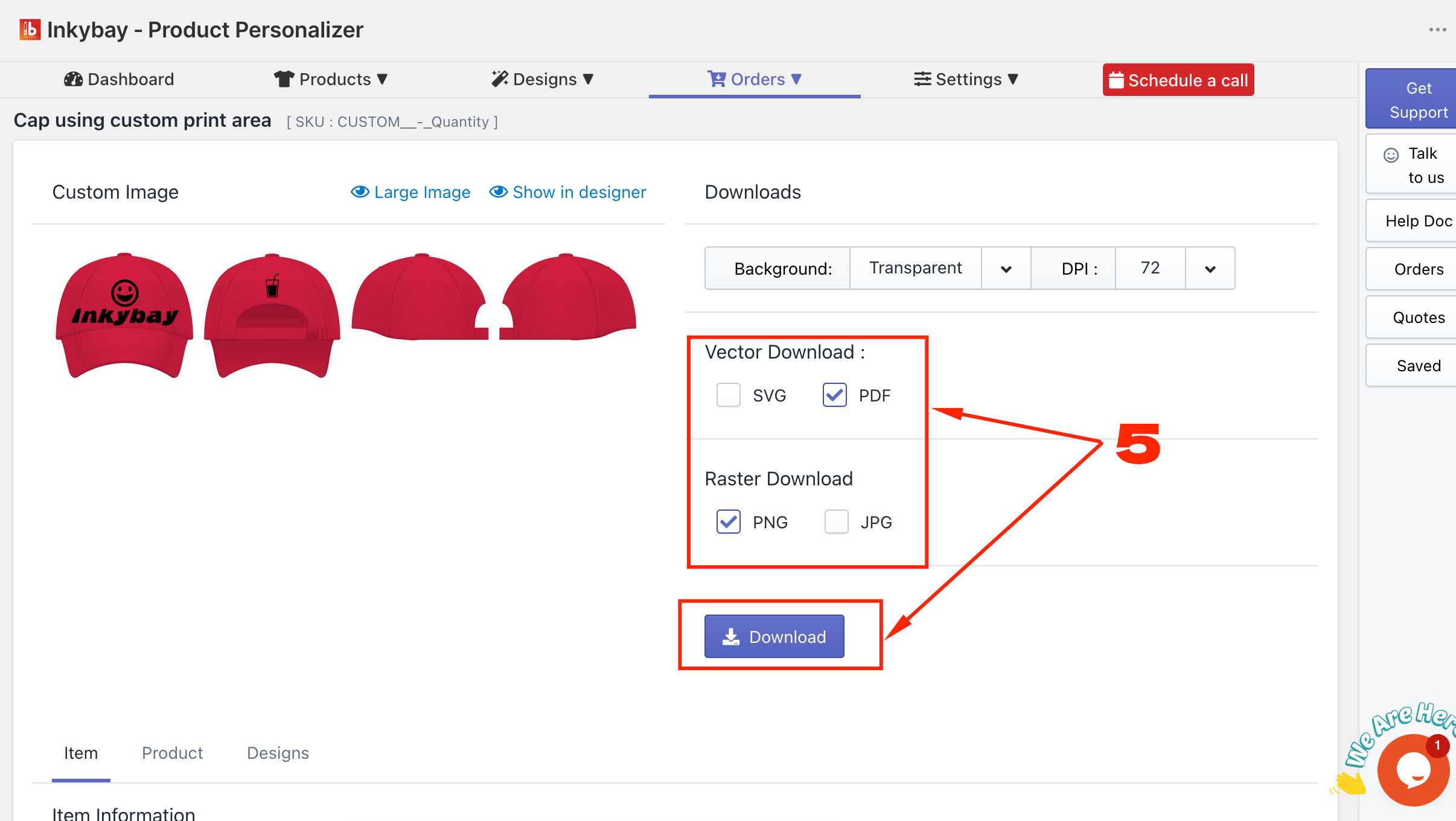
5. Choose the Vector & Raster download file format, then click the Download button.
Once inside an order, you'll find everything you need to review the design and export your files. Below, we’ve discussed the detailed steps that are shown in the image above.
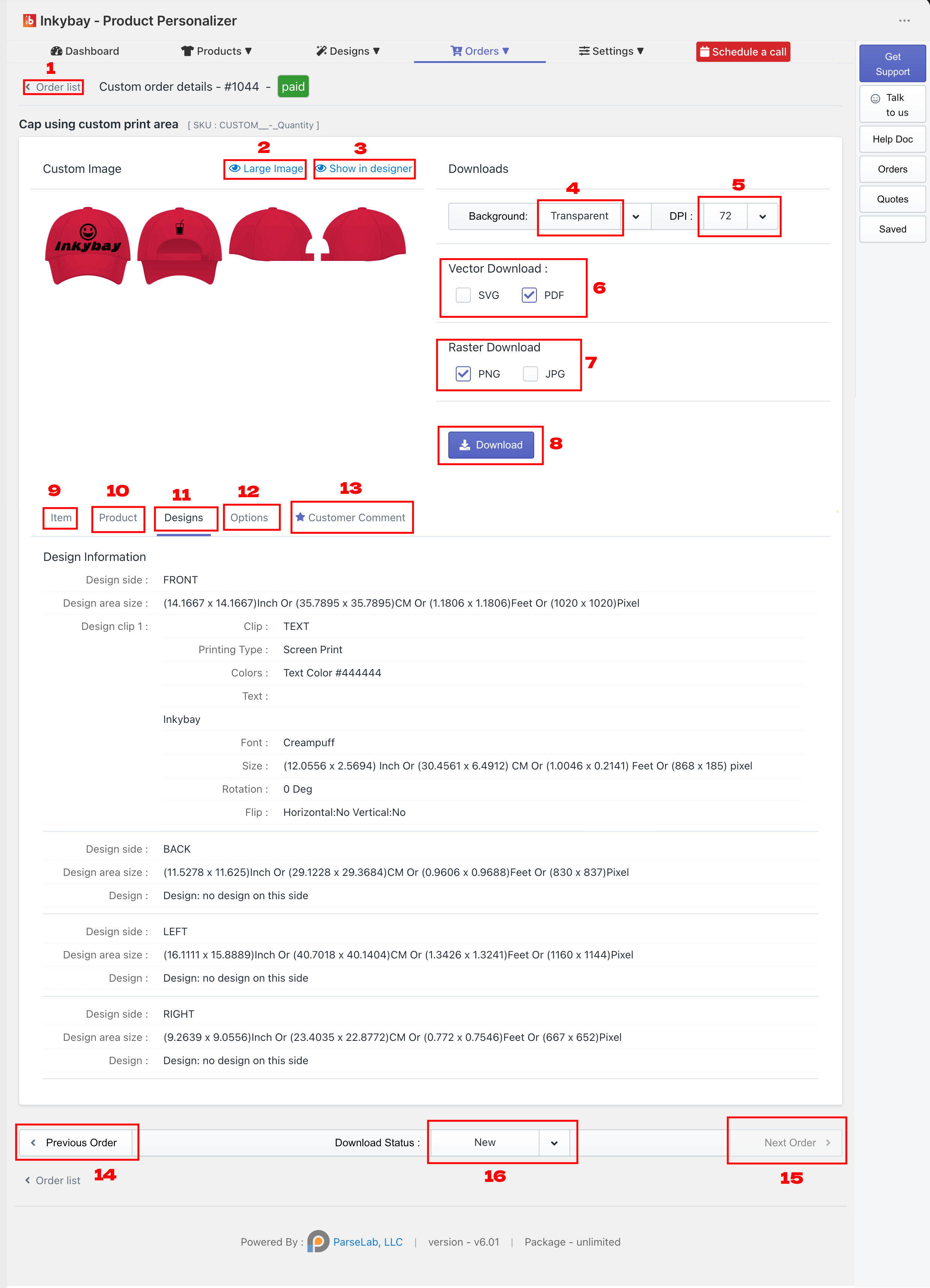
Back to the order list: You can see the full order list in a table structure.
Large image preview: It will show you the full preview of the design.
Show in Designer: By clicking this button, you will be redirected to the DesignLab with the design made by the customer.
Background: You can choose two options for the design background. One is Color background and the other is Transparent, you can select one.
DPI: You can choose the design file DPI between 72, 96, 150, 300 .
Vector Download: You can choose between SVG or PDF which file you prefer.
Raster Download: You can choose PNG or JPG to download the design file in raster format.
Download: When you click on download after selecting the preferred file format and DPI, a zip file will be downloaded, including a full preview image, selected vector and raster format design file, and other related information like item info, product info, design info, user comments, option info, etc.
Item: In the item, you can view details of items like size, color, quantity, total design price, total product price, etc.
Product: In Product, you can view product configuration information, including chosen color, sides, styles, etc.
Design: In design, you can see the customer design information, like if it is text, then the text, font, text position, etc. If it is any clipart or graphics, the name of the clipart or graphics, position information ,etc for every side and parts.
Options: In option you will find all the customer selected option details or input details what you set for that particular product.
Customer comments: While ordering, if any customer add notes from the DesignLab, you can view customer comments.
Previous order: You can go to the previous order details page by clicking on this.
Next order: You can go to the next order details page by clicking on this.
Download status: You can change the order status to New, Downloaded, Cancelled, Completed, etc.
Thank you for reading this help doc for downloading the print files.
Still, facing difficulties or need help? Feel free to contact us. You can also reach us:
InkyBay app Live chat
Support ticket from the InkyBay app
Email to support@inkybay.com
 Getting Started
 Products
 Designs
 Templates
 Configuration
 Printing
 Orders
 Inventory Management
 Settings
 Packages
 Uninstallation
 Tutorials
 FAQ
FAQ