The setting allows you to manage store configuration, product collections in the designer tool, and cross-store data syncing.
If you have multiple Shopify stores and want to allow customizable product import from other stores, you can set the store URL to authenticate product import from the current store.
To navigate to InkyBay’s general settings, follow the step-by- step guide:
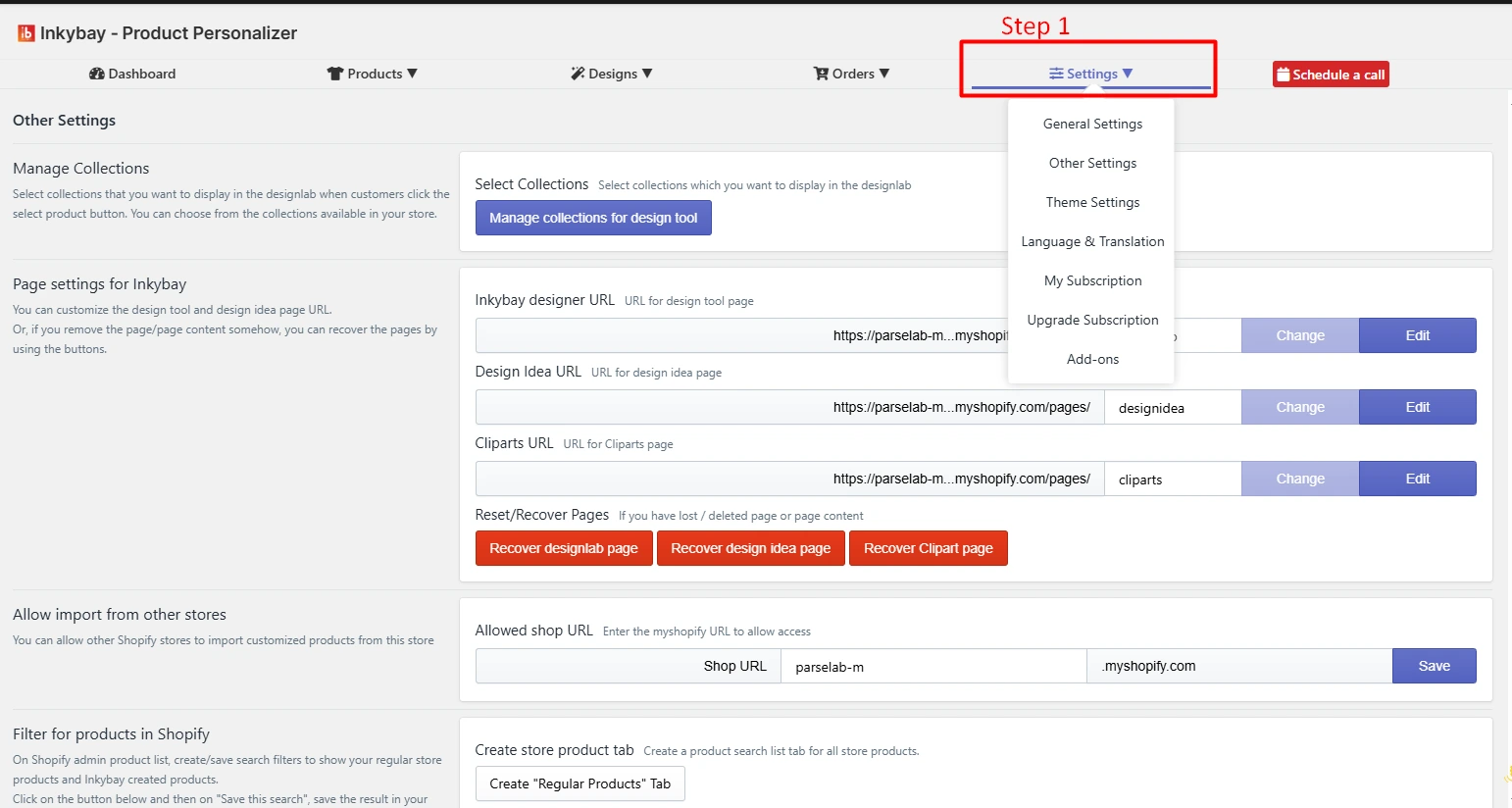
Step 1: Log in to your InkyBay admin dashboard and hover the mouse over Settings.
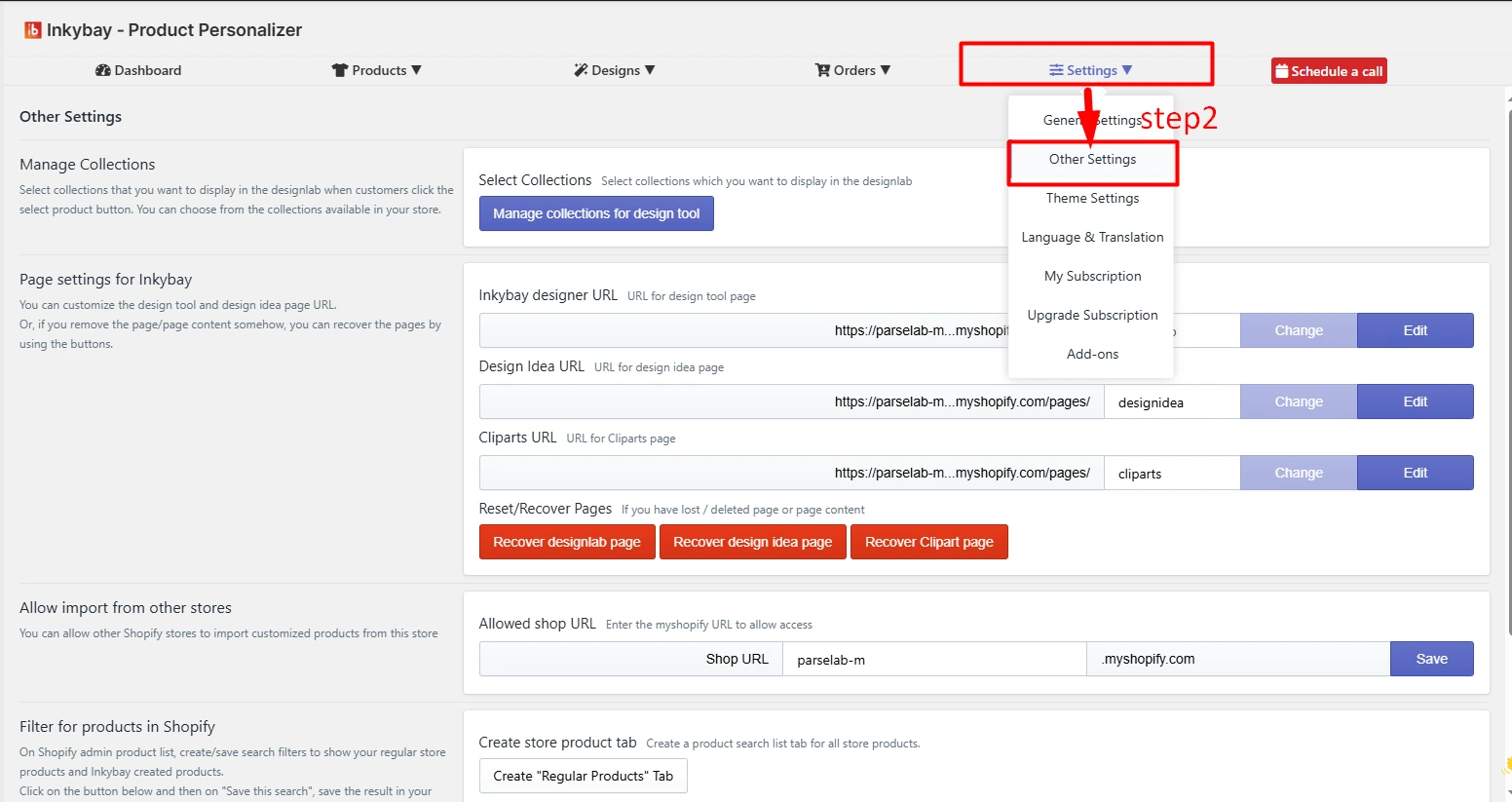
Step 2: Click Other Settings from the dropdown menus.
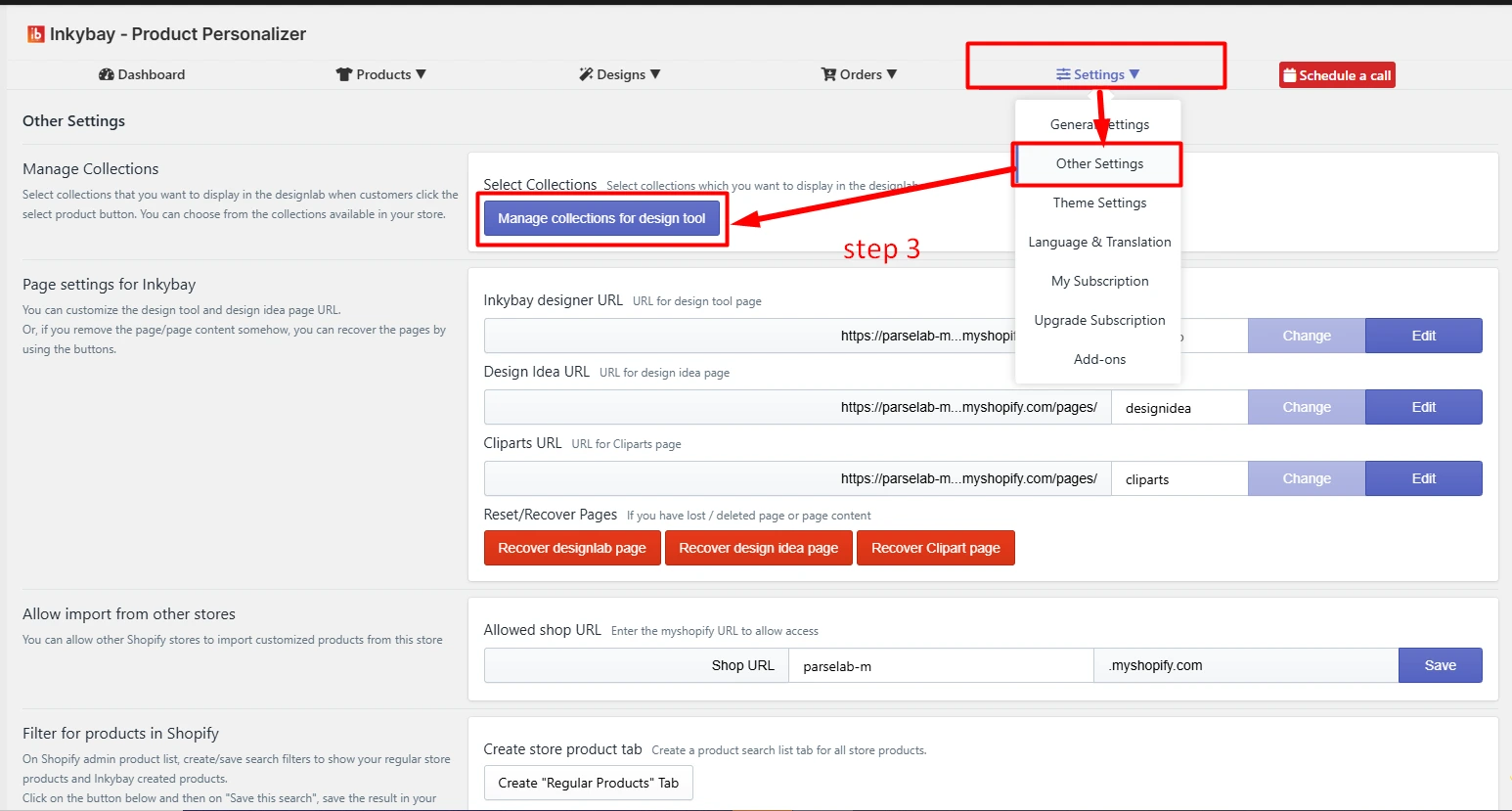
You can organize products into collections for the product designer tool. This option helps you to control which products are available for customization and how they are presented in the designer interface.
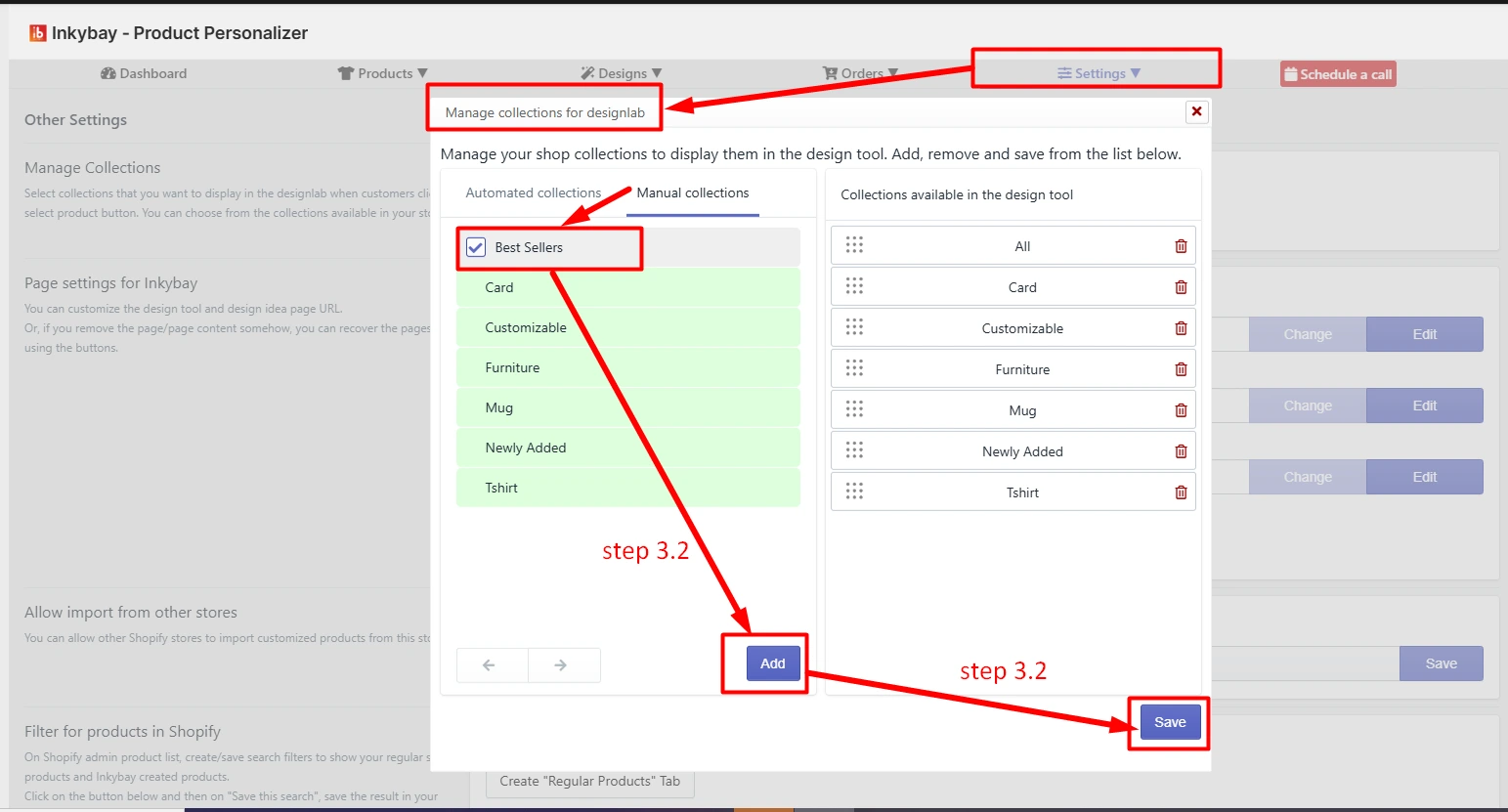
3.1 After clicking the Manage collection for the design tool, you’ll see Automatic and Manual Collections available in your store.
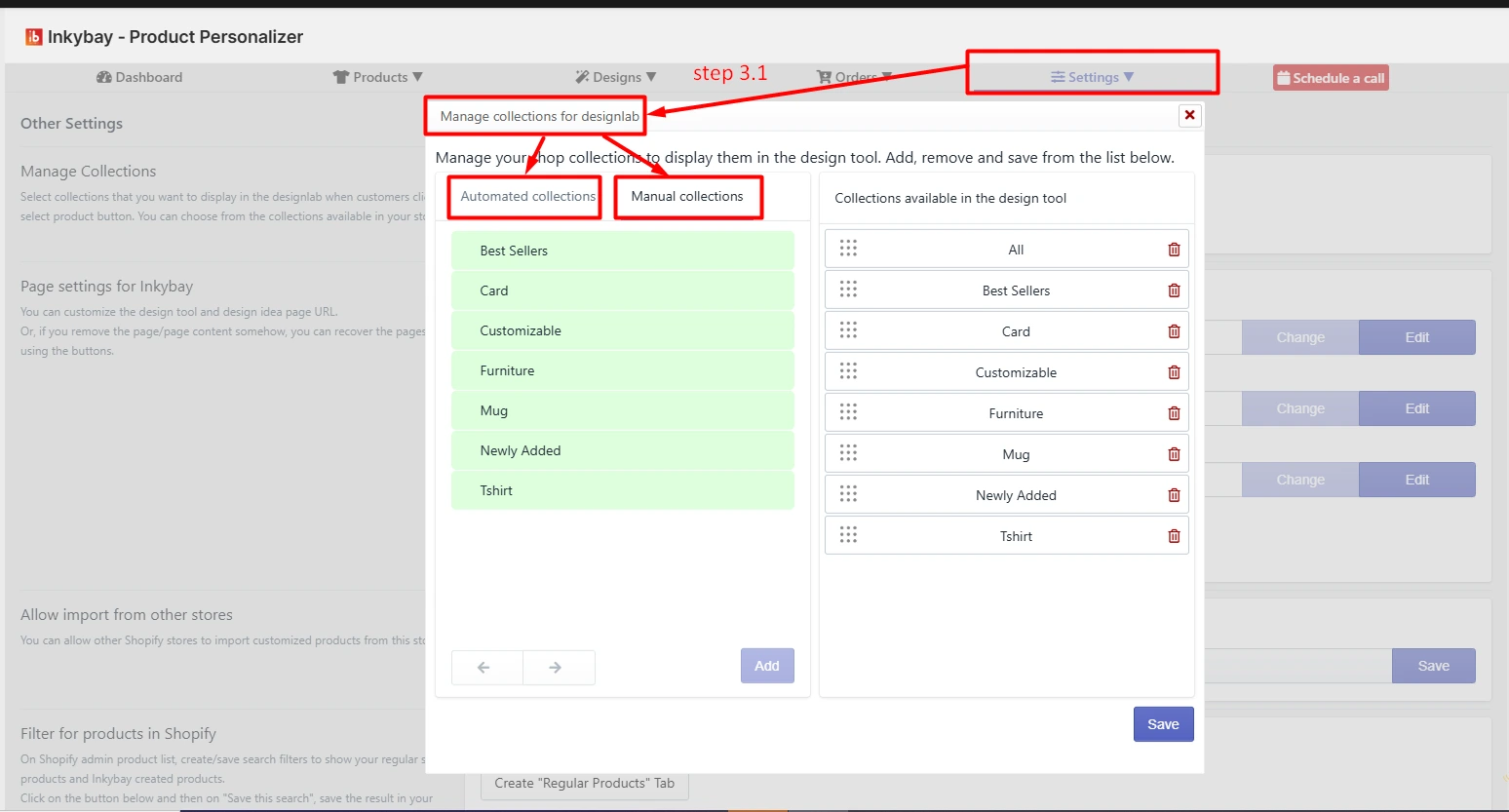
3.2 Select your preferred collections, and click the Add and Save button.
Here, you can create your own customized URL for the Design tool page, Design Idea Page, and Cliparts.
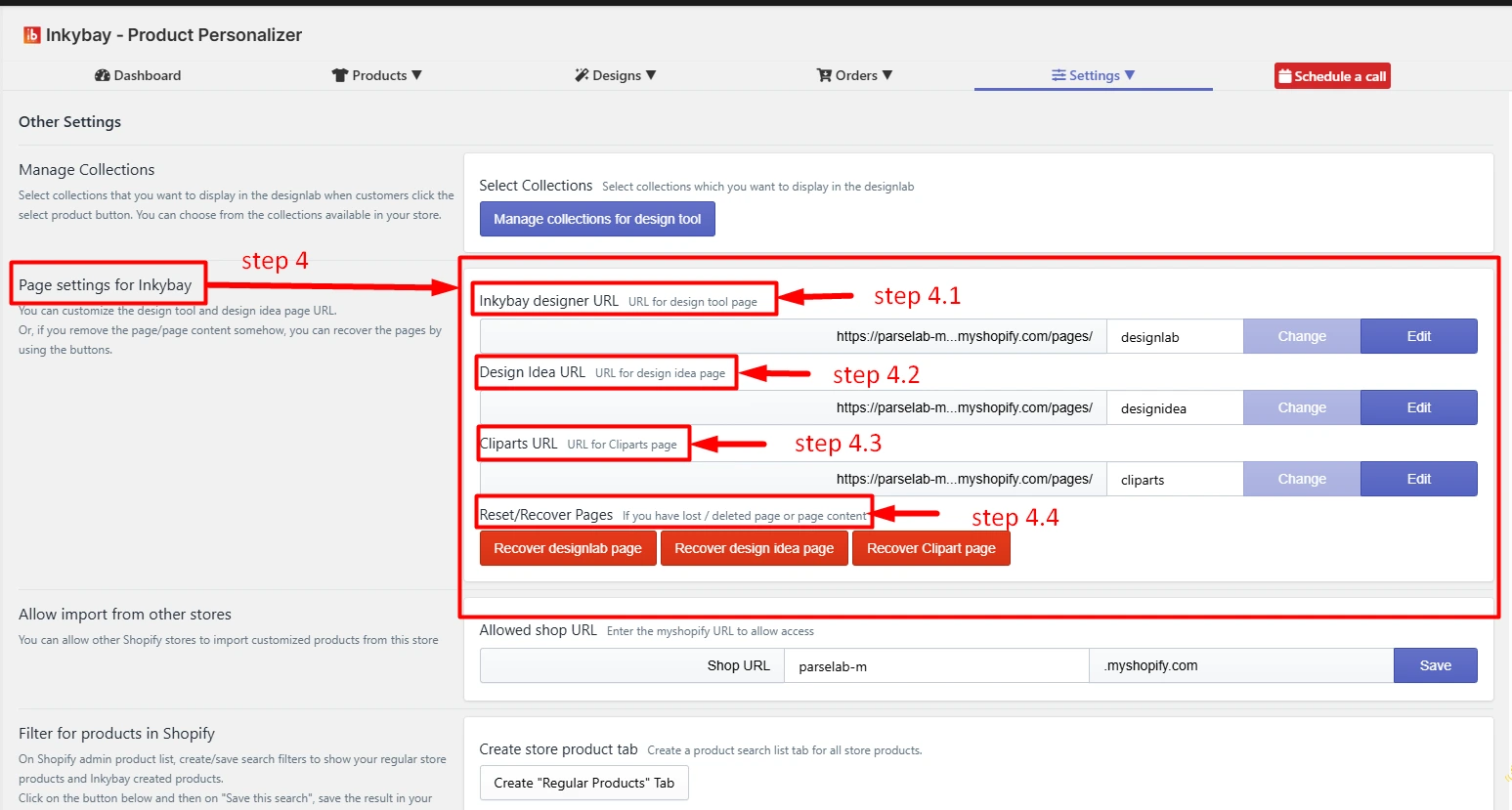
4.1 InkyBay Designer URL: The URL where the InkyBay product designer tool loads.
4.2 Design Idea URL: A URL where pre-made design templates or ideas are displayed. It redirects to a ready-to-edit template so that your customers can customize with sample designs.
4.3 Cliparts URL: The URL where customers can access cliparts, icons, or graphics for designing products.
4.4 Reset/Recover lost pages: The page is used to reset the designer or recover a customer’s previous session/design.
Special notes on Reset/Recover lost pages:
As a store owner, you might mistakenly delete these pages (Designlab, Design Idea, and Clipart) from the Shopify page list.
Or, maybe change/replace the app content on the page.
All of these issues cause a 404 (page not found) error or the design lab page not loading properly.
Solutions:
The three Red Recovery buttons are there to avoid the issues that will happen when deleting those pages. You can easily recover the lost pages by using these buttons.
Three red buttons are for three individual pages. The first one is for the Recover the Designlab page, the second one is for the Recover Design Idea page, and the third one is for the Recover Clipart page.
📝Note
Be concise when clicking on the specific button that you want to recover because clicking on irrelevant recovery buttons might change the most recent settings for that page.
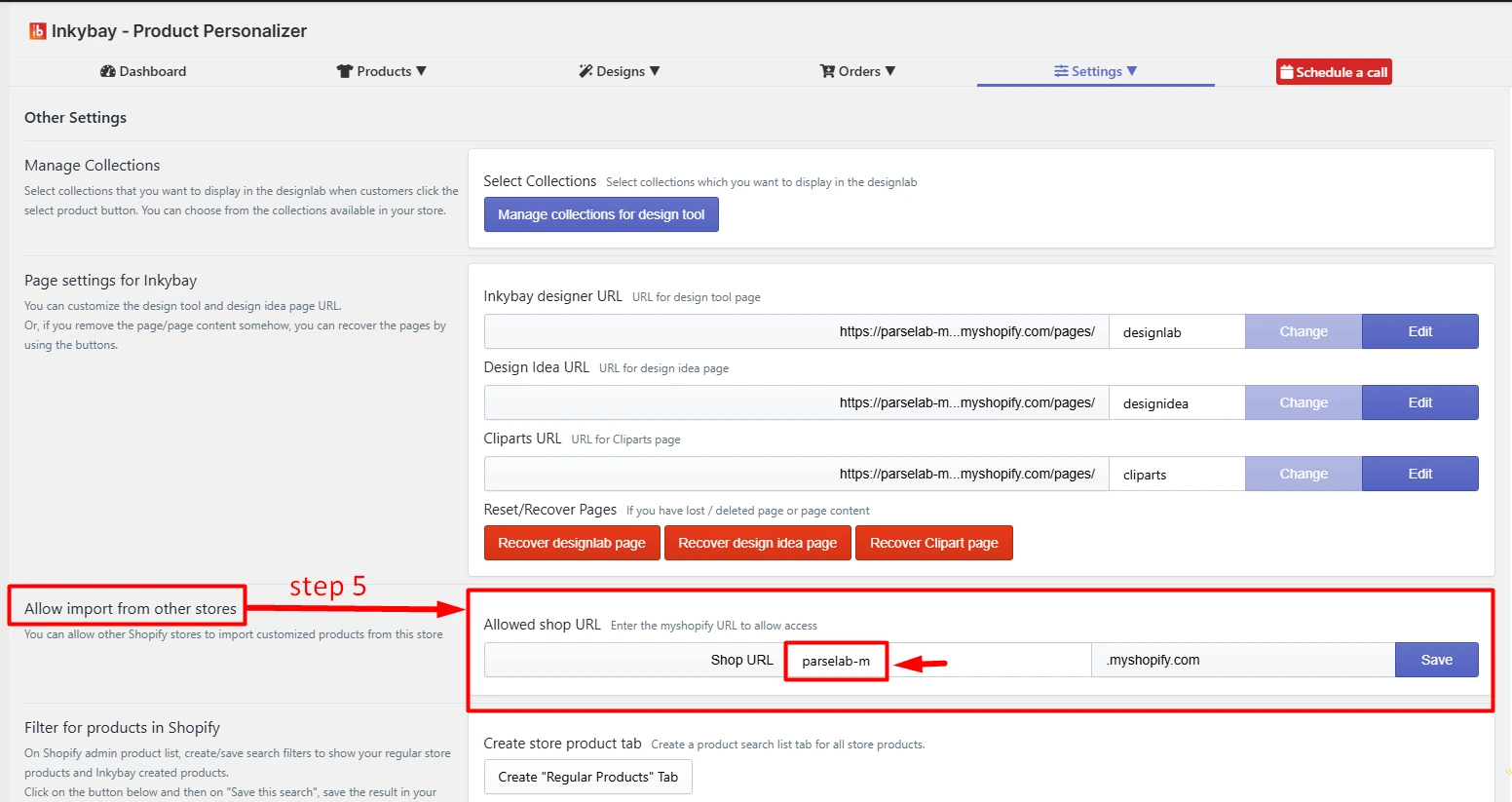
If you have multiple stores, you can import and export custom products between those stores.
In this setting, you have to enter the store URL, which is allowed to import products from this store.
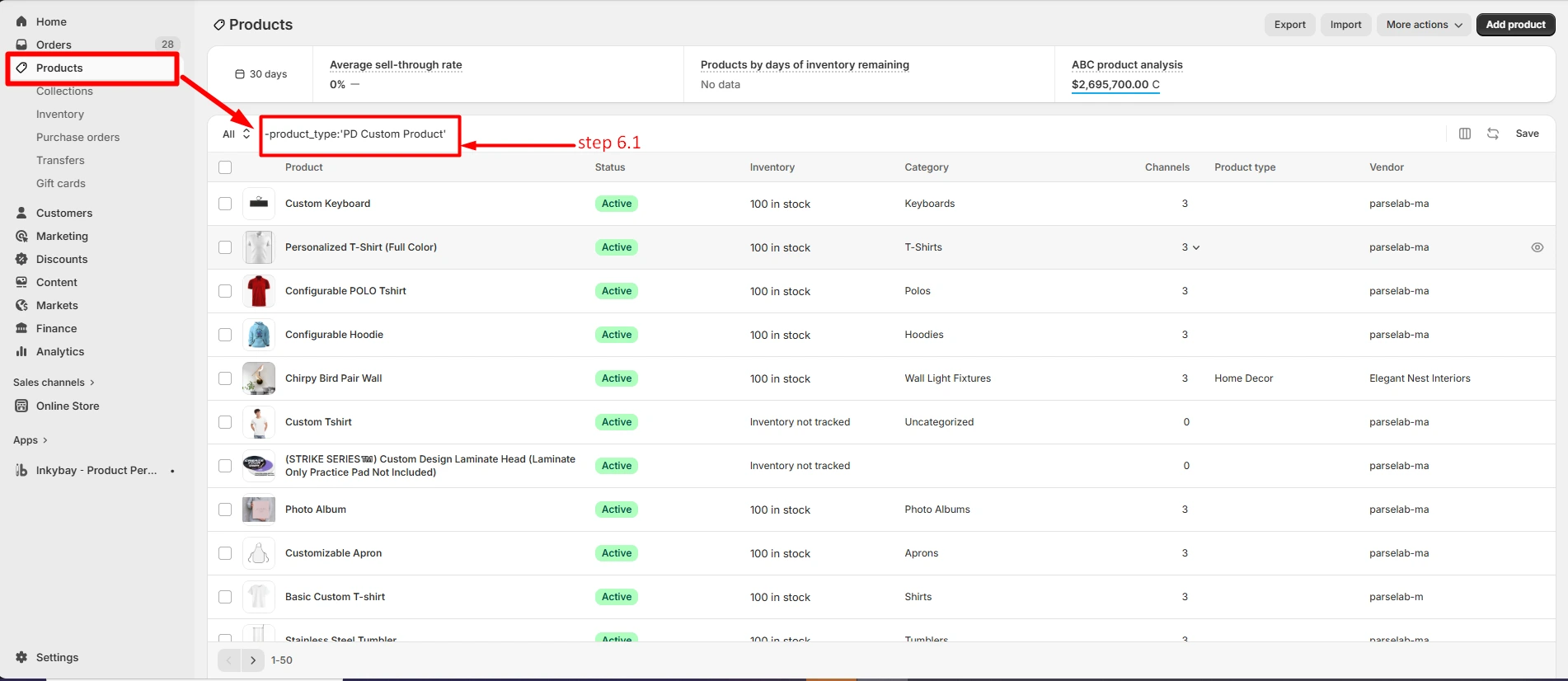
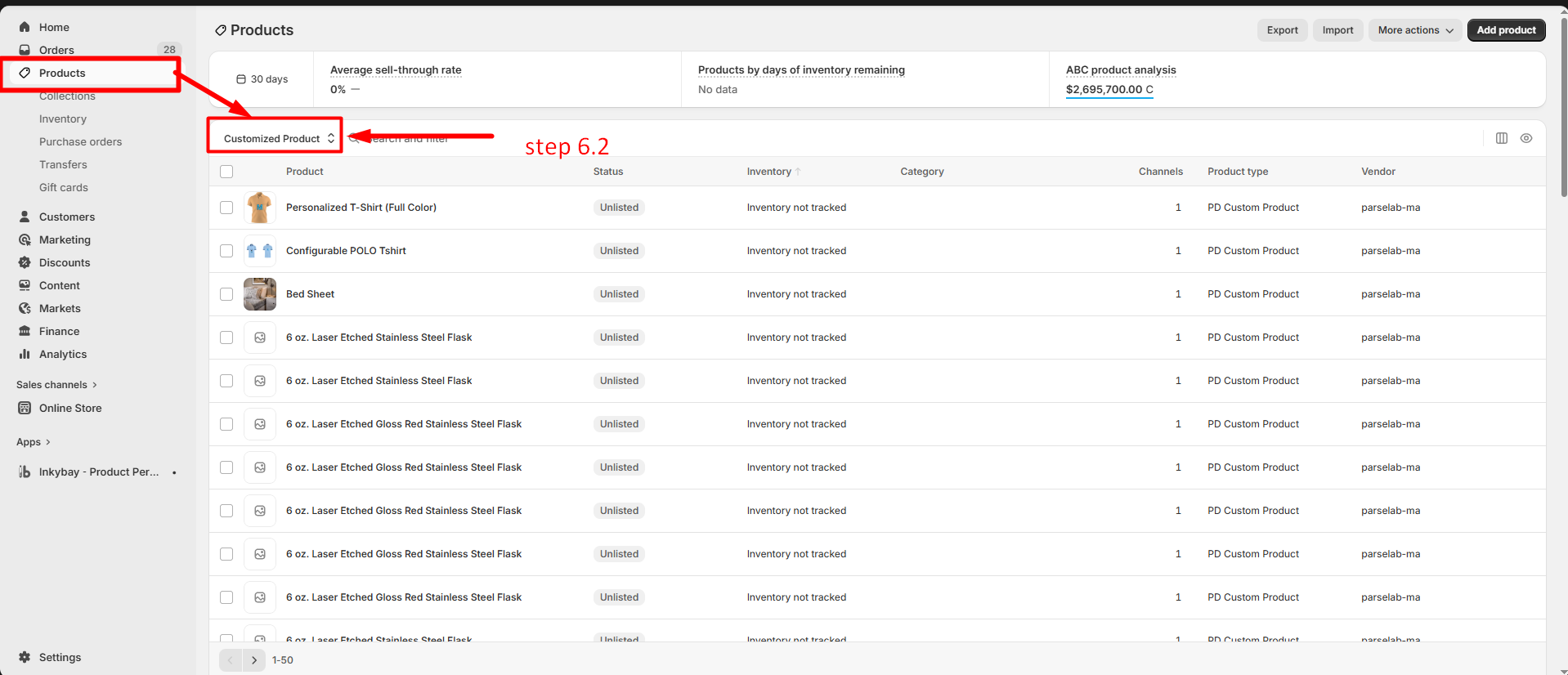
InkyBay’s products filter option lets you separate your store's regular products from custom ones. In your Shopify store, you might not offer all custom products.
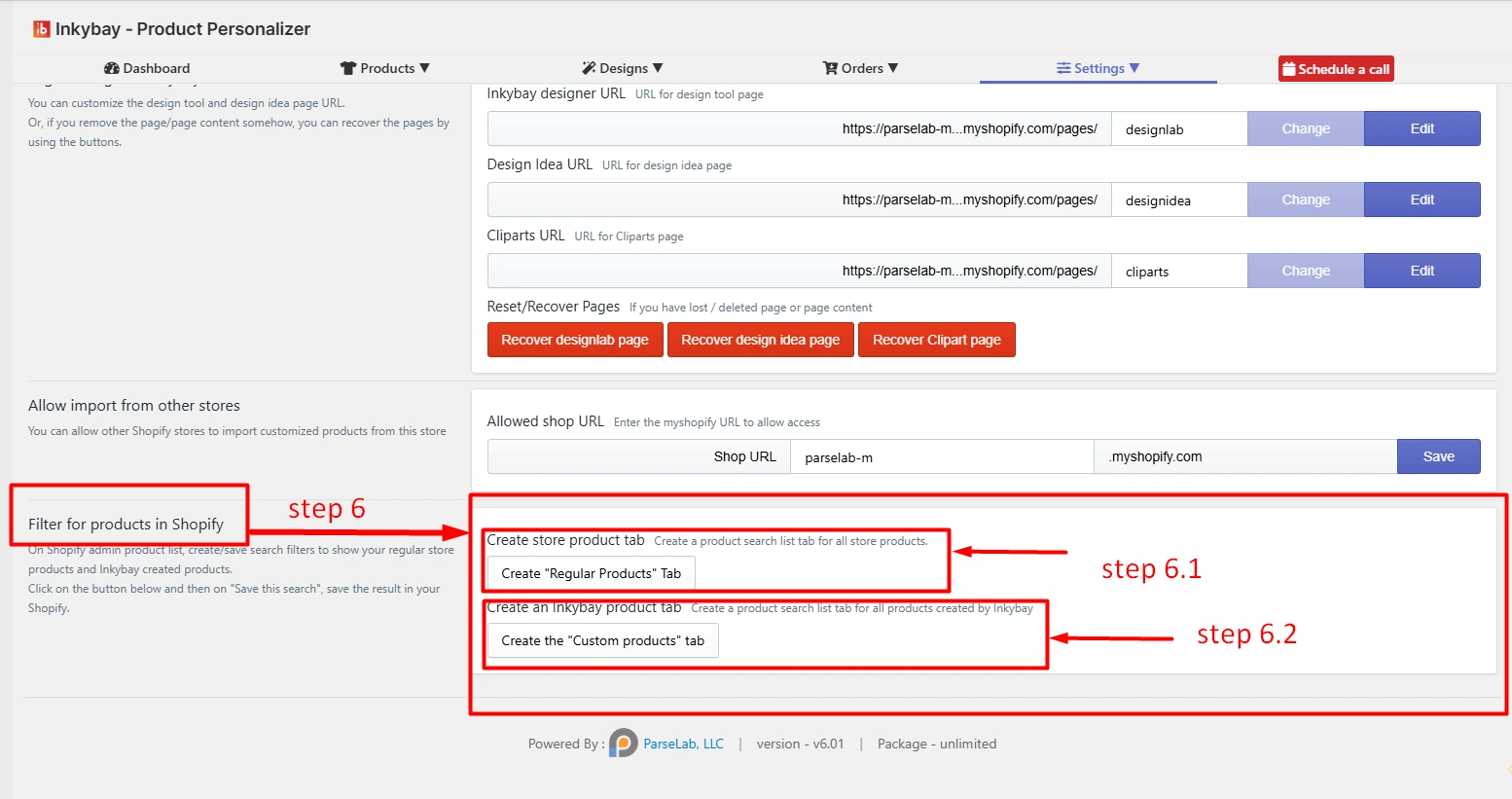
6.1 Click the Create 'Regular Products' Tab button to show your regular store products. Your store's product page will appear, and select the products that you want to show. By default, the product_type: ‘PD Custom Product’. You can change it like the image shown below.
6.2 Click the Create the 'Custom products’ tab button for all custom products created by the InkyBay app. If you have custom products in your store, they’ll show automatically just like the image below. Or, you can find out through searching, vendors, tags, and so on.
Feel free to contact us whenever you face any issues or need assistance. We’re available 24/7. You can also reach us:
InkyBay app Live chat
Support ticket from the InkyBay app
Email to support@productsdesigner.com
 Getting Started
 Products
 Designs
 Templates
 Configuration
 Printing
 Orders
 Inventory Management
 Settings
 Packages
 Uninstallation
 Tutorials
 FAQ
FAQ