When setting up Product Color in Inkybay, Color Group and Color Set work together to control how customers select colors for different product parts or sides. While they are closely related, they serve different purposes.
A Color Group controls how color customization behaves across different parts or sides of a product. It determines whether multiple parts will share the same color selection or allow separate color customization.
If multiple parts are assigned to the Same Color Group, they become interconnected.
This means when a customer changes the color of one part, all other connected parts in that same group will automatically change to the selected color.
If different parts are assigned to Different Color Groups, they remain independent.
Customers can then customize each part or side with different colors.
This is especially useful for products with: Multiple configurable parts & Multiple sides like Front, back, left, right, or other design areas.
Example:
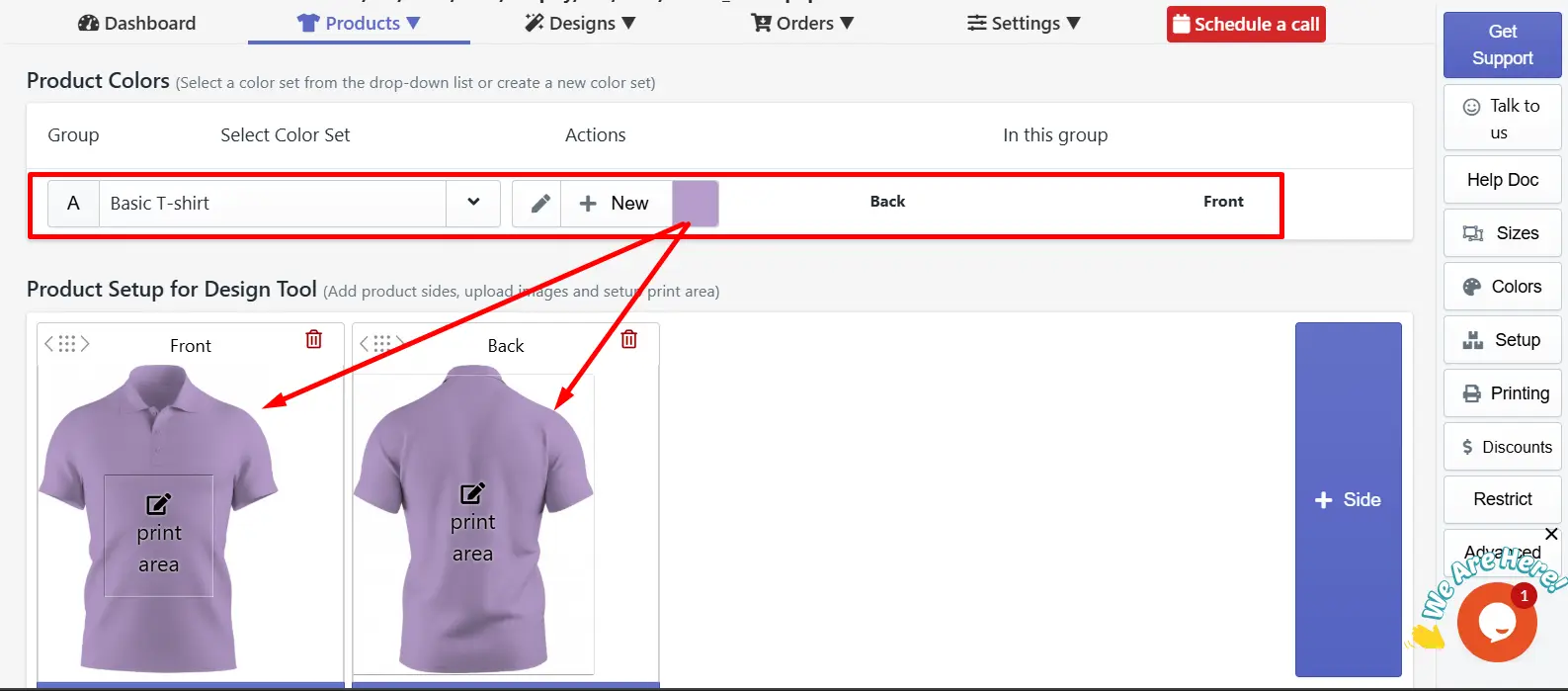 2. If the front is assigned to Group A and the back to Group B, customers can choose a color for the front and another color for the back separately. Check the image below(Here we have selected two different default colors for the two sides separately)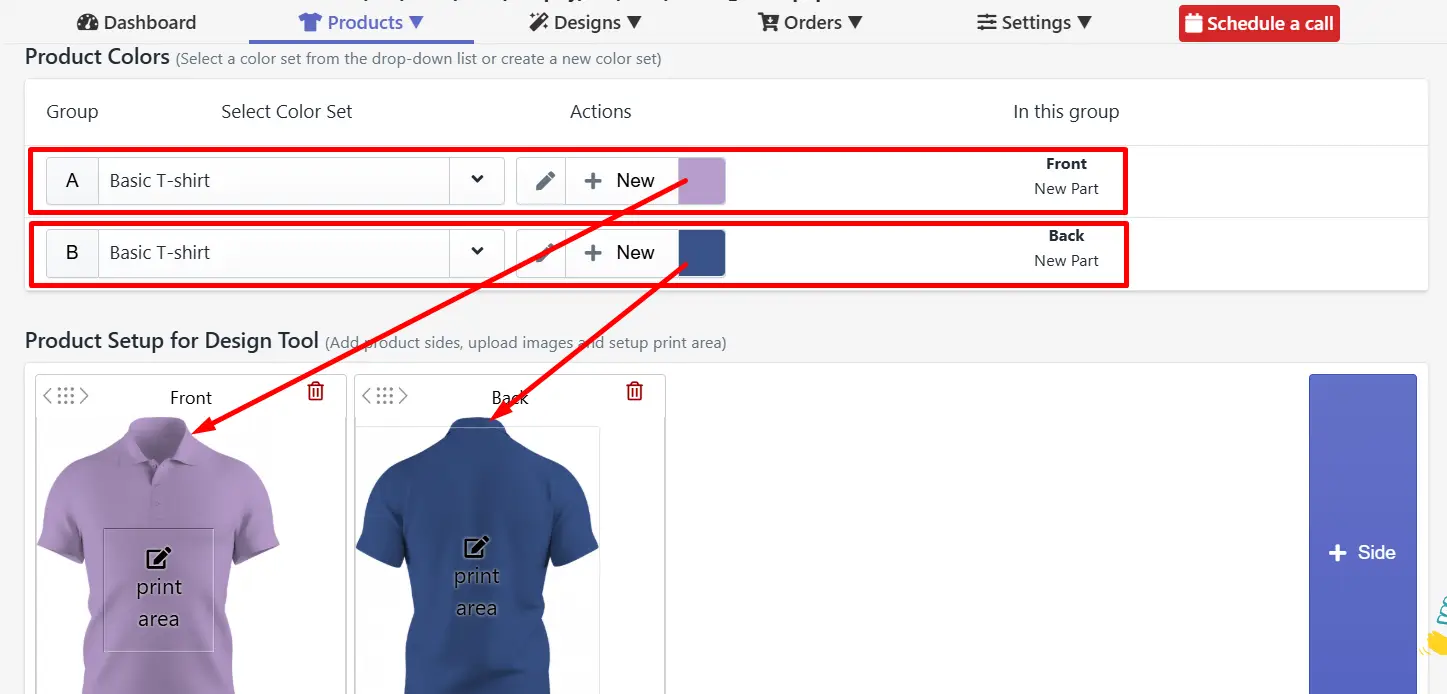
A Color Set defines the actual color options available for a specific part or side of a product. For example, if you create a Color Set with five colors (Red, Green, Olive, Blue, Black), and apply it to a specific side of a product, those color options will be available for customers to choose from during customization.
You can assign a Color Set to enable color customization for sides/parts.
Each side and part can contain the same color set with a different group or the same color group with the same color set, according to your product needs.
Select No Color if you do not want customers to customize a particular side or part. This disables color selection for that part.
You can also set a default color from the selected Color Set to display initially.
To know more about color set in Inkybay, check out the article on How to set up Product Color.
Still, facing difficulties or need help? Feel free to contact us. You can also reach us:
InkyBay app Live chat
Support ticket from the InkyBay app
Email to support@productsdesigner.com
 Getting Started
 Products
 Designs
 Templates
 Configuration
 Printing
 Orders
 Inventory Management
 Settings
 Packages
 Uninstallation
 Tutorials
 FAQ
FAQ