After providing the option name, applying the rule, and selecting the option type, click on the +New Option.
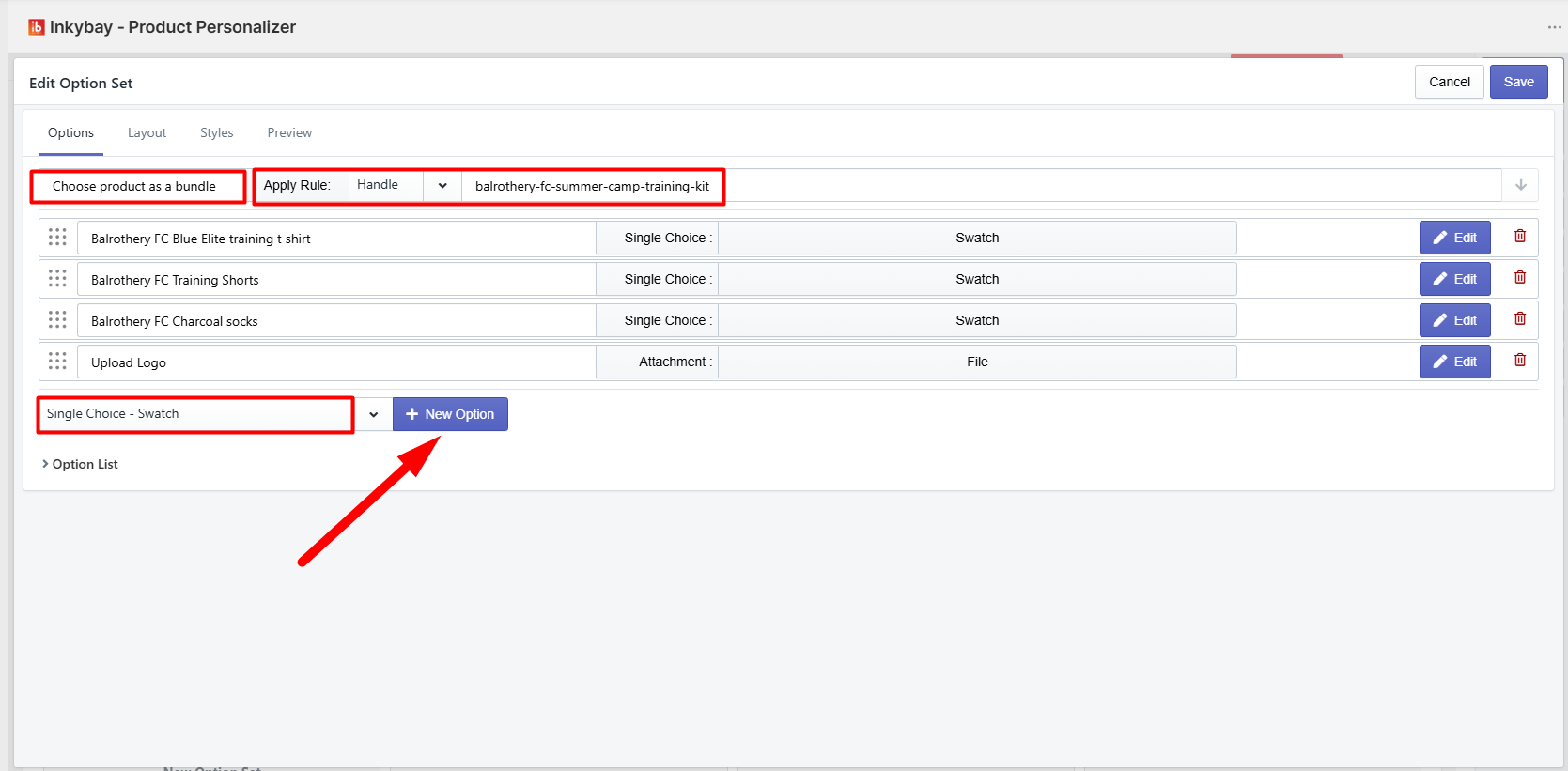
From the new option set, you can add an attribute to your option.
Add Multiple Attributes to the Option set
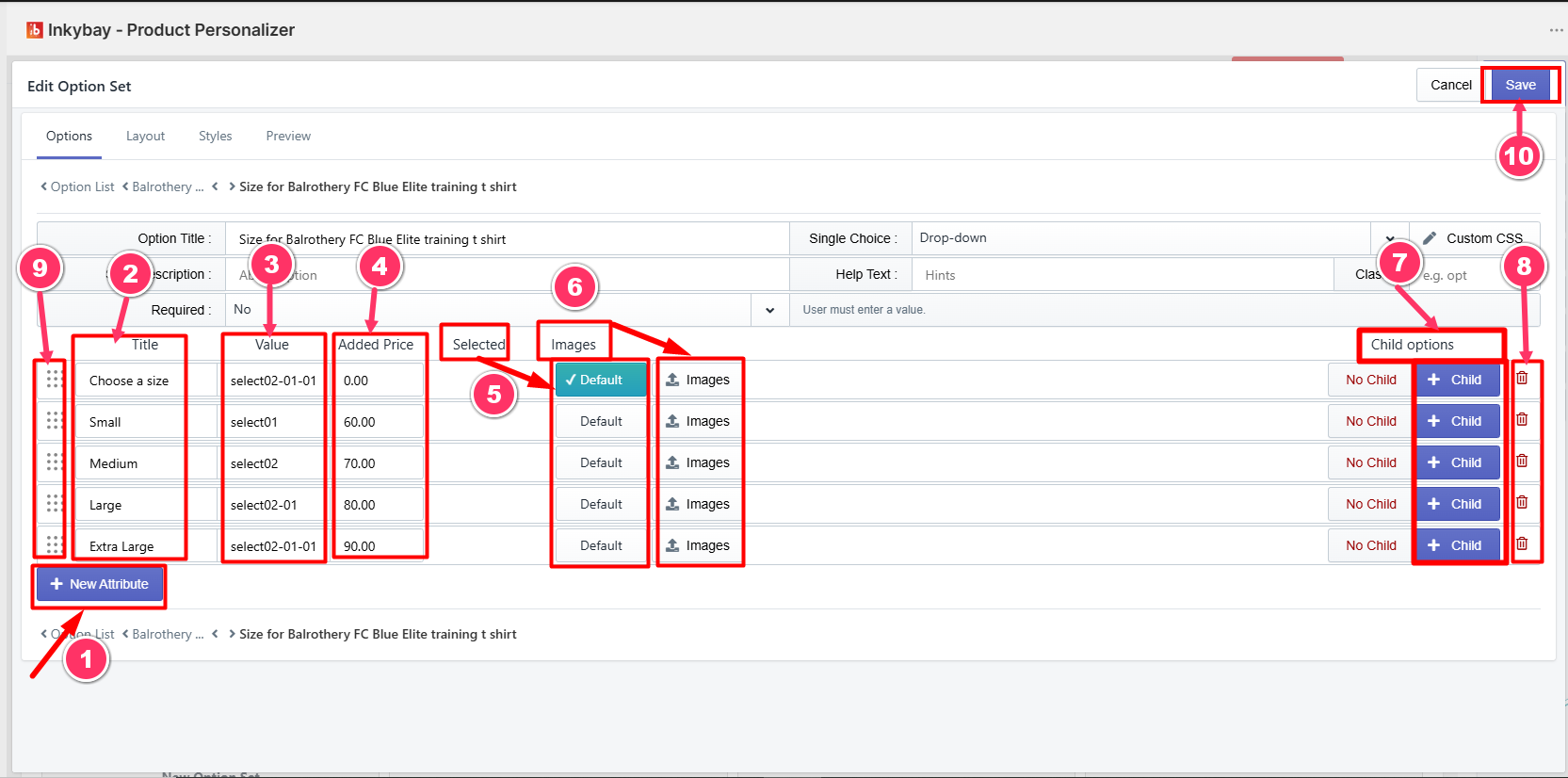
+ New Attribute: Click here to add new attribute
Title: Provide the options attribute name here.
Value: You can provide value for the attribute here. This value will be shown in and with the order as a selected option.
Added Price: If you want to charge extra for the attribute, put the extra price here. This price will be added to your base product price.
Default: Click here to make the attribute the default. The attribute will appear as selected by default on the product page.
Image: By clicking on the Image button, you will be asked to upload an image for the swatch and product image. These images only work on the product page. The swatch image is the small thumbnail image that customers click on while browsing the product page to select their option. For the swatch, you can upload a 100×100 px image, and when the customer clicks on the swatch image, the product image will be shown in the product page according to the image that you upload in the product image.

+ Child: If you want to add any conditional option for the attribute, click here. It will create a sub-option for that particular attribute. Then you need to add details to it, just like a new option (processes are the same).
Delete: Click on the red trash icon to remove the options attribute, including all of its conditional child options (if any)
Reorder: Click and drag this dotted icon to arrange attributes.
Save: Click the Save button to activate options with attributes.
Feel free to contact us whenever you face any issues or need assistance. You can also reach us:
InkyBay app Live chat
Support ticket from the InkyBay app
Email to support@inkybay.com
 Getting Started
 Products
 Designs
 Templates
 Configuration
 Printing
 Orders
 Inventory Management
 Settings
 Packages
 Uninstallation
 Tutorials
 FAQ
FAQ