To show the product option on the storefront, you have to apply a rule for that option.
Step 1: Access your product options.
Go to your admin dashboard. Hover over the Products option, then click on Product Option. All your created product options will be listed here. By clicking on the +option set, you can create a new option set.
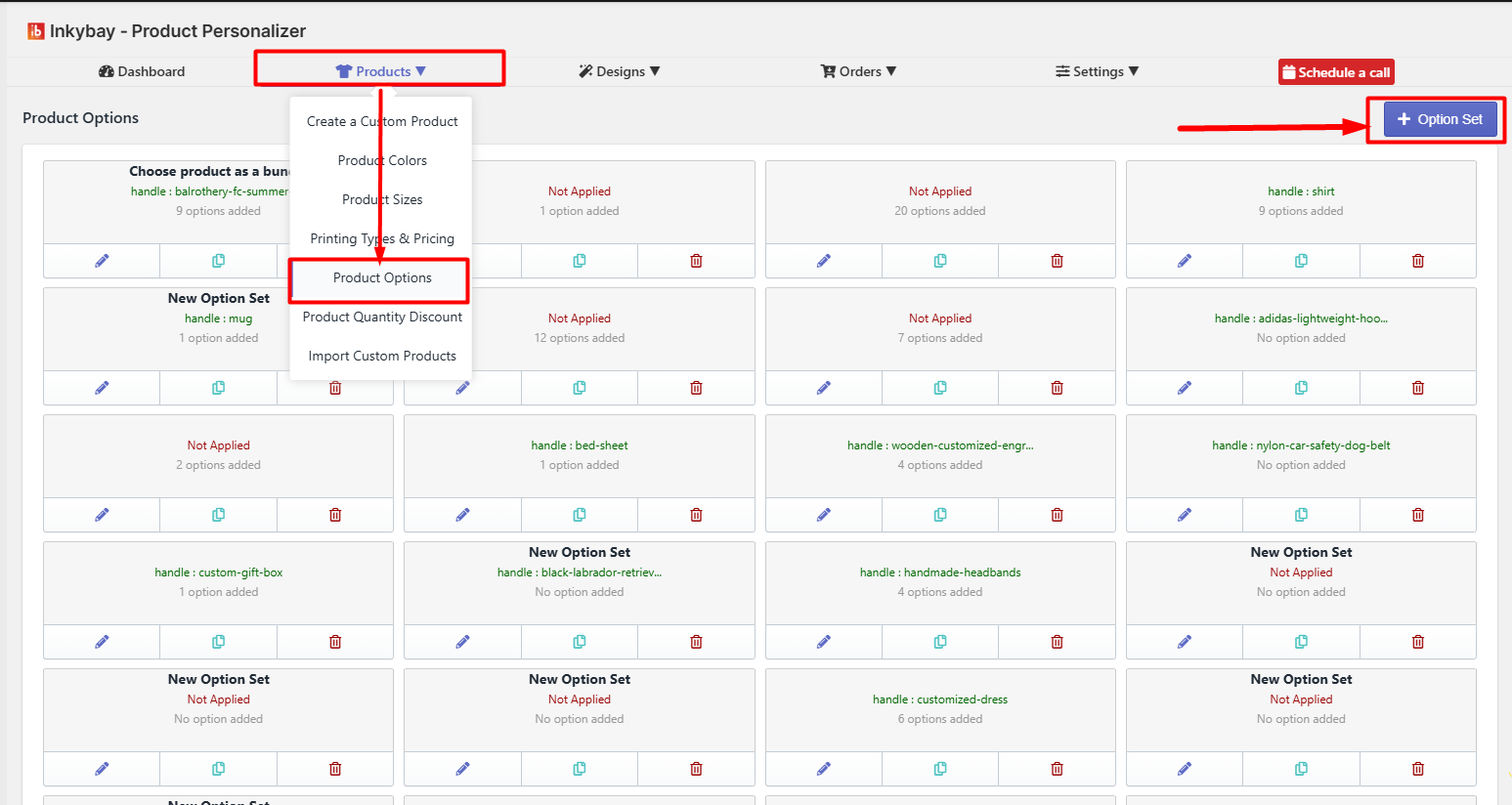 After creating an option set to show the option in the storefront, you have to apply a rule.
Step 2: Apply Rule:
You can apply the option set to products in multiple ways. Select a rule from the drop-down. By default, it will be selected No rule, this means this option set is not yet applied to any products. You can selectively apply the rule from:
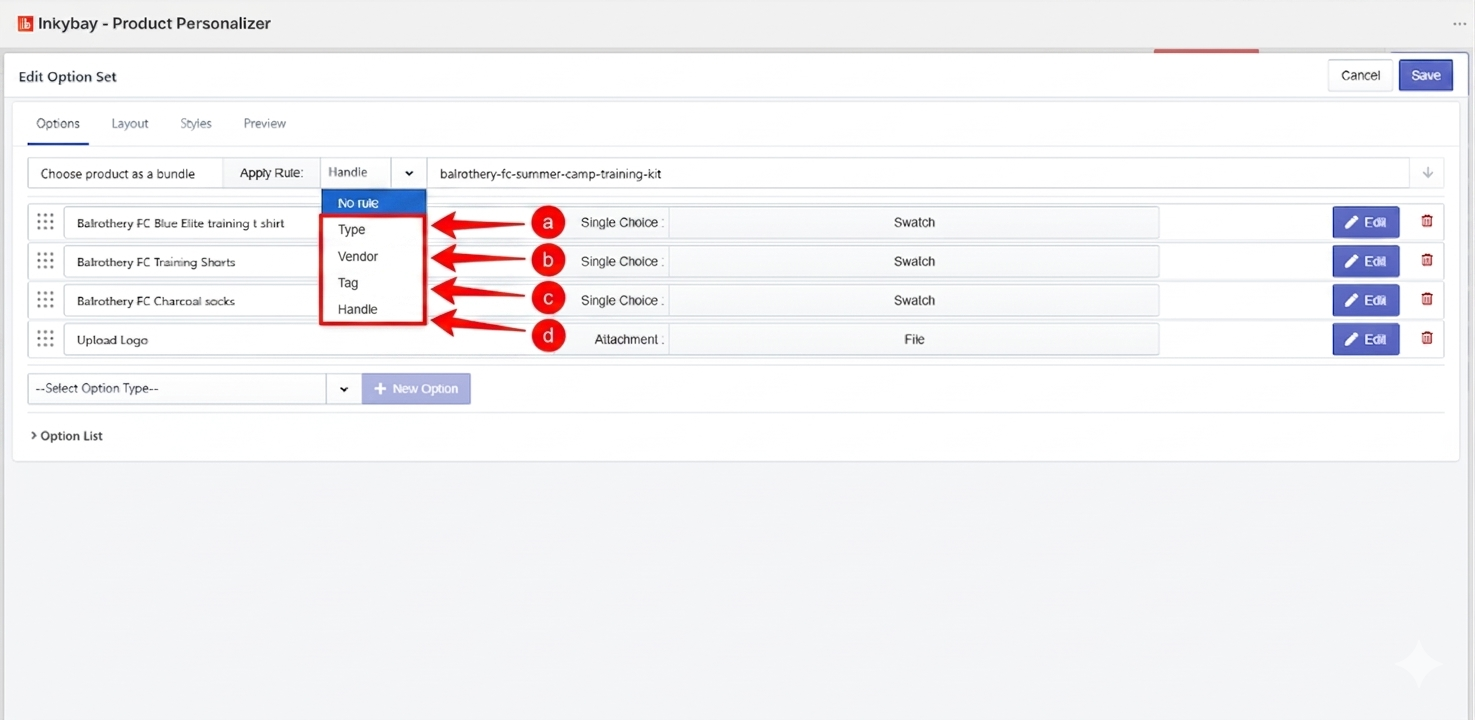
Type: Apply this option set by using the product type from your Shopify products.
Vendor: Apply this option set by using product vendors from your Shopify products.
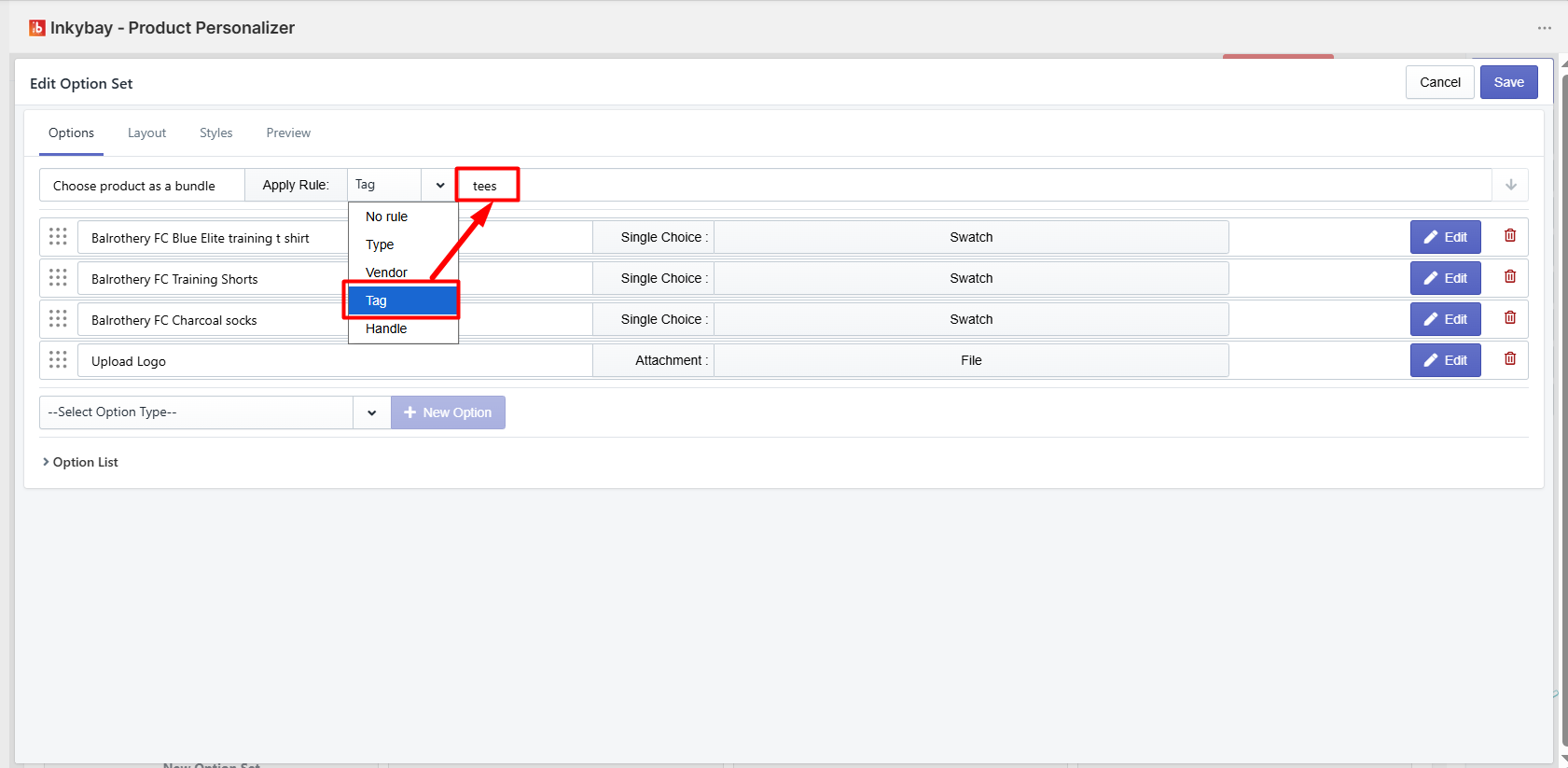
Tag: Apply this option set by using a product tag from your Shopify products.
If you want to apply an option set in multiple products, you can use a rule (type, vendor, or tag). For this, you have to set the type, vendor, or tag for your product from Shopify.
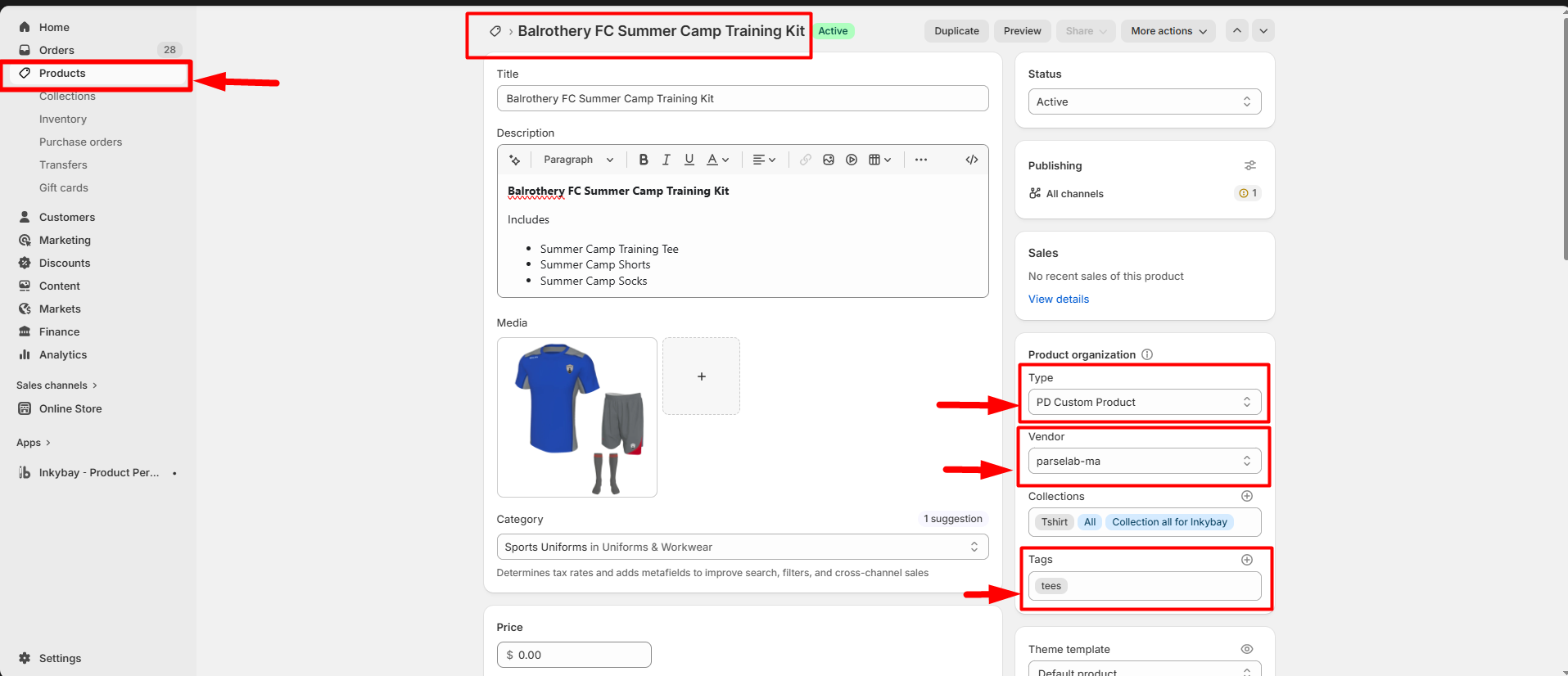 After that you have to assign that type/vendor/tag to your product option like below
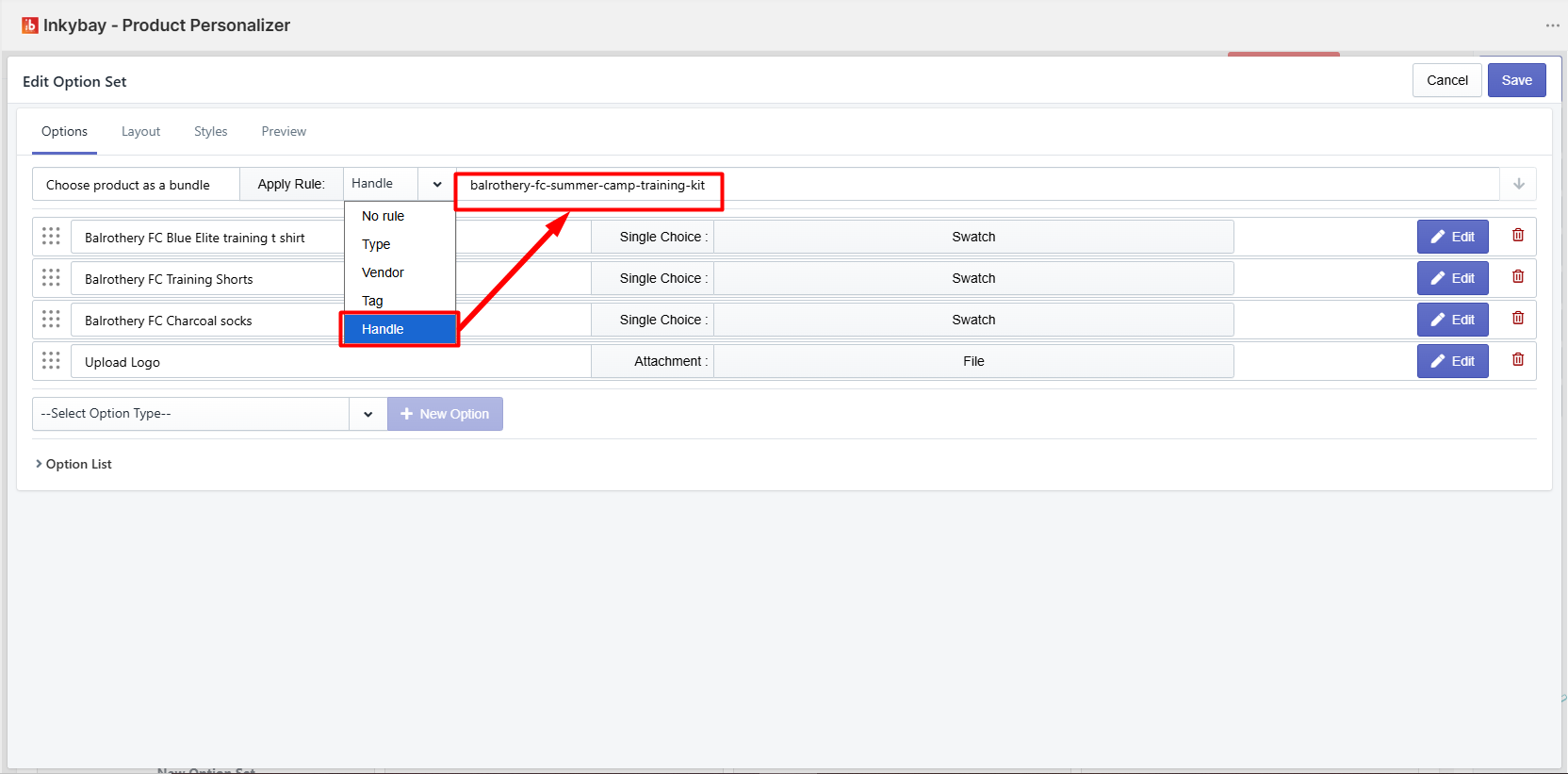
d. Handle: If you want to apply the option to a single product, you have to select the rule handle. To add product handles to your product, you have to copy the product handle from the product URL
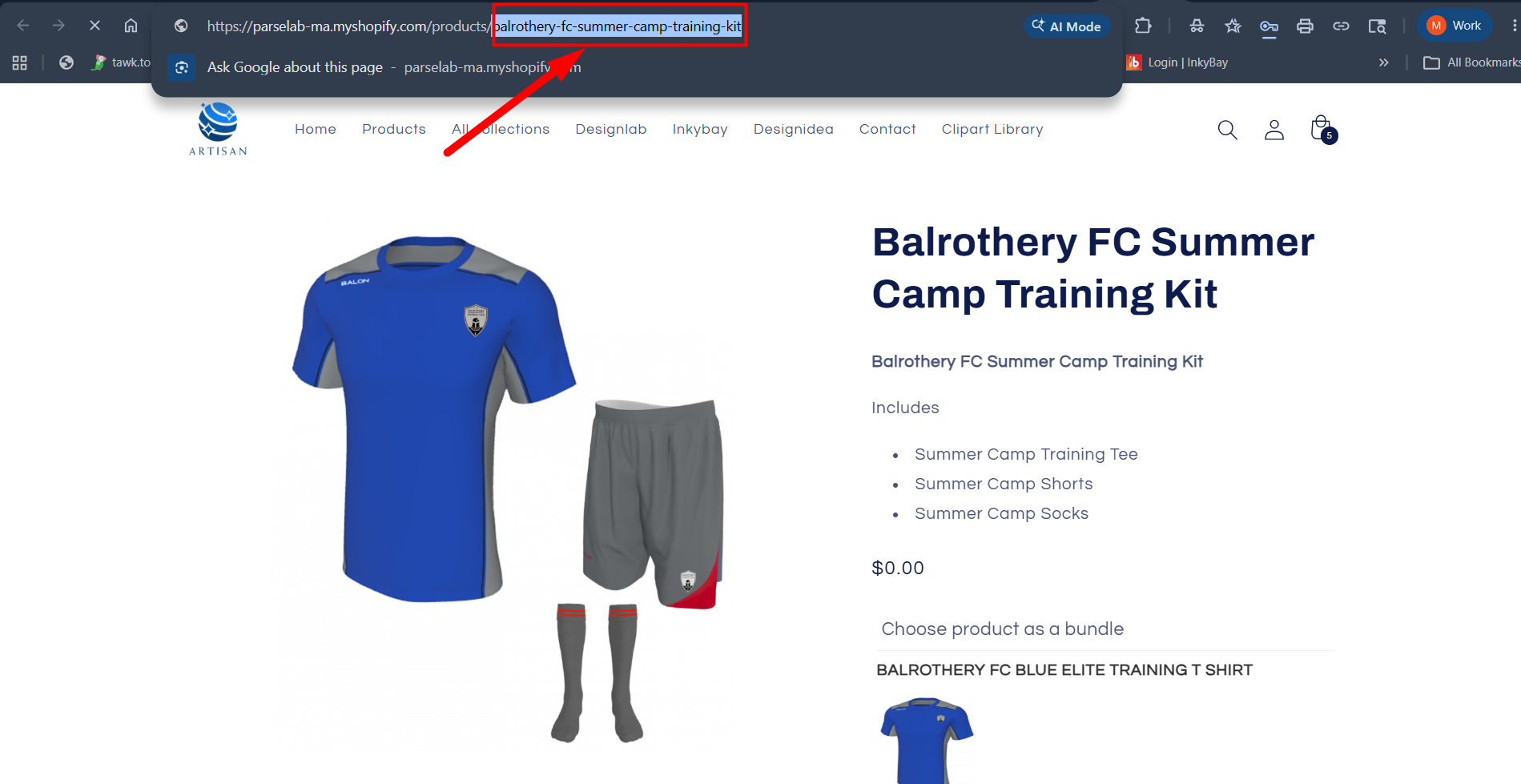
After copying the last path, you can add it here in the option rule, like below
Feel free to contact us whenever you face any issues or need assistance. You can also reach us:
InkyBay app Live chat
Support ticket from the InkyBay app
Email to support@inkybay.com
 Getting Started
 Products
 Designs
 Templates
 Configuration
 Printing
 Orders
 Inventory Management
 Settings
 Packages
 Uninstallation
 Tutorials
 FAQ
FAQ