Category
 Getting Started
 Products
 Designs
 Templates
 Configuration
 Printing
 Orders
 Inventory Management
 Settings
 Packages
 Uninstallation
 Tutorials
 FAQ
FAQ 2 min to read
Last Update on 06 May 2026
How to Manage Inventory with Product Styles
InkyBay’s product style feature lets you offer different styles of your product and price them dynamically. Your customers can change the style while selecting the color for your product inside the customizer.
To know more about setting up the style for your product, check out the article on Create Custom Products.
Manage the Inventory of Product Style
Inkybay’s Inventory system allows you to manage the inventory of your product’s variants. To manage the inventory of your product style, follow the steps below:
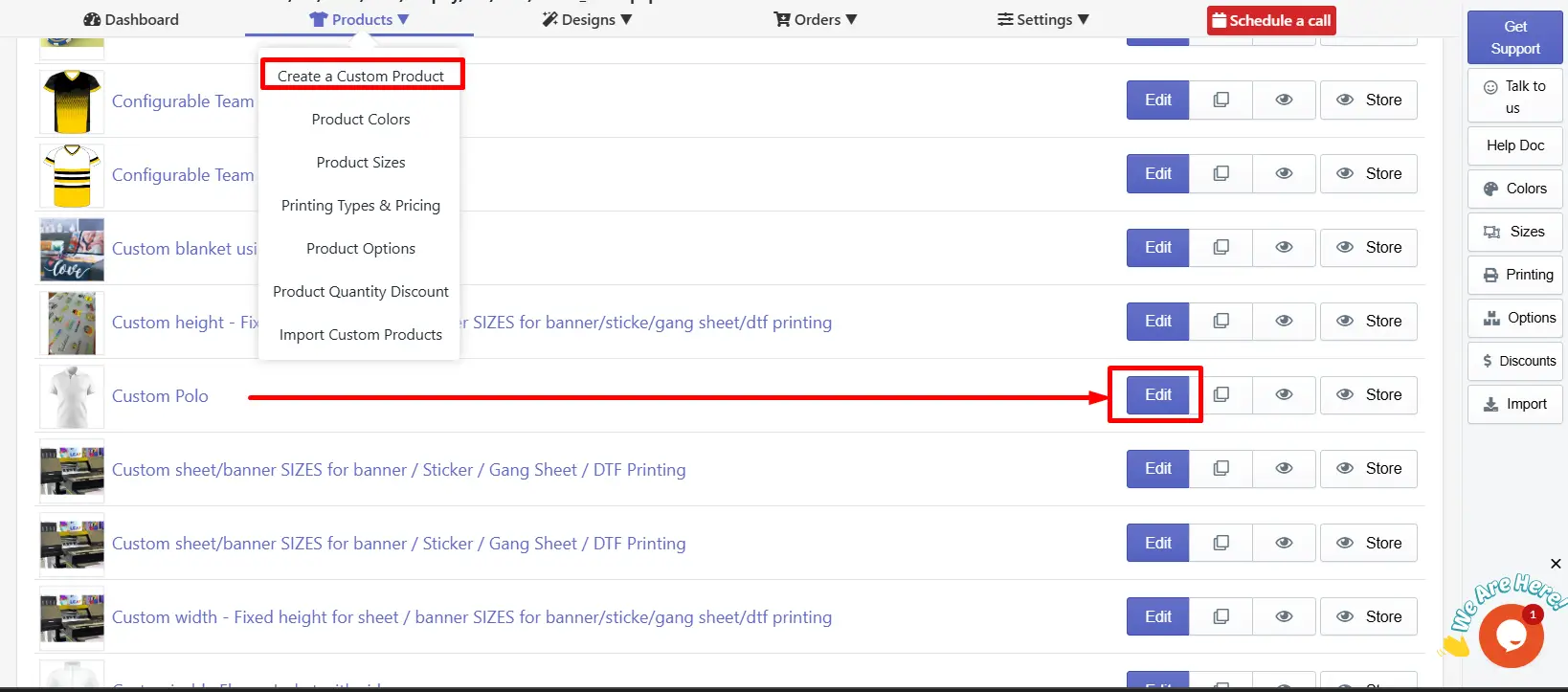
Step 1: Navigate to the custom product.
Select your custom product and then click the Edit button, as shown in the image below
Step 2: Access the Inventory section.
Scroll down to the Restrictions section and click the Inventory option there.
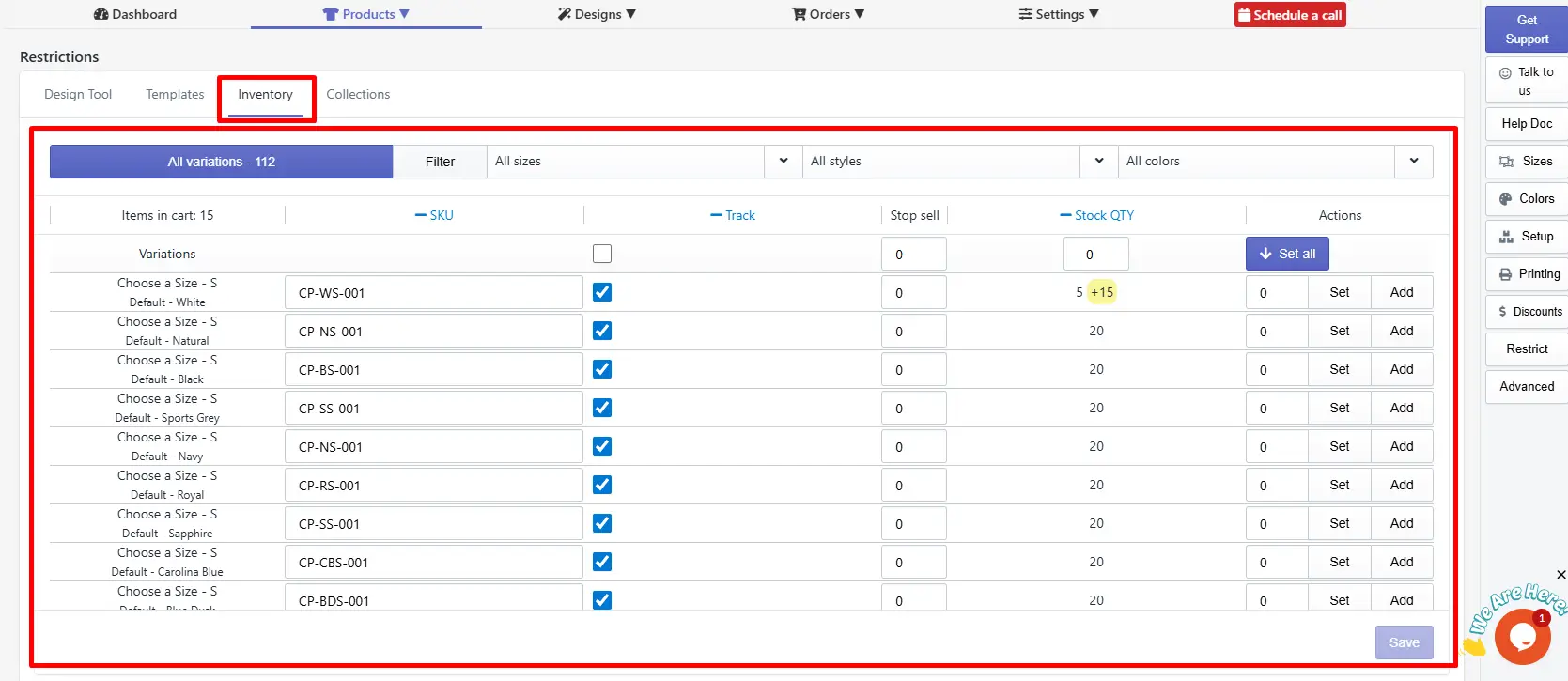
Step 3: Check your product Styles and variations
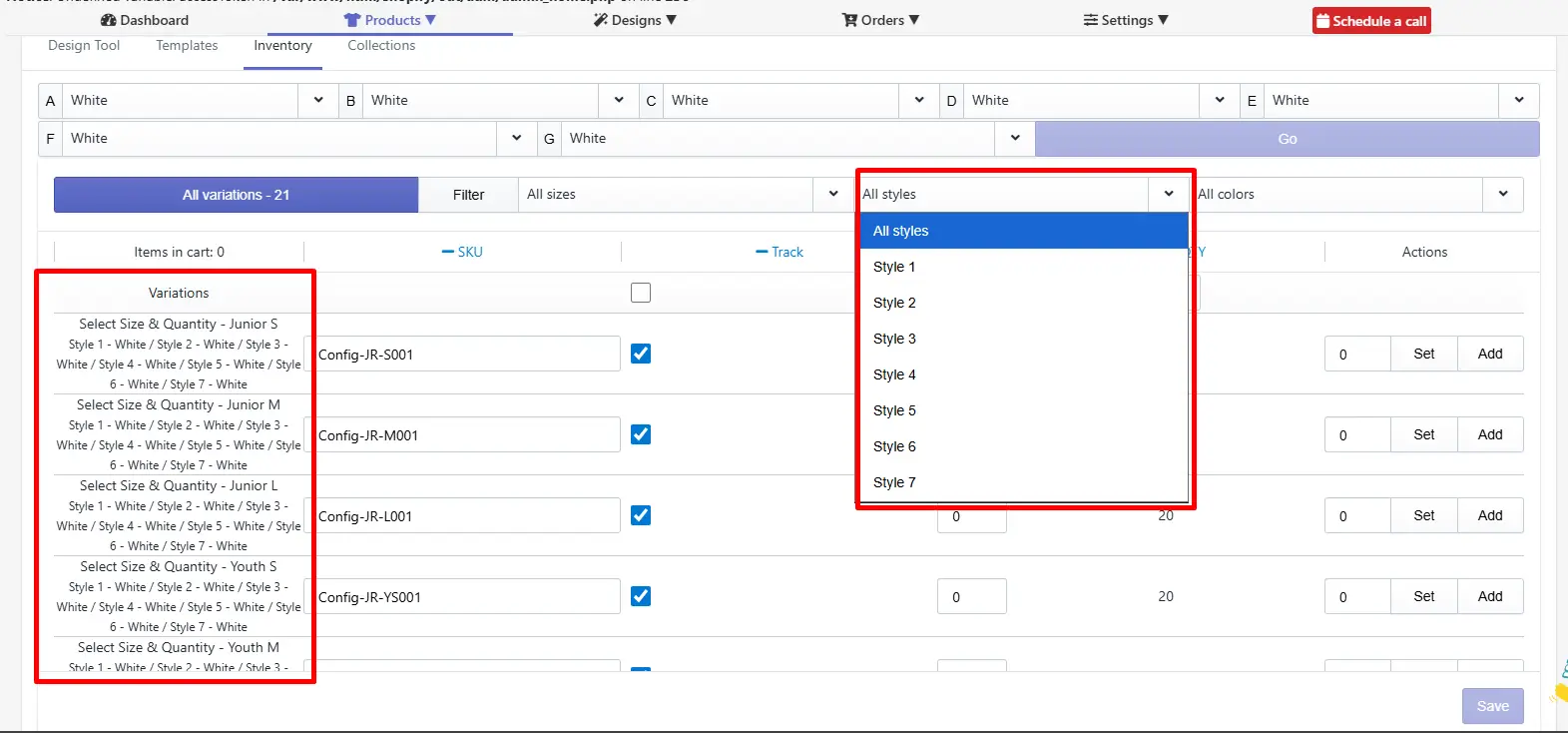
ALL Styles: From the all styles drop-down, you can check all the available styles of your product. You can filter variations by size, color, and style to check and manage each variation of the product separately.
Variations: In the variation list, it will automatically create every possible variation of your product using the sizes, colors, and styles of your product. You can easily update the inventory (SKU, Stock quantity, stop sell quantity, and track inventory) of each variation of your product.
To know more about how to manage the Inventory of your product, you can check out this article on Inventory Management.
Still, facing difficulties or need help? Feel free to contact us. You can also reach us via:
InkyBay app Live chat
Support ticket from the InkyBay app
Email to support@productsdesigner.com
Did this post help you?