Category
 Getting Started
 Products
 Designs
 Templates
 Configuration
 Printing
 Orders
 Inventory Management
 Settings
 Packages
 Uninstallation
 Tutorials
 FAQ
FAQ 2 min to read
Last Update on 05 May 2026
How to Set Printing Price per Size Range
Set up customization pricing based on the customer’s added design total size range, product quantity range, and product color type (light and dark).
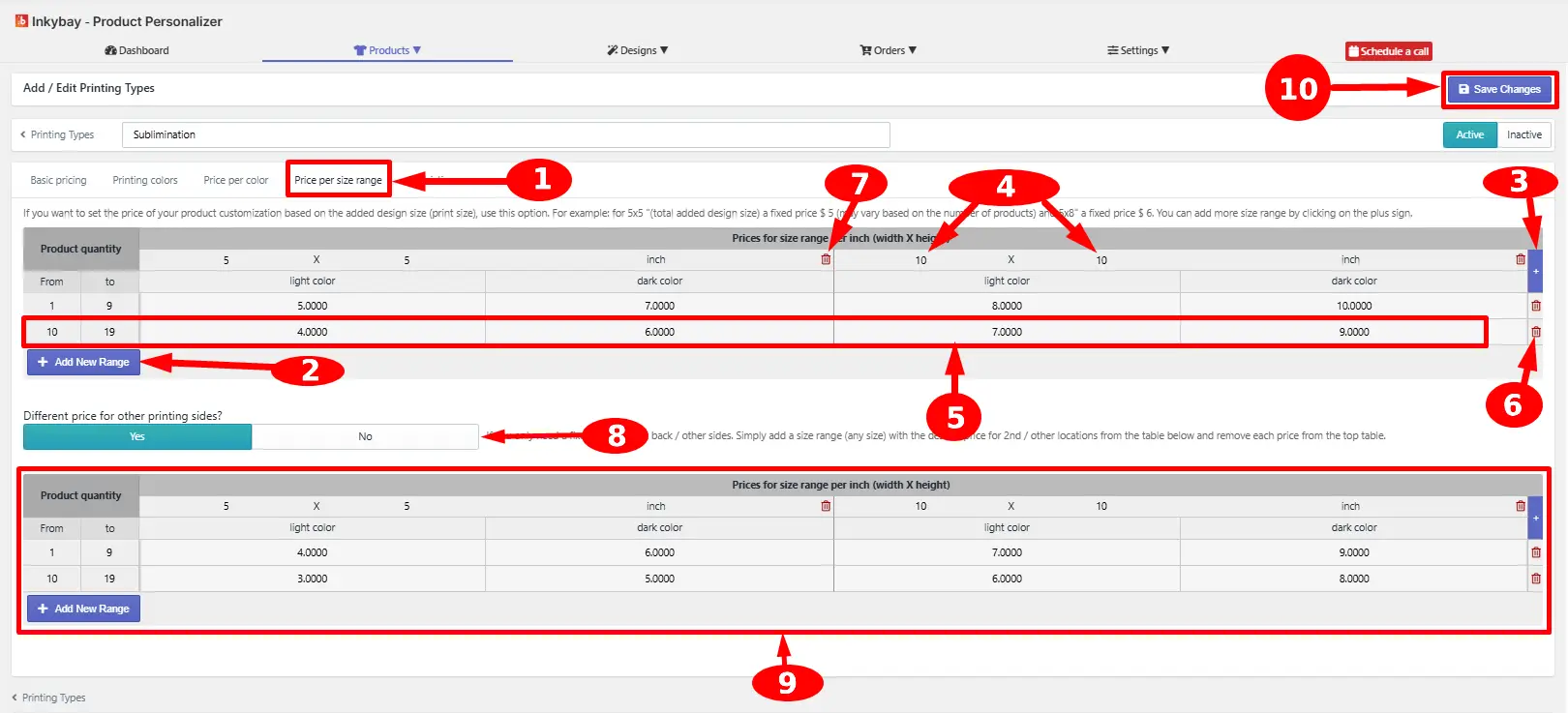
Key settings are:
Price per size range tab - Click the tabto set up customization price.
+Add New Range - Click the button to add the new product quantity range.
Add new size range - Click the plus sign (+) to add a new size range for pricing.
Add/edit size range per inch (Width x Height) - Enter the width & height (e.g., 5x5 inch or 8x10 inch).
Custom price set up - Enter a separate price for light color products and dark color products (light and dark colors for the product can be marked from the product color settings).
Trash icon - Click the trash icon to remove a row.
Trash icon - Click the trash icon to remove The column.
Different price for other printing sides? - If you want to set up a fixed price for the back/other sides, click Yes. It will copy the pricing table you created on top.
Second pricing table - Set up the pricing for 2nd/other print locations.
Save Changes - Click the button to apply all pricing changes.
Still, facing difficulties or need help? Feel free to contact us. You can also reach us:
InkyBay app Live chat
Support ticket from InkyBay app
Email to support@productsdesigner.com
Did this post help you?