Category
 Getting Started
 Products
 Designs
 Templates
 Configuration
 Printing
 Orders
 Inventory Management
 Settings
 Packages
 Uninstallation
 Tutorials
 FAQ
FAQ 2 min to read
Last Update on 06 May 2026
How to Set Product Collection Limits in InkyBay
This feature allows you to limit product collections for a specific product. You can limit collections for a specific product from the restrictions, so that when customers design the product, if they want to change the product, they can see only the limited collections for that specific product.
To limit collections for a specific product, while setting up a product for customization, you have to select the collections from the restriction, and only the selected collection will be available inside the designlab.
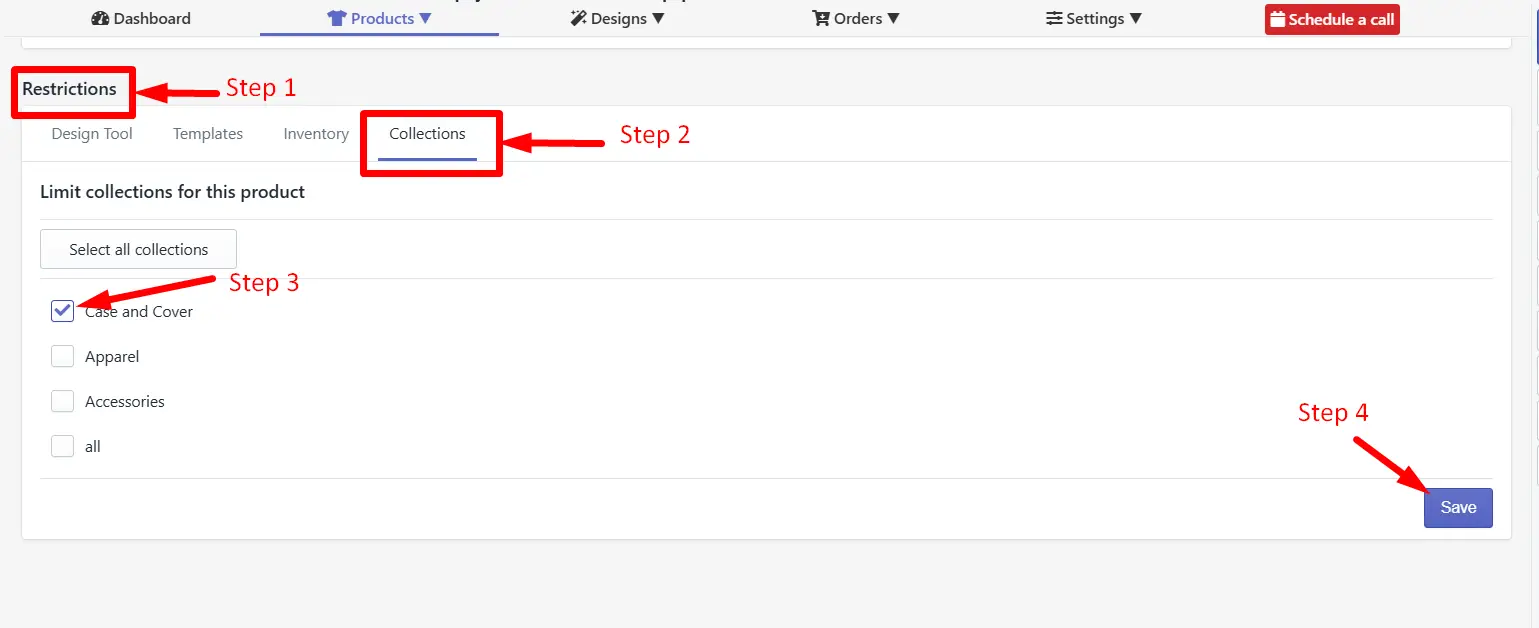
Step 1: While setting up a product for customization, scroll down to the restriction section.
Step 2: Click on Collection to access all the available product collections.
Step 3: By default, all the collections will remain unchecked and show inside the designlab. To limit the collections, select those specific collections that you want to show for this product.
Step 4: Click on the save button after any changes.
Only the selected collections will appear inside the designlab for this specific product, and other unchecked collections will be hidden for this product.
Still, facing difficulties or need help? Feel free to contact us. You can also reach us:
InkyBay app Live chat
Support ticket from the InkyBay app
Email to support@productsdesigner.com
Did this post help you?