With this option, you can define specific colors available for printing (e.g., screen printing, embroidery, etc.), manage pricing based on color count, and enable advanced color selection.
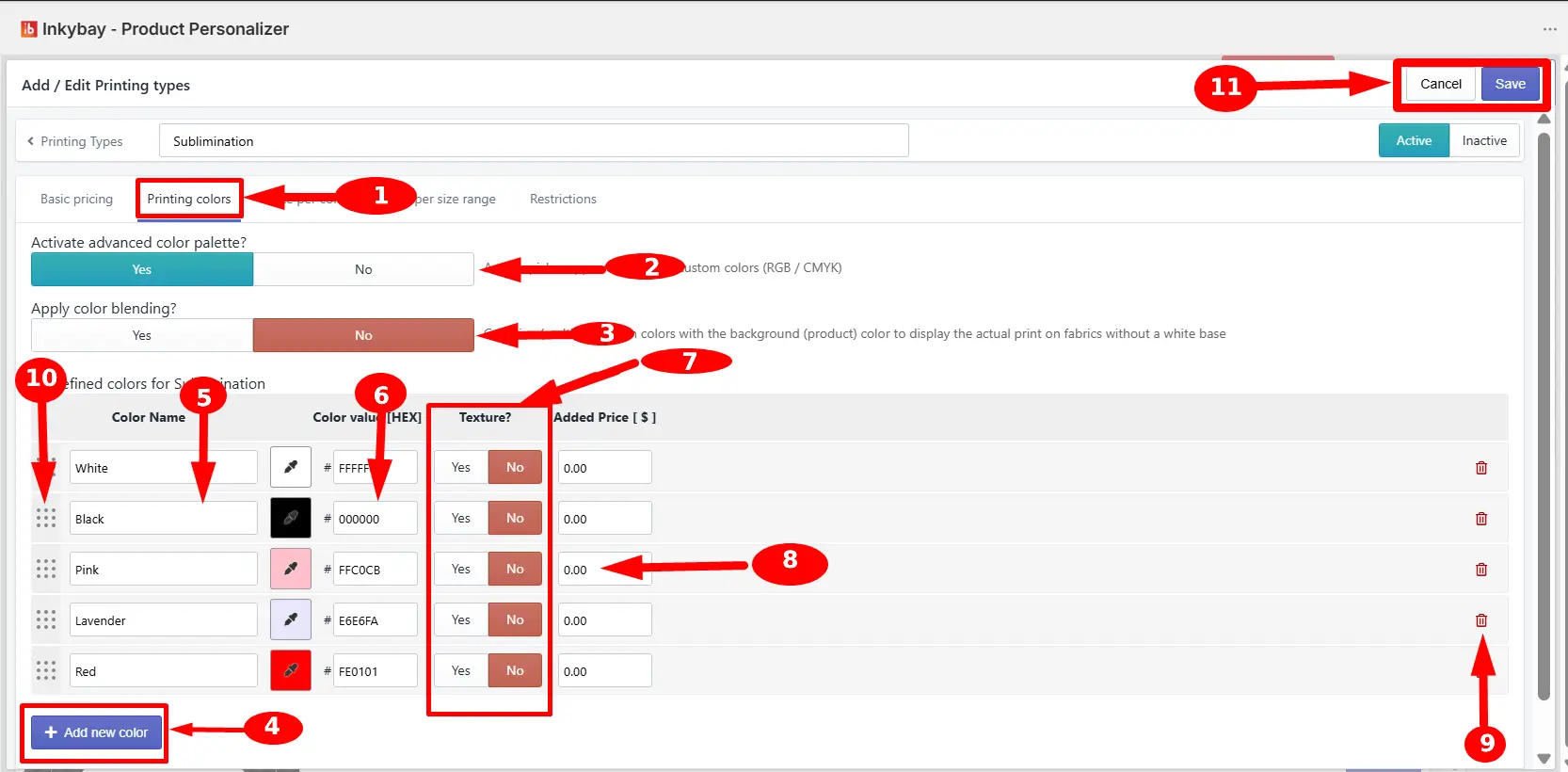
Key settings of the Printing Colors option are highlighted based on the numbers:
Printing colors tab - Click the tab to access relevant settings.
Active advanced color palette? - Select Yes if you want to allow customers to choose custom colors (unlimited printing colors) for their added designs. Select No to restrict customers to choosing only predefined colors.
🎯Note If you set it to yes, it will add a button “Advance color” so customers can choose colors from a color palette or enter custom color codes. |
Apply color blending? - If you want the design to blend with the product for better display and show an actual print on fabrics without a white base, select Yes.
+ Add new color - Click the button to add a new color row to the re-defined color list for this printing type.
Color Name - Enter the color name you want to display (e.g., black, white, blue, etc.). This name is shown to customers in the color selection panel on the design tool.
Color value - Enter the 6-digit hexadecimal color code/value. [Note: Do not enter #]
Texture? - Select Yes if you want to upload a texture image instead of using a hex code. The uploaded texture is shown as the color icon on the design canvas. Use this for material-based colors (e.g., glitter, holographic, or pattern finishes).
🎯Note This option is available only for Advance and Professional users. |
Added Price - If you have any extra price for this printing color, enter the amount. It is applied when a customer selects this specific color in their design.
Trash icon - Click on the trash icon to remove that color from the printing type’s color list.
Reorder - Click and drag this dotted icon to organize colors as you wish.
Cancel/Save - Click the Save button to apply all changes made on this tab.
Still, facing difficulties or need help? Feel free to contact us. You can also reach us:
InkyBay app Live chat
Support ticket from InkyBay app
Email to support@productsdesigner.com
 Getting Started
 Products
 Designs
 Templates
 Configuration
 Printing
 Orders
 Inventory Management
 Settings
 Packages
 Uninstallation
 Tutorials
 FAQ
FAQ