Category
 Getting Started
 Products
 Designs
 Templates
 Configuration
 Printing
 Orders
 Inventory Management
 Settings
 Packages
 Uninstallation
 Tutorials
 FAQ
FAQ 2 min to read
Last Update on 05 May 2026
Inkybay API Connect
Inkybay allows you to connect your store with custom systems or third-party platforms through API to pull the order file. You can easily pull the order file through the API in any external server from Inkybay.
Follow the steps below to set up the API connection properly:
1. Get the Order SDK (PHP)
To begin, you need to use the official Order SDK (PHP) provided by Inkybay.
Download the SDK from the GitHub repository.
Carefully review the README file included in the repository for setup instructions.
2. Configure the SDK for your server
Configure the SDK files on your server by following the instructions in the repository.
Make sure the destination folder where order files will be stored is writable.
3. Configure the Hook URL in Inkybay
Follow the steps below to configure the hook URL in your Inkybay Admin:
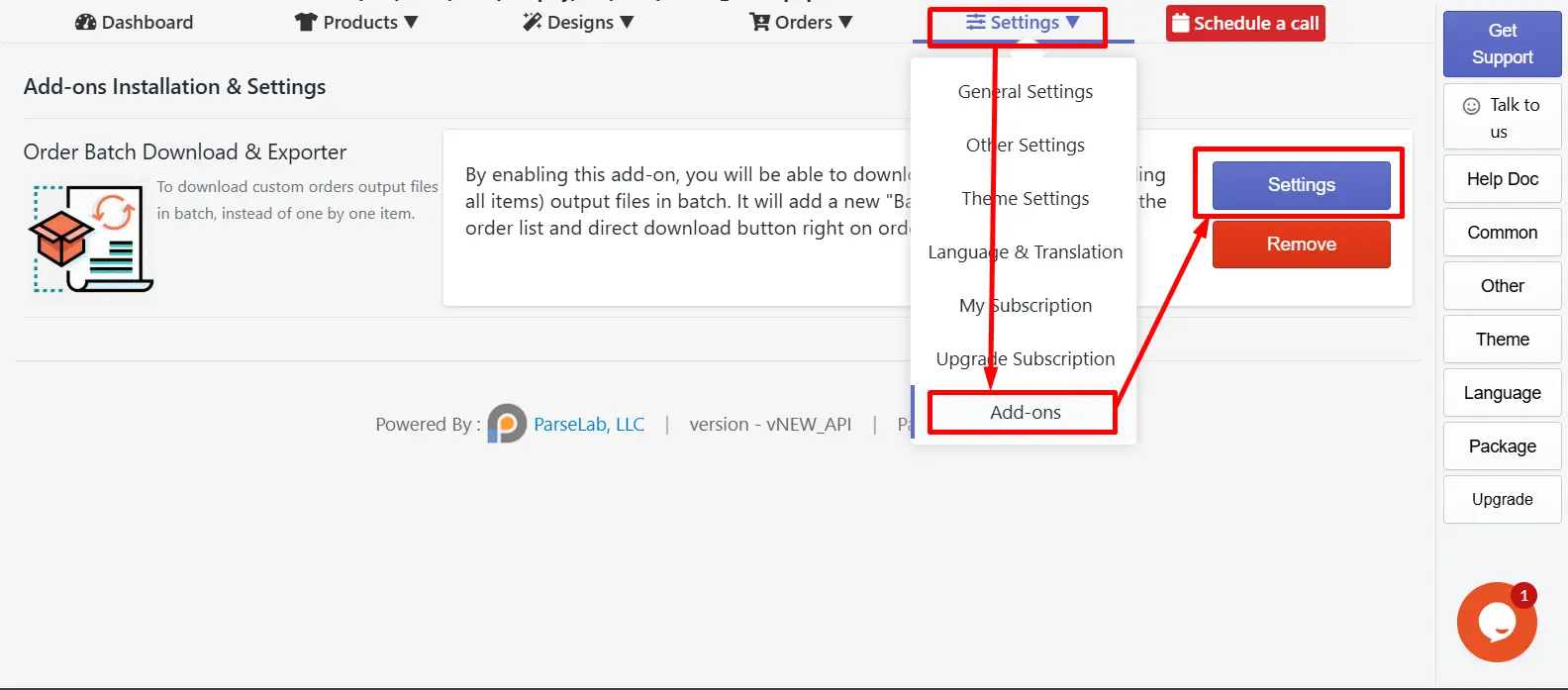
Step 1: Navigate to your Add-Ons settings.
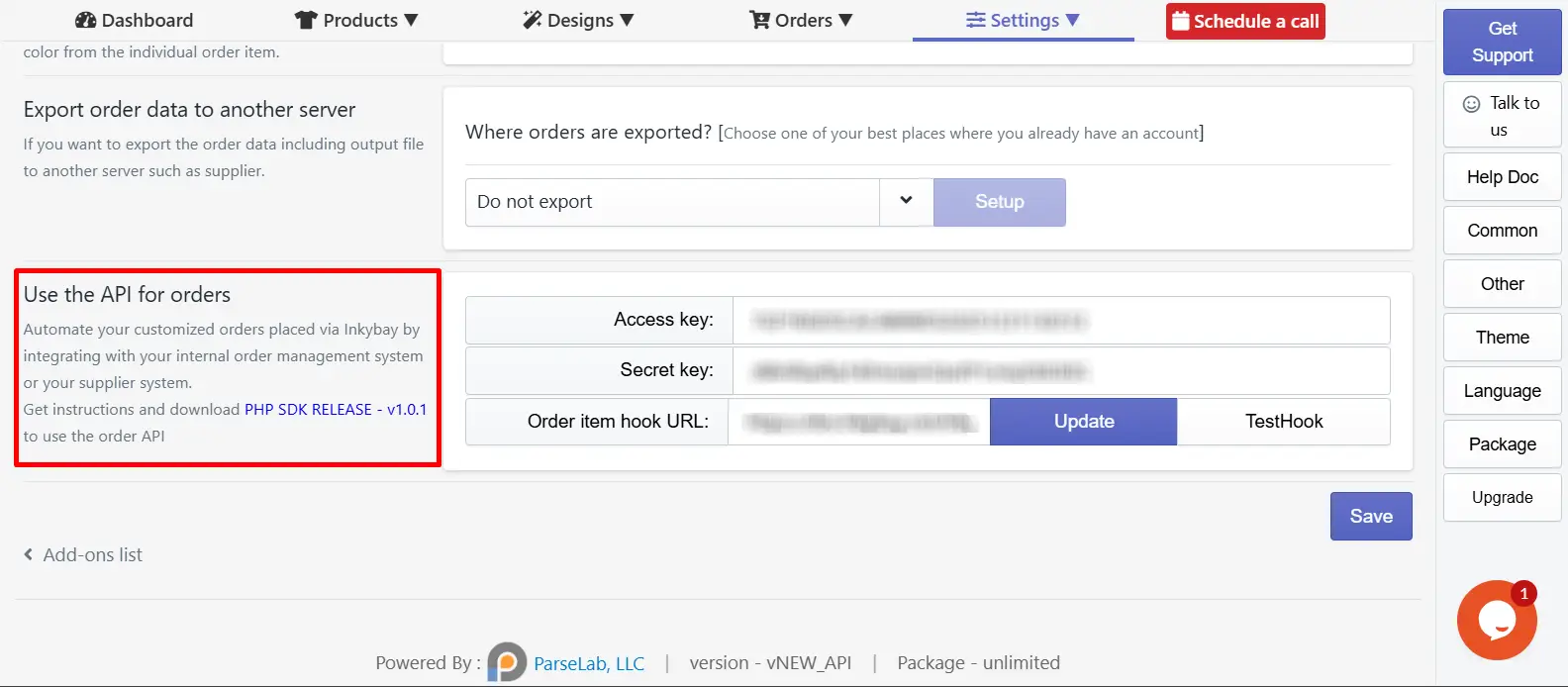
Step 2: Scroll down to the “Use the API for Order” Section
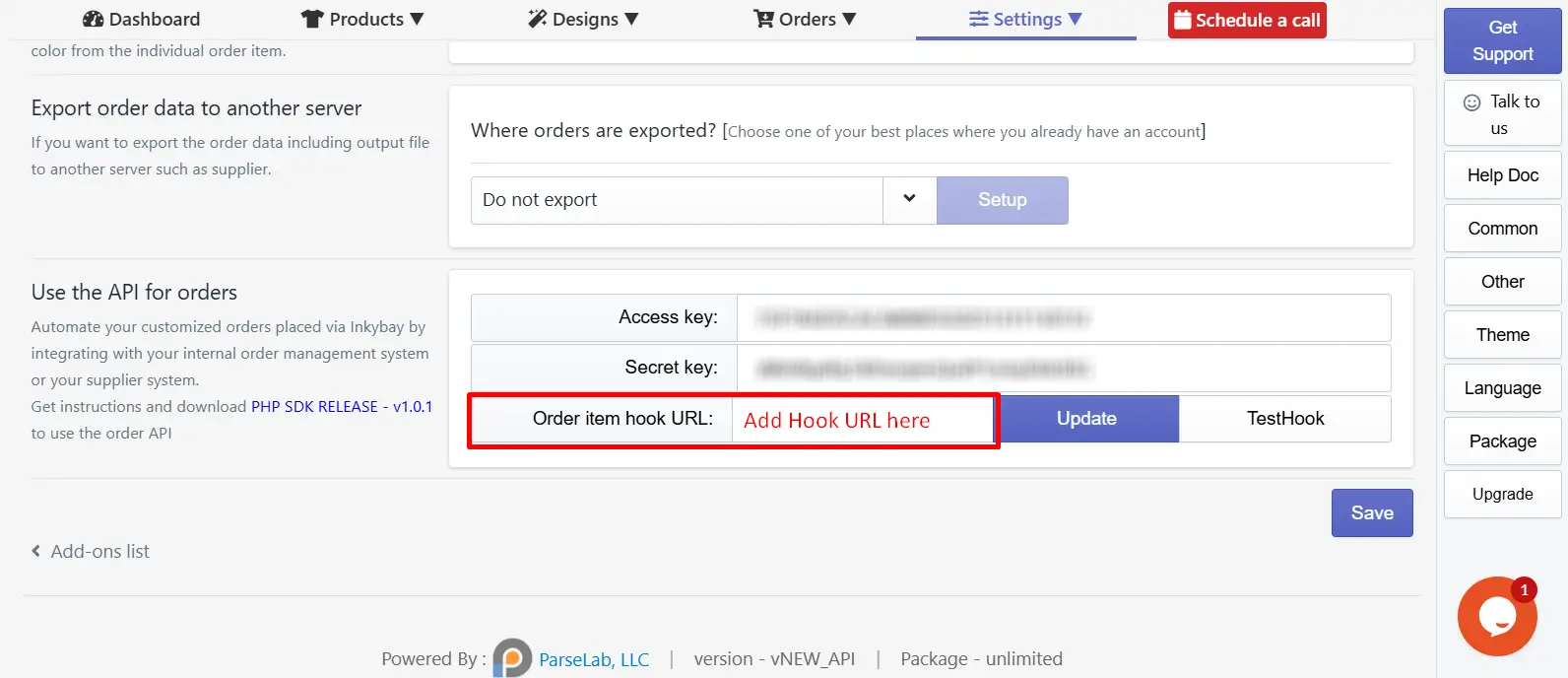
Step 3: Add the order item hook URL, and click on the Update button.
The hook URL will be the URL of where you uploaded the order SDK file, for example: "https://your-server-domain/sdk-folder/item.php"
 Step 5: Click on the save button after updating the hook URL.
How the API Works
Once the Hook URL is configured, every new order placed in your store will be automatically sent to the designated folder on your server.
🎯Note Only new orders created after the API configuration will be sent to your server. Orders placed before configuring the API will not appear on your server. Ensure your store receives a new order to test the setup. |
Test the Integration
After completing the configuration:
Place a new order in your store.
Wait for a few minutes (around 10–15 minutes).
Check your server folder.
If everything is configured correctly, the order file should be automatically generated in your specified directory.
Still, if you face any difficulties or need help, feel free to contact us. You can also reach us:
InkyBay app Live chat
Support ticket from the InkyBay app
Email to support@productsdesigner.com
Did this post help you?