InkyBay's Orders section gives you everything you need to manage and fulfill your custom product orders. Here's what you can do:
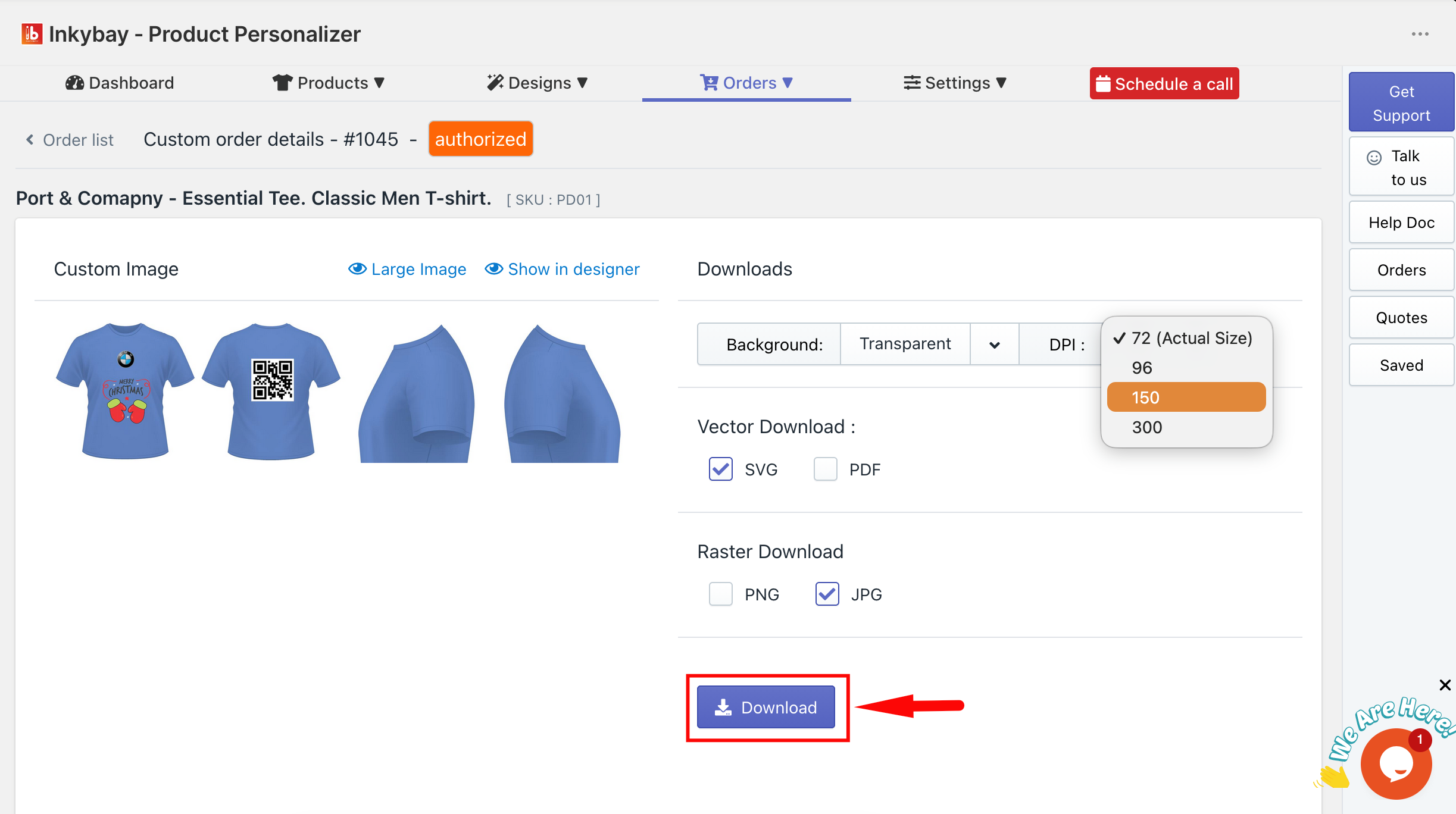
Download Custom Orders: Once a customer places an order, download their print-ready design files (SVG or PDF and PNG, or JPG) straight from the InkyBay dashboard. Each download includes print files for every side, selected size, colors, options, and other details, and all customer design elements.
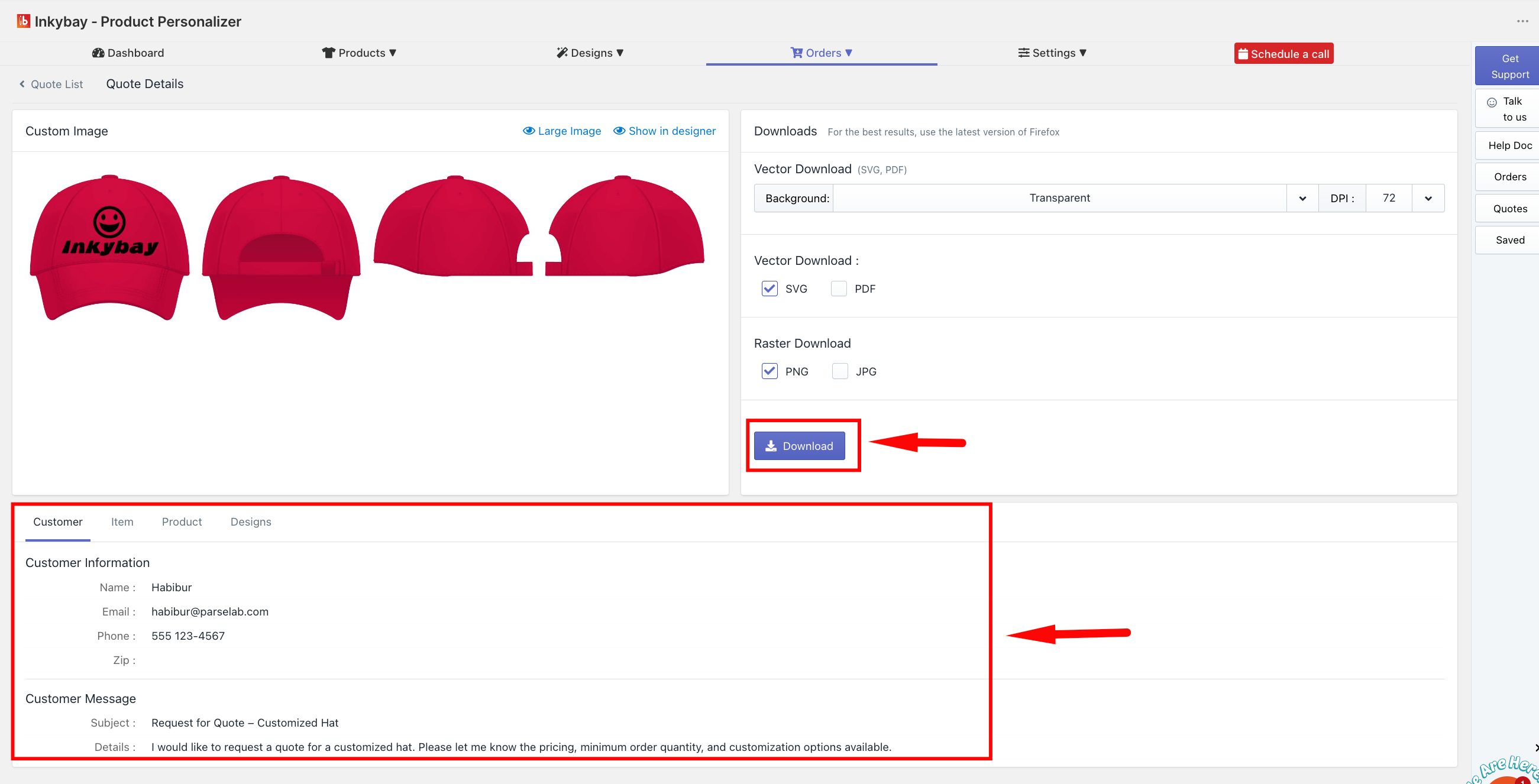
Custom Quote Requests: Customers can request a price quote before placing an order. You will get an email notification, then head to the InkyBay dashboard to review and download the quote file, which includes their design preview, design details, variant details, quantity, etc., and view customer contact information.
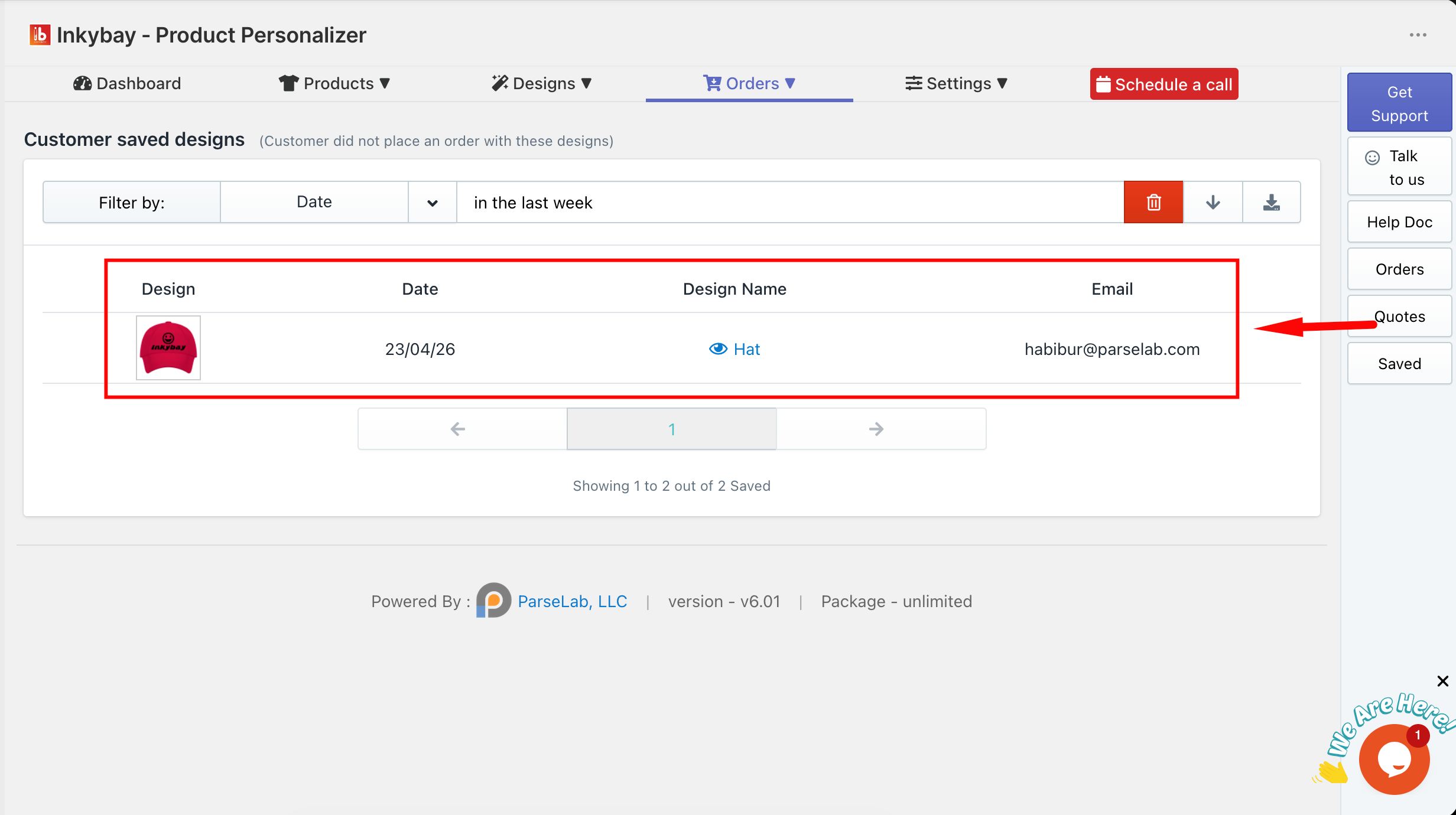
Customer Saved Designs: Customers can save their designs in the designer tool and come back to them anytime. When a design is saved, a link is automatically emailed to the customer. You can also view all saved designs in the InkyBay dashboard and export them as a CSV file, including design URLs, customer email, date, and design name.
 Getting Started
 Products
 Designs
 Templates
 Configuration
 Printing
 Orders
 Inventory Management
 Settings
 Packages
 Uninstallation
 Tutorials
 FAQ
FAQ