With this feature, you can restrict the design scope in a predefined template. You have to set the restrictions while creating the predefined template.
Design scope includes:
Default Template: Select and check this to set the whole design template as the default design for the current product. So, when the customers click on Customize It, the designer window will load this design (template) on the product by default.
Enable BG: If you want to enable background color and want to set a particular color as the background, check this box and provide the color hex code.
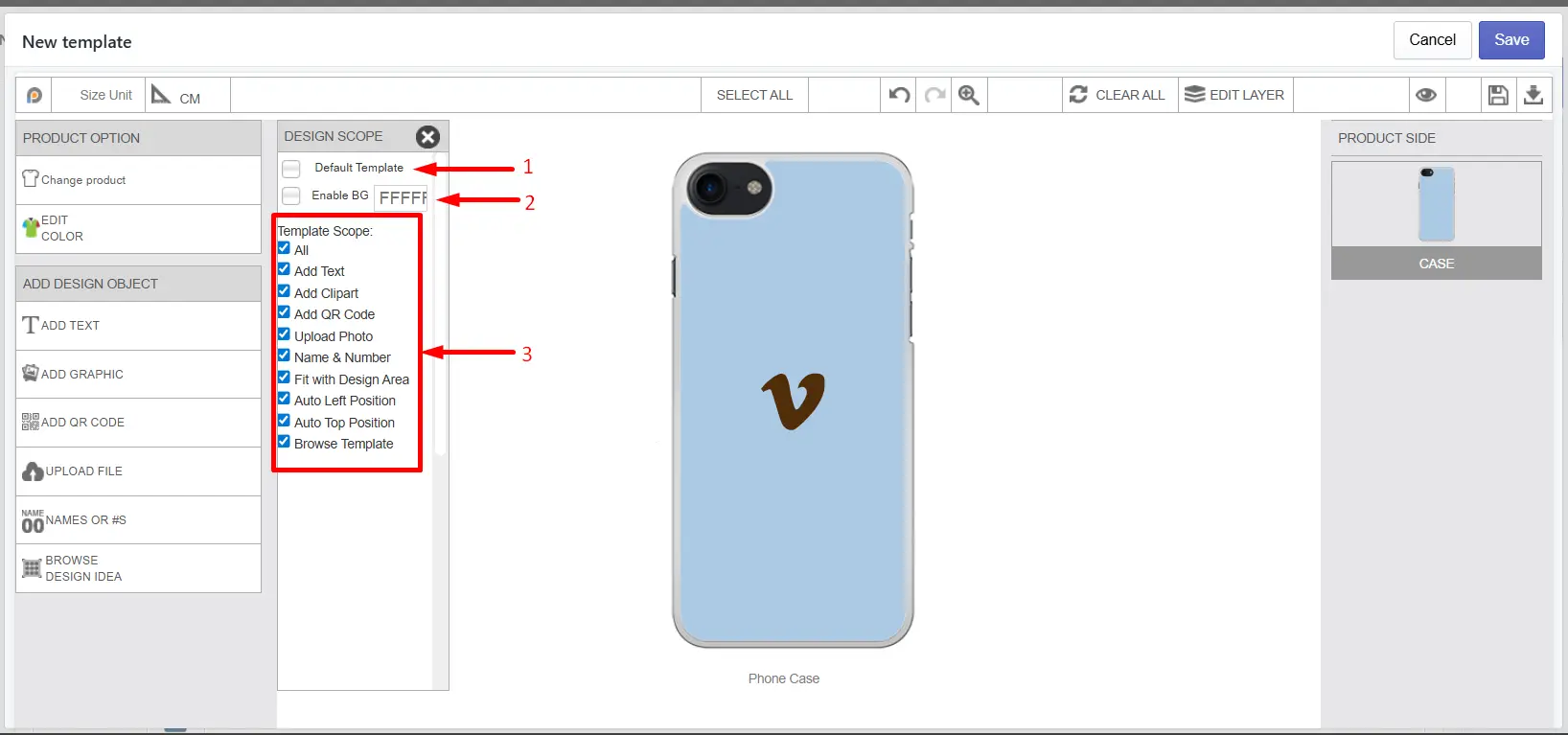 Template Scope: The template scope will allow you to set restrictions for the whole design. Under template scope, you will find:
All: Allow all template editing options; by default, it is set to all options. You can uncheck other options as needed.
Add Text: Uncheck this if you want to disable adding new text on this template.
Add Clipart: Uncheck this if you want to disable adding new cliparts/graphics to this template.
Add QR Code: Uncheck this if you want to disable adding a QR code to this template.
Upload Photo: Uncheck this if you want to disable users from uploading any file on this template.
Name & Number: Uncheck this if you want to disable adding Name & Numbers to this template.
Fit with Design Area (Only when loading from design tool): If you do not want to let the template (after selecting from the design tool) get stretched (resized) out to fit with the currently selected product (design area), uncheck this. By default, the template will load in the center position of the current design area of the selected product.
Auto Left Position (Only when loading from the design tool): When a user browses and selects this template from the design tool, by default, the design template is loaded in the center, based on the selected product’s design area size. Uncheck this option if you want to load this template in the same position as you created.
Auto Top Position (Only when loading from design tool): Uncheck this option if you want to load this template in the same right position as you created. This top position may vary based on the product design area you are creating with and on the current selected design area (if it is a different product with a different design area size).
Browse Template: Click and check this box to let customers browse other available templates (all of your created templates will be here. By default, it will be empty as you need to create a template first).
This section allows you to set up restrictions for the particular design object (e.g., text graphics) only.
🎯Important Clipart Scope will only be available when you put any design element in the design area of the product. |
Click on any placed clipart or design element to see the option in the Design Scope window. Here you’ll find several design elements, as the image shown below:
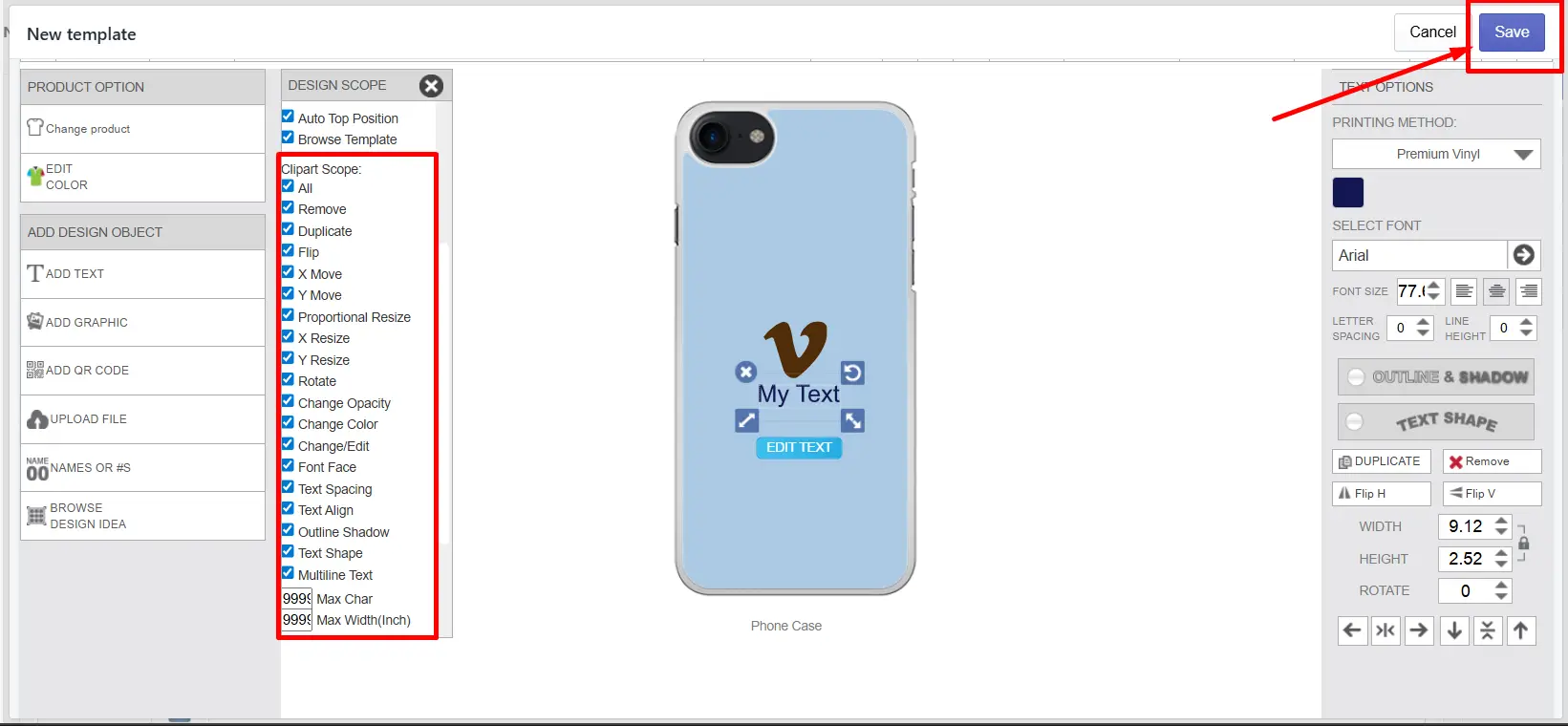
Details of each design element are:
All: Allow all editing options; by default, it is set to all options. You can uncheck other options as needed.
Remove: If you do not want to allow the user to remove this element, uncheck this. The front-end users can’t remove this element if you uncheck this.
Duplicate: If you do not want to allow the user to duplicate this element, uncheck this. The Front-end user can’t duplicate this element if you uncheck this.
Flip: If you do not want to allow the user to flip this element, uncheck this. In the front-end, users can’t flip this element if you uncheck this.
X Move: If you do not want to allow the user to Horizontally Move this element, uncheck this. The front-end user can’t Horizontally Move this element if you uncheck this.
Y Move: If you do not want to allow the user to Vertically Move this element, uncheck this. The front-end user can’t Vertically Move this element if you uncheck this.
Proportional Resize: Hide proportional resize option.
X Resize: Hide Horizontal resize option.
Y Resize: Hide Vertical resize option.
Rotate Hide Rotate option.
Change Opacity: If you do not want to allow the user to change the opacity of this for the element, uncheck this.
Change Color: If you do not want to allow the user to change the color for this element, uncheck this.
Change/Edit: If you do not want to allow the user to change/edit this (Text/graphics) element, uncheck this.
Font Face (For Text Only): If you do not want to allow the user to change Font Face for this text, uncheck this.
Text Spacing (For Text Only): If you do not want to allow the user to change Text Spacing for this text, uncheck this.
Text Align (For Text Only): If you do not want to allow the user to change Text Align for this text, uncheck this.
Outline Shadow (For Text Only): If you do not want to allow the user to change/add outline/shadow for this text, uncheck this.
Text Shape (For Text Only): If you do not want to allow the user to change/add text shape style for this text, uncheck this.
Multiline Text (For Text Only): If you uncheck this option, the selected text object will allow text as a single line; the user can’t add multiline text while editing.
Max Char (For Text Only): If you want to restrict this text field to allow a maximum number of characters, enter the number here, like 5,7,12, etc. Or leave it as is with a large number, something like 99999.
Max Width (Inch) (For Text Only): If you want to restrict this text field to a maximum width, enter the number here, like 4,6,10,12 (in inches), etc. Or leave it as is with a large number, something like 99999.
Save template
After you complete your template design and set up the restrictions, click the Save button to save the template.
Still, facing difficulties or need help? Feel free to contact us. You can also reach us:
InkyBay app Live chat
Support ticket from the InkyBay app
Email to support@productsdesigner.com
 Getting Started
 Products
 Designs
 Templates
 Configuration
 Printing
 Orders
 Inventory Management
 Settings
 Packages
 Uninstallation
 Tutorials
 FAQ
FAQ