Dynamic pricing allows you to adjust the product price automatically based on selected print areas and style options. This is useful when different areas (e.g., front, back, sleeve) or have different costs.
Step 1: First, navigate to Product and scroll down to Product Setup for Design Tool
Step 2: Click on Advanced settings to create the dynamic prices for the print area and different styles. 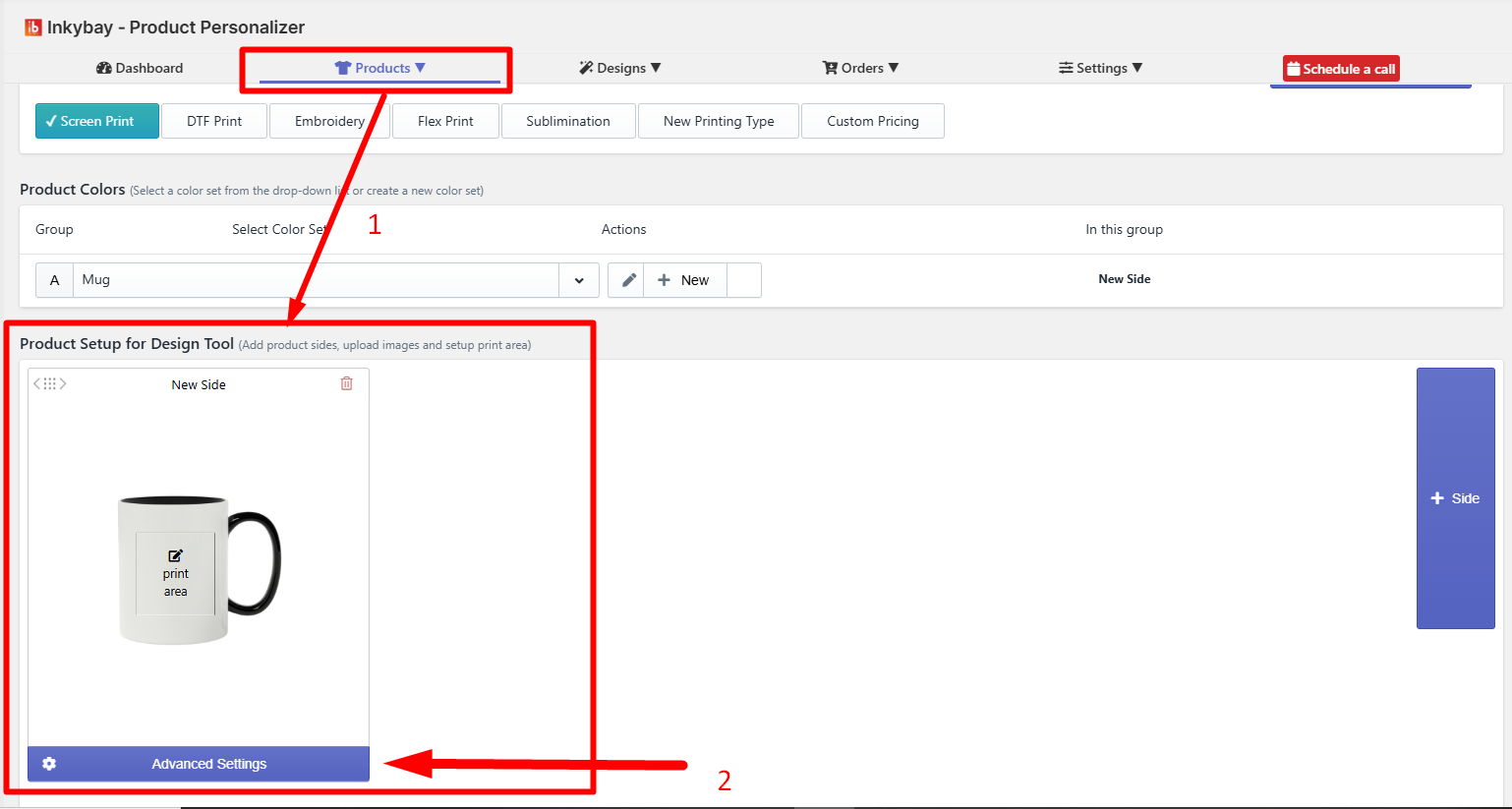
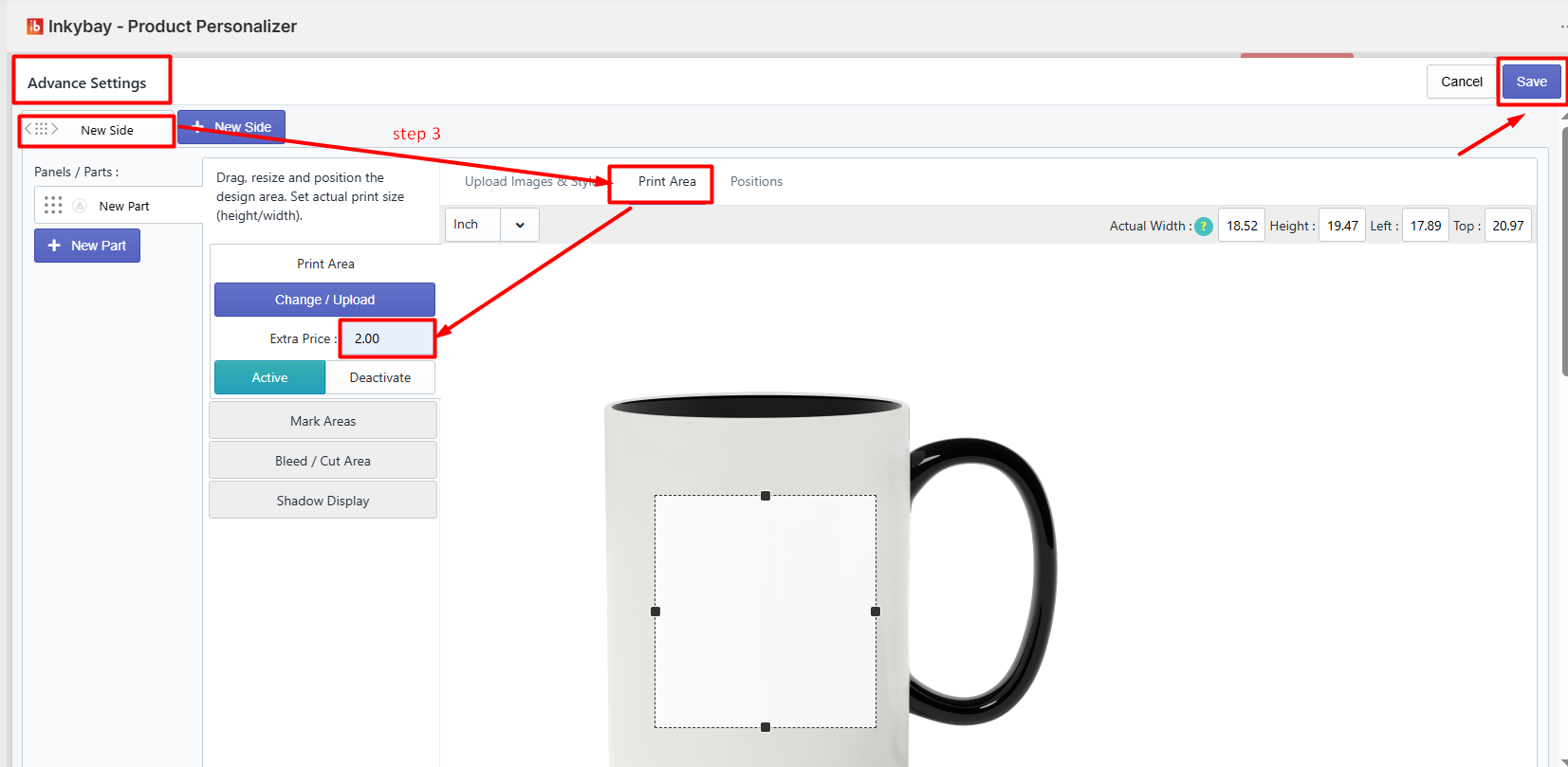
You can assign separate pricing for each print area of your product.
Print Area: Choose the specific area (e.g., Front, Back, Left Sleeve).
Extra Price: Enter the additional cost for that print area.
Save the changes.
Step 4: Styles with Dynamic Pricing Across Multiple Sides
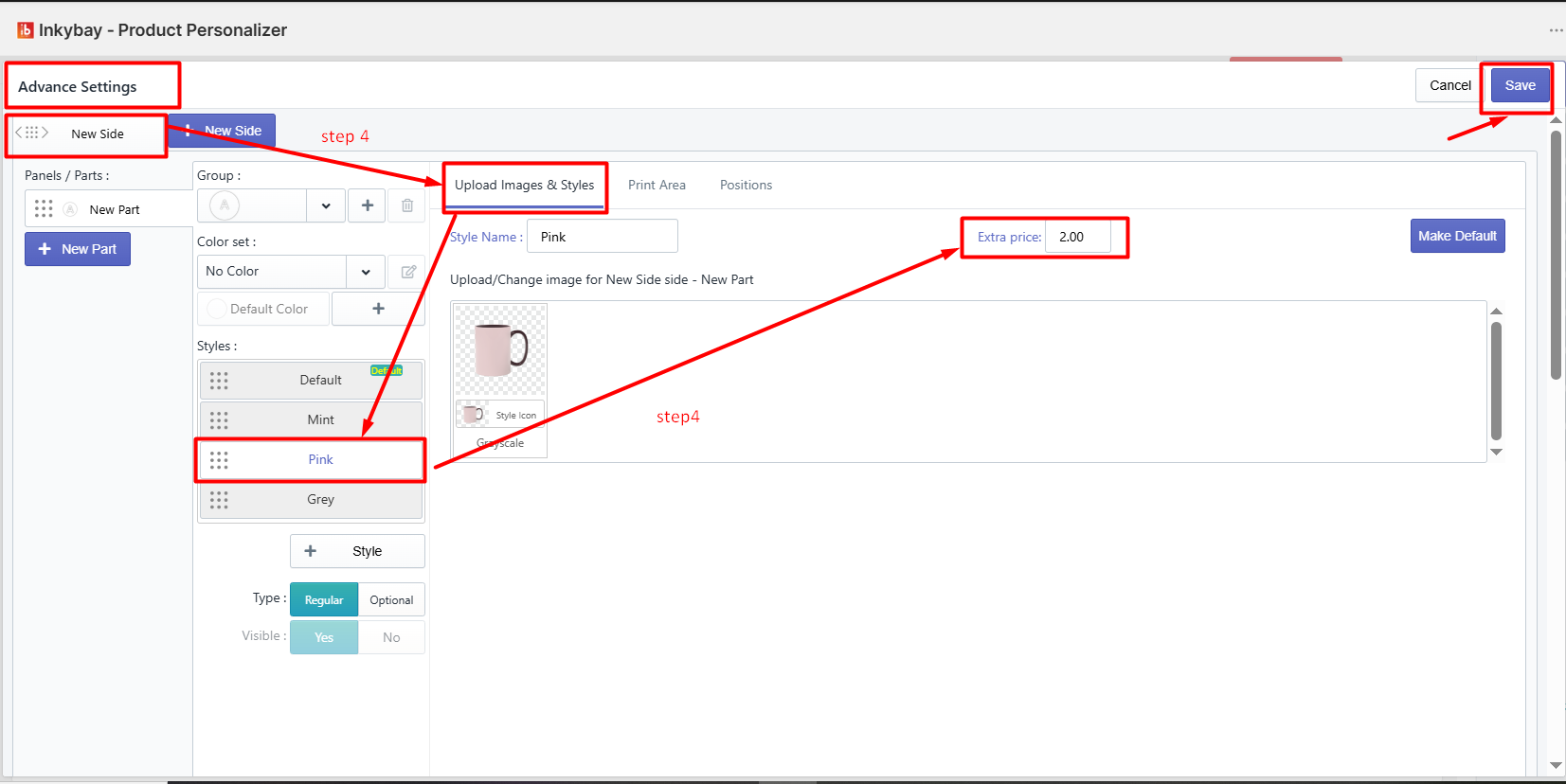
You can assign separate pricing for each side style of your product.
For each side from Upload images & styles, choose the specific style & add an extra price for that style (e.g., New side-mint).
Save the changes.
In customizable products, each print area (or side, such as Front, Back, or Sleeves) can have its own set of style options. These styles may carry different pricing depending on the side, or the same pricing across all sides, based on your product setup.
This flexibility allows you to accurately reflect real-world costs while giving customers more control over customization.
Still, facing difficulties or need help? Feel free to contact us. You can also reach us:
InkyBay app Live chat
Support ticket from the InkyBay app
Email to support@productsdesigner.com
 Getting Started
 Products
 Designs
 Templates
 Configuration
 Printing
 Orders
 Inventory Management
 Settings
 Packages
 Uninstallation
 Tutorials
 FAQ
FAQ