To restrict/limit cliparts based on printing types, go to InkyBay’s Designs >> Manage Cliparts. After that, click the Manage Categories. For more details, check out the tutorial. Or, follow the instructions below:
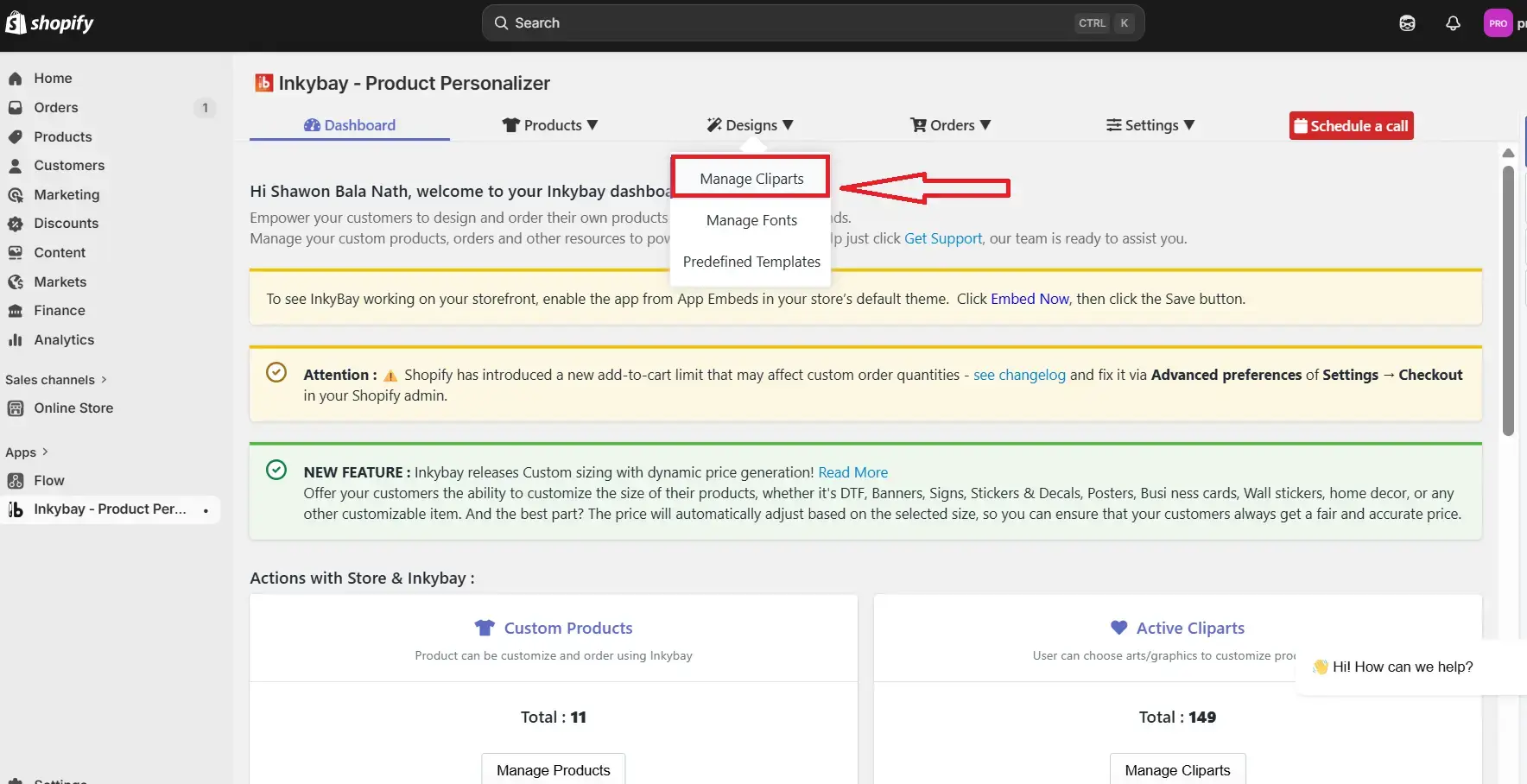
Step 1: Navigate to the Inkybay app admin, hover on “Designs” and select “Manage Cliparts”.
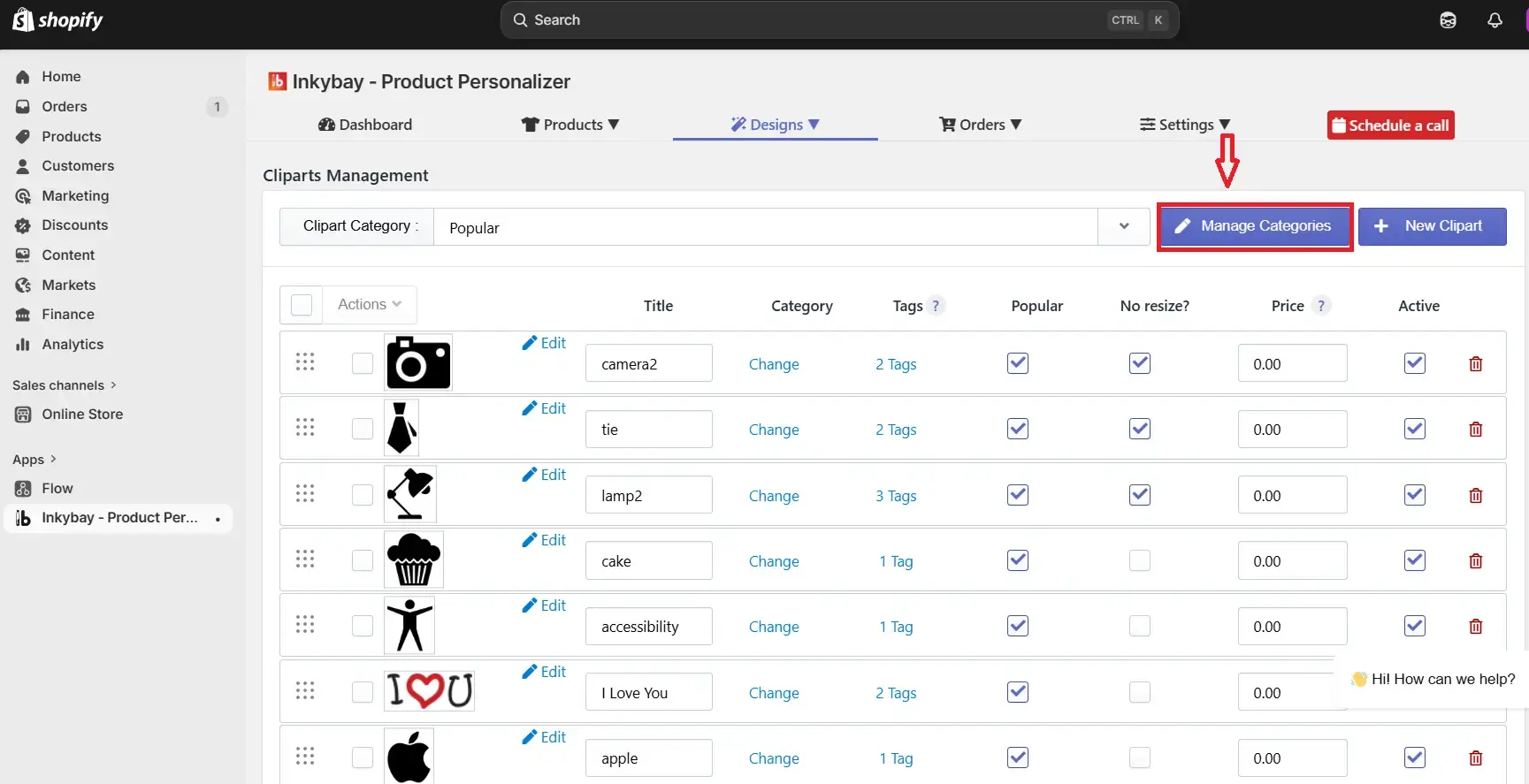
Step 2: Now, click on “Manage Categories”.
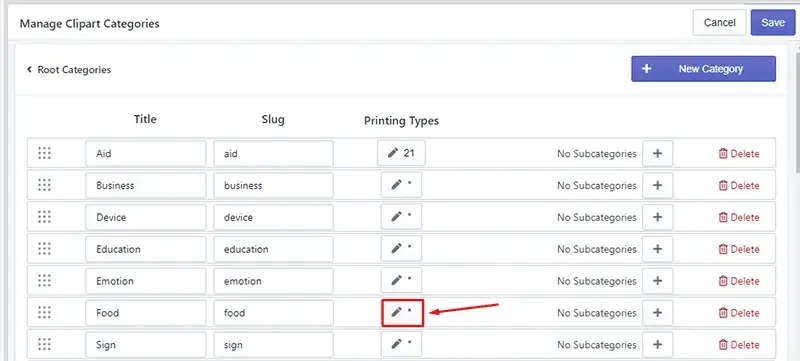
Step 3: Now, click the pen icon under the Printing Types that you want to restrict. For example, “Food.”
Step 4: Select the print types that you want to keep and unselect those that you want to restrict. After that, click the Save button.
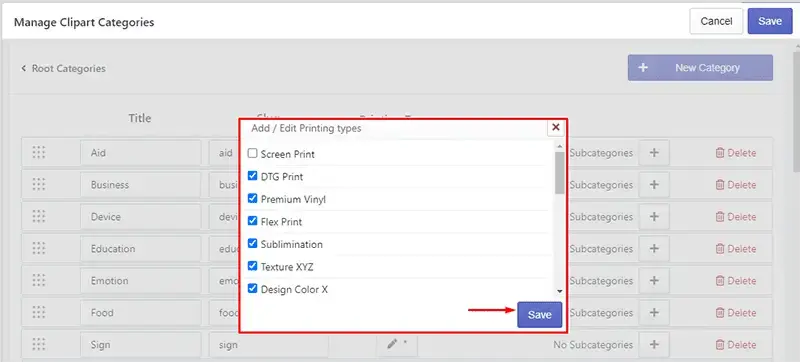
Note: If no printing type is selected, it’ll work for all printing types.
Step 5: Click the Save button within “Manage Clipart Categories” to update categories.
Now, if you go to a design lab page, then that clipart category will work based on your printing types.
 Getting Started
 Products
 Designs
 Templates
 Configuration
 Printing
 Orders
 Inventory Management
 Settings
 Packages
 Uninstallation
 Tutorials
 FAQ
FAQ