Category
 Getting Started
 Products
 Designs
 Templates
 Configuration
 Printing
 Orders
 Inventory Management
 Settings
 Packages
 Uninstallation
 Tutorials
 FAQ
FAQ 1 min to read
Last Update on 05 May 2026
How can I set a default font for my design tool when customers add custom text?
To set a default font in InkyBay for custom text, navigate to Manage Fonts within the Designs option in your InkyBay app admin, select the desired font, and check the "Default" box. For more details, follow the steps below:
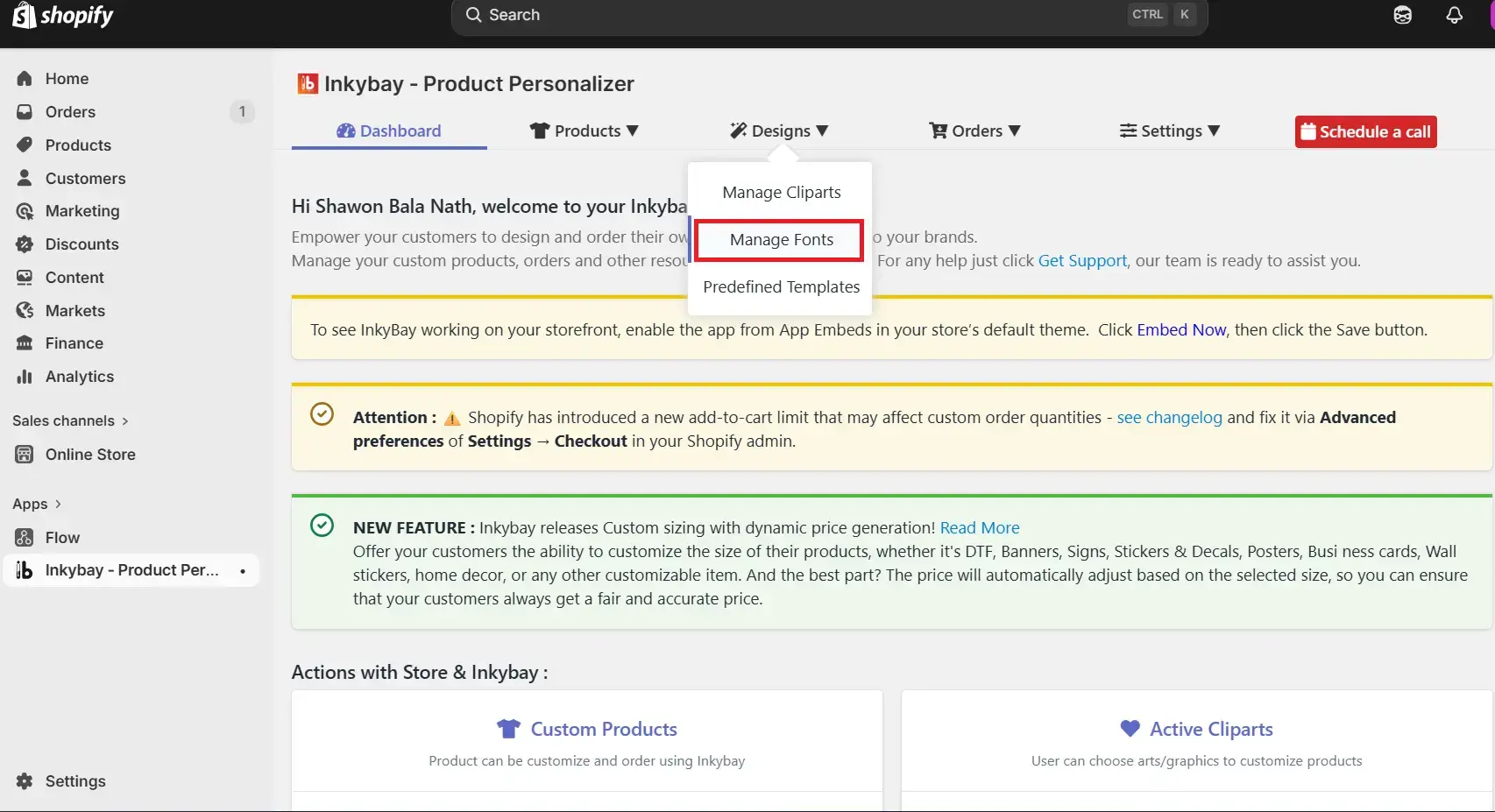
Step 1: Navigate to the InkyBay app admin, hover on “Designs” and select “Manage Fonts”.
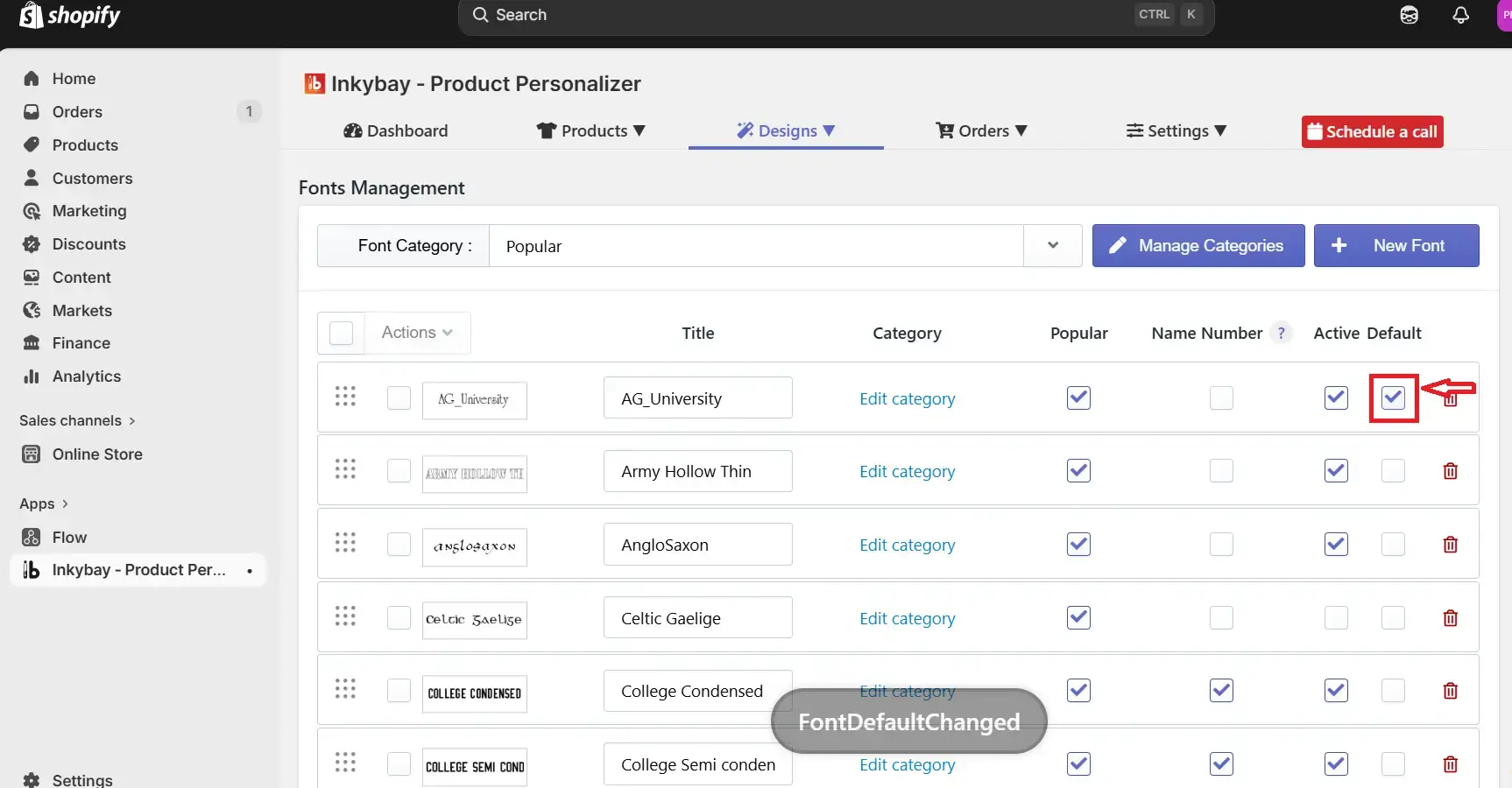
Step 2: Choose the preferred font that you want to set as the default Font and then mark (✔️) the checkbox of Default as the image below, and the Default font will be updated automatically.
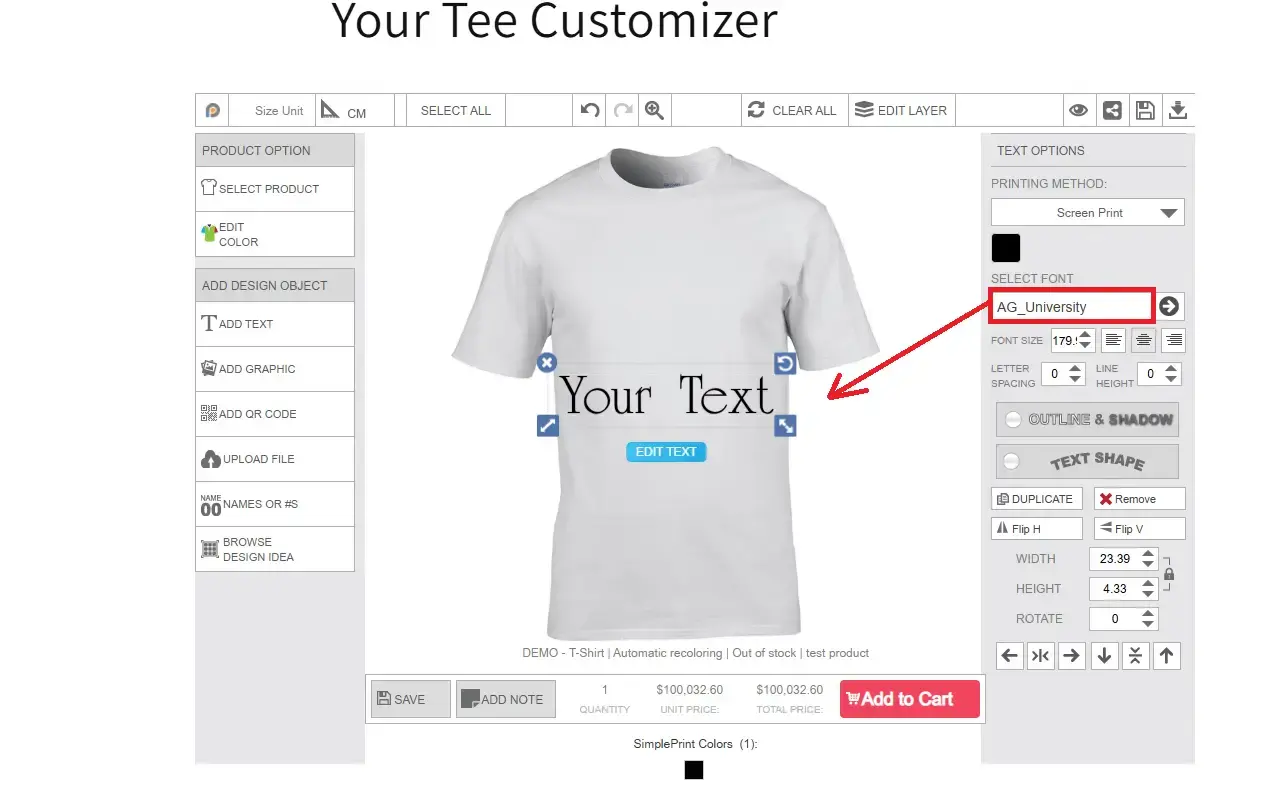
Now, in the designer tool, customers will see the default font whenever they add custom text on the product. For example, AG_University, we’ve selected the font as the default.
Did this post help you?